


Participant
September 9, 2018
Answered

Deleting multiple rejected photos

  • September 9, 2018
  • 2 replies
  • 8995 views

Can someone please help me to delete multiple photos that I have rejected.  I read in another forum that you should:

1) filter to just rejected photos

2) press Ctrl+A to select all

3) Edit>delete photo

But when I try this it is only deleting photos one at a time. 

Thanks
    This topic has been closed for replies.
    Correct answer MelissaLA88

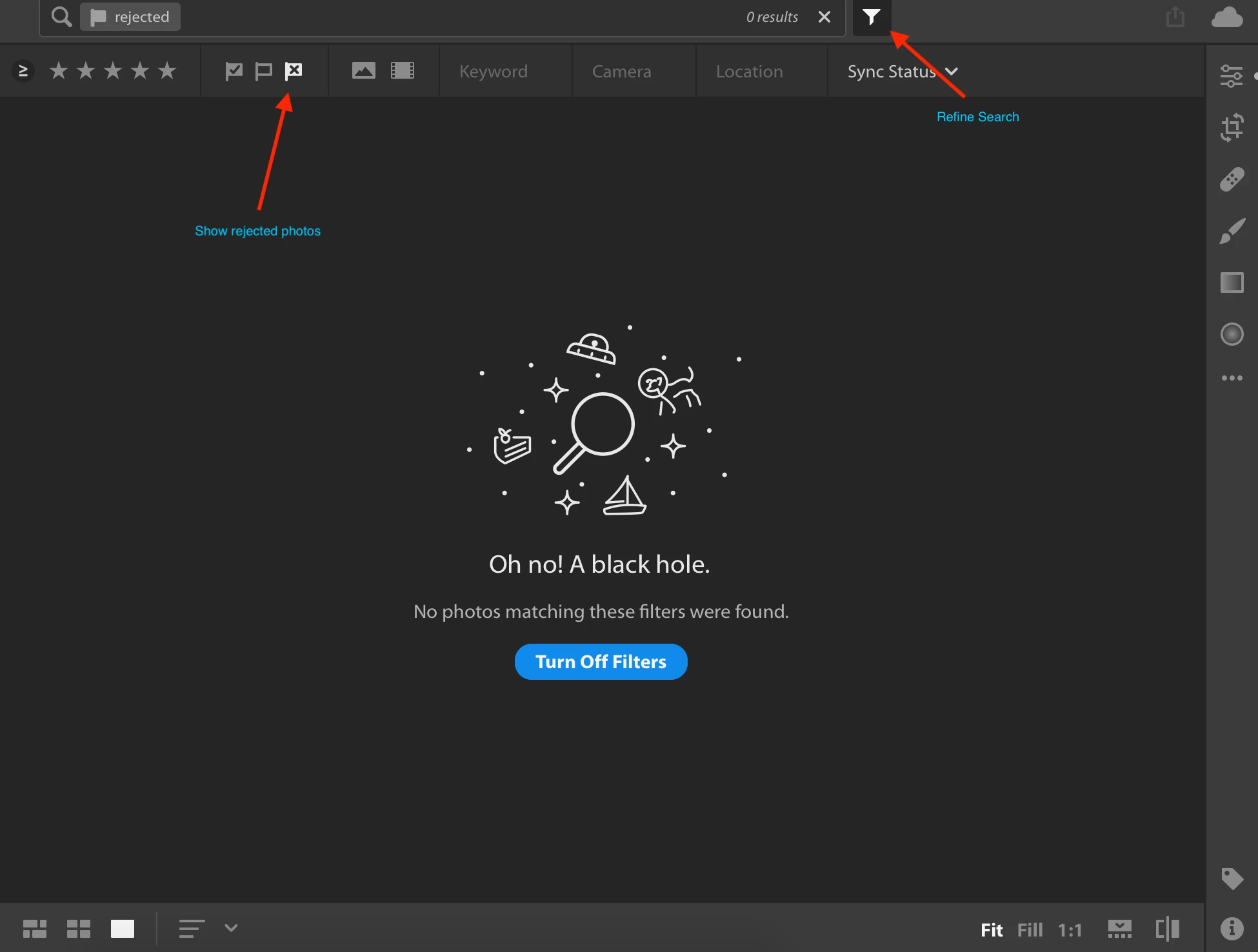
    Hi, darcy0303! To filter to just rejected photos, you need to click on the Refine Search button at the top and then select show rejected photos. Here is a screenshot to help:

    Once you're at that point, this is how I delete more than one rejected photo in Lightroom CC:

    I switch to grid view (bottom left button that you see in the screenshot above). From here, I hit Command + A on my keyboard to select all of the rejected images. After that, I right click and select Delete Photos...

    Hope that helps

    2 replies

    MelissaLA88Correct answer
    Participating Frequently
    September 10, 2018

    Hi, darcy0303! To filter to just rejected photos, you need to click on the Refine Search button at the top and then select show rejected photos. Here is a screenshot to help:

    Once you're at that point, this is how I delete more than one rejected photo in Lightroom CC:

    I switch to grid view (bottom left button that you see in the screenshot above). From here, I hit Command + A on my keyboard to select all of the rejected images. After that, I right click and select Delete Photos...

    Hope that helps

    Mohit Goyal
    Community Manager
    Community Manager
    September 10, 2018

    Thanks Melissa,

    Darcy, I gave you the information related to Lightroom Classic CC. You can follow the above information provided by Melissa for Lightroom CC- Cloud desktop app.

    Regards,

    Mohit

    Mohit Goyal
    Community Manager
    Community Manager
    September 10, 2018

    Hi darcy,

    Once you select all the rejected images then, you can delete the images in two ways.

    1. Go to Photos menu > Delete Rejected Photos

    2. Right Click on the selected images > Remove Photos

    Now, in both ways you can remove the images only from the Lightroom catalog Or delete the images from the disk as as well.

    Let us know if that helps.

    Regards

    Mohit

    darcy0303Author
    Participant
    September 10, 2018

    Thanks for the response Mohit.

    Unfortunately, there is no command 'delete rejected photos'  under the

    photos menu.  Nor is there one on the edit menu, only 'delete photo' but it

    only allows you to delete one photo at a time.

    RIght clicking on the photos, only gets me back to the command 'delete

    photo' and again I can only delete them one at a time.

    Cheers, Darcy

    Darcy Ogada

    [Personal information removed by moderator.]

    On Mon, Sep 10, 2018 at 12:47 PM Mohit Goyal <forums_noreply@adobe.com>