
Daveniedbala
Participant
August 29, 2021
Answered

Feature Request, Add preset to an Selected Images

  • August 29, 2021
  • 1 reply
  • 289 views

NEW FEATURE, Add preset to more than one Selected Images

I edit weddings pictures via the cloud and I have to add the same preset to every image. How can I not "Select All" and "Apply Preset to all. "
I was told to apply them one by one. I have 8,000 images! 
This topic is closed to new replies. Start a new post to keep the conversation going.
Correct answer Rob_Cullen

Assuming you are using Lightroom-Desktop v4.4 on a PC or Mac:

1) Apply the Preset to one photo in the Single Image 'Edit' view.

2) [Ctrl+C] to Copy the edits

3) Return to Grid View (Keyboard shortcut [G])

4) Select your 8,000 images

5) [Ctrl+V] to Paste


In Edit mode you can only 'Paste' settings to one photo. In Grid View you can paste to all photos selected.

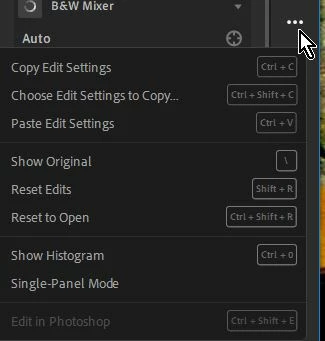
If you click on the three-dot icon in Edit mode you will see your options that also includes [Ctrl+SHIFT+C] to Copy selected Edits.


1 reply

Rob_Cullen
Community Expert
Rob_CullenCommunity ExpertCorrect answer
Community Expert
August 30, 2021

Assuming you are using Lightroom-Desktop v4.4 on a PC or Mac:

1) Apply the Preset to one photo in the Single Image 'Edit' view.

2) [Ctrl+C] to Copy the edits

3) Return to Grid View (Keyboard shortcut [G])

4) Select your 8,000 images

5) [Ctrl+V] to Paste


In Edit mode you can only 'Paste' settings to one photo. In Grid View you can paste to all photos selected.

If you click on the three-dot icon in Edit mode you will see your options that also includes [Ctrl+SHIFT+C] to Copy selected Edits.


Regards. My System: Windows-11, Lightroom-Classic 15.4.1, Photoshop 27.8, ACR 18.4, Lightroom 9.4, Lr-iOS 10.4.0, Bridge 16.0.3 .