


koraapbt
Participant
March 3, 2023
Answered

Folder structure from hard drive

  • March 3, 2023
  • 1 reply
  • 345 views

How do I automatically associate the folder name of the file on my external hard drive with the file as I am adding to LR?


I have all my photos stored on an external hard drive.  I know, I'm old school.  They are stored in a folder structure with the first level named by events like "Florida Trip 2018".  The folders have meaning to me and I want to be able to search or navigate by them.  I have tried several different angles but I can't find any way to automatically carry over these designations with the photos when adding to LR.  If I could find a method to make "Florida Trip 2018" an album, tag, folder, keyword, metadata of any sort within the importing process, I would.  I realize I could manually add the album/tag/keyword to every group of photos as I import them, but that would take many hours and there would be no connection to my hard drive if I decided to move photos to a different "folder"


After scouring the community forum for a solution, it appears that most previous versions of LR could refer to the folder on the drive where the file is stored, but not this current version I just subscribed to and downloaded. It says Lightroom 6.2 but looks different than some other 6.2 screenshots I have seen which appear to go back several years.  I am using Windows 10. I currently have these photos in an Elements 2018 catalog where I can see my folder structure.


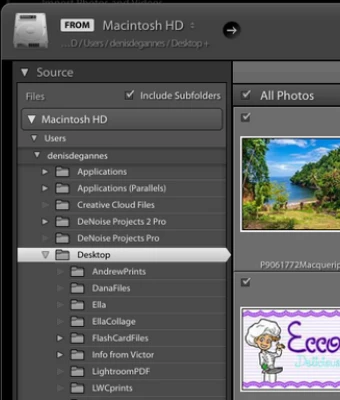
My LR does not have this but it seems like what I am looking for:


This topic has been closed for replies.
Correct answer Jim Wilde

You've selected the wrong version of LR to use. There are currently TWO different versions of Lightroom:


1. There's the cloud centric version, called Lightroom, which is a series of apps for different platforms (desktop, mobile, browser), all connected to a master cloud-based account. With Lightroom, all images are stored in the cloud, and any connection to your original hard drive folders is lost after they are importted and uploaded to the cloud. The desktop version is currently at 6.2.


2. Then there is Lightroom Classic, which is the latest iteration of all those previous versions that you mention. LrC is still current, is still updated regularly, and is currently at version 12.2. Images in LrC are totally local hard-drive based (it can also sync to the cloud, but the image storage is always local)....thus with this version you can import your carefully named folders and have the names retained.


To use LrC you need the Photography Plan subscription, which also includes Photoshop, Lightroom cloud-based, cloud syncing, and other bits.


If you purchased the Lightroom-only subscription plan, I suggest you speak to Adobe directly to get your subscription changed.

1 reply

Jim Wilde
Community Expert
Jim WildeCommunity ExpertCorrect answer
Community Expert
March 3, 2023

You've selected the wrong version of LR to use. There are currently TWO different versions of Lightroom:


1. There's the cloud centric version, called Lightroom, which is a series of apps for different platforms (desktop, mobile, browser), all connected to a master cloud-based account. With Lightroom, all images are stored in the cloud, and any connection to your original hard drive folders is lost after they are importted and uploaded to the cloud. The desktop version is currently at 6.2.


2. Then there is Lightroom Classic, which is the latest iteration of all those previous versions that you mention. LrC is still current, is still updated regularly, and is currently at version 12.2. Images in LrC are totally local hard-drive based (it can also sync to the cloud, but the image storage is always local)....thus with this version you can import your carefully named folders and have the names retained.


To use LrC you need the Photography Plan subscription, which also includes Photoshop, Lightroom cloud-based, cloud syncing, and other bits.


If you purchased the Lightroom-only subscription plan, I suggest you speak to Adobe directly to get your subscription changed.
