or is the Adobe Cloud Sync not actually a real Cloud Sync system? Where it still depends on the files being present on one local source?
Lightroom is exactly that, a full cloud sync system with the source on the cloud. The desktop, mobile, and web Lightroom apps and all simply clients that temporarily cache and sync copies of the cloud source file.
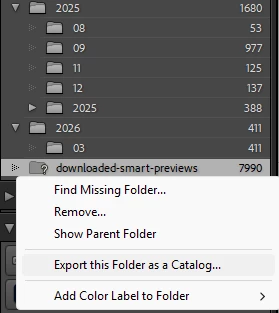
But from the Adobe point of view, Lightroom is not Lightroom Classic, and that’s the catch: It doesn’t work that way for Lightroom Classic. As Jim said, any files uploaded from Lightroom Classic are Smart Previews only. Lightroom Classic never uploads a full resolution original source file.
The reason for this is based on how Lightroom Classic was originally developed in the pre-cloud era in 2007: As a traditional application where the source file is always local. When they tried to adapt it to fit in their new cloud, they couldn’t pull Lightroom Classic away from its “source is always local” architecture. Therefore it has always been important for us Lightroom Classic users to take full responsibility for the integrity and backups of our locally stored original source files.
When they later developed cloud Lightroom in parallel to provide a fully cloud-based solution, the architecture was the opposite: “source is always cloud.”
So every original of yours that entered the cloud from Lightroom desktop. mobile, or web apps should be the full resolution original, but any image synced up from Lightroom Classic will only ever be a Smart Preview.
(For context, Apple had their Aperture photo application, which like Lightroom Classic was designed in the 2000s as a local-first raw processor and organizer. When the cloud happened, Apple took a different approach: Deeming it impractical to overhaul the Aperture code base for full cloud compatibility, they discontinued Aperture and committed fully to the cloud with Apple Photos. So you might see Lightroom Classic as a sort of compromise: Although its architecture is unable to fully participate in the cloud, Adobe kept it around for everyone who still wanted a local-first workflow.)




 AdChoices