
Thomasjcolbert
Known Participant
December 25, 2018
Question

Help with storage for Lightroom.

  • December 25, 2018
  • 2 replies
  • 993 views

Hi Guys,

Ok, so I'm confused here. I have LRCC on my iPad, MacBook Pro, iMac and iPhone. I have LRClassic CC on my MBP and iMac. I have been uploading pictures VIA my iMac (I don't have usb-c cables yet for the iPad and MBP). I have been using my CF reader and uploading right to LR cloud. So first question is, is everything on the cloud? Nothing is stored locally? I know I have space taken up by Lightroom catalogs. My Lightroom on MBP also has LR catalogs and they are 60 gig or so. I want the storage back, if I can.  I thought it's just using the cloud storage only, that I'm paying for. What are the catalogs for then?

Is it bad having both versions of Lightroom on my iMac and MBP? I can't export full size using LRCC as far as I know and it lacks some tools. Please let me know if I'm wrong. I know the iPad version only exports small 1.5 - 2 meg files.

I'm used to the old way of having it on the HD and importing to LR Classic. When I connect to LRCC and upload, where are these pictures going? When I edit pictures and save them, is it all on the cloud? Can I keep them off my computer to save HD space? Which brings me next to the next question.

Do I need local storage if I'm using the cloud service? None of these boxes are checked off below in the picture, so does that mean nothing is being stored anywhere? I have a 1T HD that's external, I can use. But again what is the point of using it if I'm paying for cloud storage? I'm so confused on this stuff. Can I move the Catalogs to this HD without messing it all up?
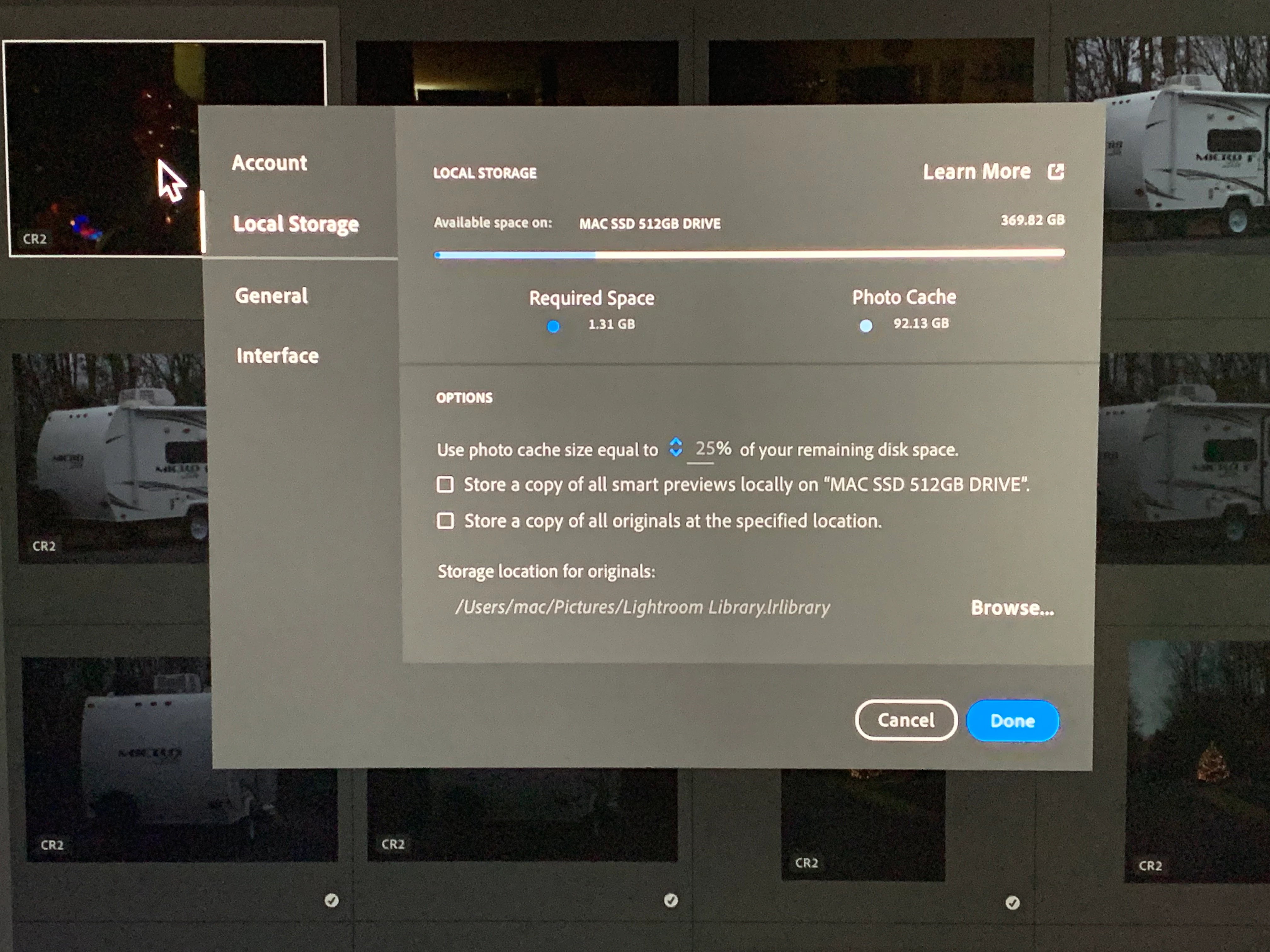
    This topic has been closed for replies.

    2 replies

    Known Participant
    December 25, 2018

    thomasjcolbert  wrote

    I can't export full size using LRCC as far as I know

    You can export full size from LRCC. If it doesn't store originals locally it will download from the cloud. This applies to iPad and iPhone as well.

    Thomasjcolbert
    Known Participant
    December 25, 2018

    Hi Micheal,

    How is this? I can't get them over 1-2MB? However the desktop can export 7-8MB as well as classic CC. If I say lets say export from iPad to my website, I can only get 1-2MB files at the "max settings" What setting is there to change?

    Known Participant
    December 25, 2018

    Thomasjcolbert  wrote

    Hi Micheal,

    How is this? I can't get them over 1-2MB? However the desktop can export 7-8MB as well as classic CC. If I say lets say export from iPad to my website, I can only get 1-2MB files at the "max settings" What setting is there to change?

    OK I'm going to have to back off on this....just did some tests with a jpeg file taken on my Sony digicam:

    File downloaded to desktop with Finder via a card reader 13.6MB

    File exported as "maximum available" from LRCC on Desktop computer 8MB

    File exported as "maximum available" from LRCC on iPhone 4.4 MB

    File exported as "export original" from iPhone 13.6MB.

    When exporting from the iPhone it said it was "downloading" as I said previously.

    Another test showed that the "export original" does just that, without edits, as expected.

    Sorry for misinformation....maybe someone else can explain how LRCC works in this respect.

    It seems the iPhone is capable of downloading and exporting the full 13.6MB unedited original, but exports edited versions at a smaller size, both Desktop and iPhone, more so from the iPhone.

    Jim Wilde
    Community Expert
    Community Expert
    December 25, 2018

    OK, a couple of things you need to know/understand:

    1. LRCC on desktop maintains a "Local Library", containing catalog and previews and other stuff. That by default is placed (on Mac) in the user Pictures library, and cannot be changed (though apparently some users have worked around that by using symlinks). The local library is subservient to the master catalog which is held on the Adobe Servers in the cloud.....so if you delete the local library, or lose it through a drive crash, the next time you login to LRCC on that system it will be recreated from the cloud version.

    2. You CAN set a different location for any locally stored originals, and that can be on any connected drive or NAS.

    3. When you import directly into LRCC, those imported files are first copied into the "originals" sub-folder which, with your current settings, would be inside the local library on your system drive. They are first copied there so that LRCC has them safe pending the subsequent slow upload to the cloud.

    4. So....all originals that you import directly into any of the LRCC apps, no matter which device, are uploaded and stored in the Adobe cloud. What happens on the desktop systems varies depending upon the settings in the Preferences>Local Storage tab. If you do NOT have "Store a copy of all originals..." checked, then the only originals which are initially written to that location will be those imported directly into LRCC on that desktop system. Once the upload to the cloud is complete, those locally stored originals become eligible for deletion....but that deletion does not necessarily occur immediately. Deletion timing depends on various factors, so they may hang around for months.....but you have some control to ensure it doesn't impact the free space on the drive.

    5. Of course, many users feel uncomfortable with not keeping a local copy of all their originals as well as having them stored in the cloud. So a fairly typical arrangement would be to have "Store a copy of all originals...." checked, AND the location specified on an external drive. In that situation ALL originals would be stored there, even those imported via mobile devices, and any existing originals in the local library would also be moved to the new location as soon as you specify it.

    6, Having LRCC on both your iMac and MBP is OK, though you probably don't need BOTH of them storing a local copy of all originals. You might consider perhaps having one with all originals stored locally, with the other just having the Smart Previews option enabled (though they are stored in the local library).

    Thomasjcolbert
    Known Participant
    December 25, 2018

    Hi Jim,

    That is a lot to take in lol. I'm trying to read through all of it. Number 1 is the important one for me it seems. So, there is no way around this without honky stuff lol. I'm fine with the local being stored if there really no other option. Can I move this folder to my external HD now? I don't want to crash everything. Is that the LRIcrat folder I see? Theres  60gig on that alone.

    Second, the MBP pro is also saving the same pictures to its own HD being its a Mac and it needs a local place? Basically, I'm saving 2 sets of these pictures it seems, one on each HD of each Mac. your saying I can setup to have the iMac lets say to save full images in my HD and smart previews from the MBP on the same HD?

    Do I need to do these settings for both LRCC and LRCLassicCC? Am I saving pictures 2 times on each computer lol? I basically, just want these pictures on the cloud and maybe saved to the HD one time. But I guess it can't be like that it seems. The iPhone and iPad, those are only saved on the cloud correct, as you said?

    I'll see what you reply with. I really appreciate your information!

    Jim Wilde
    Community Expert
    Community Expert
    December 25, 2018

    Paragraph 1: There is no local relationship between the Classic environment (catalog, previews and image files) and the LRCC desktop app's environment if both are installed and running on the same system. The Classic catalog and previews cache (i.e. the Lightroom Classic catalog folder) CAN simply be moved to a different drive (but not a  network drive) if you want to free up space on the current drive. Not so the LRCC local library....as I have already mentioned that must be on the local system drive unless you hack it via use of a symlink.

    Paragraph 2: Each instance of the LRCC desktop app will require a "Local Library", so some duplication is unavoidable (e.g. catalog and previews caches) as they both link to the one master catalog in the cloud. However, you can avoid almost all duplication of the original image files on the local system by careful use of the options on the LRCC Preferences>Local Storage tab. For example, if you want to maintain at least one full local copy of the entire cloud-stored originals, then choose one of the systems and enable that "Store a copy of all originals" option, but first set a different drive for the location for storing those images. On the second system, make sure that option is unchecked, but if you have the space on the local system drive you could enable the option to "Store a copy of all Smart Previews", which would help performance when opening images. Note, however, that some duplication of storing originals is likely to occur, as when you open an image in LRCC the original will be downloaded and used if it's not already locally stored....so if you look at the same image on both LRCC systems, you'll get the same original file locally stored on both systems. They will be deleted again over time, however.

    Paragraph 3: Using Classic AND LRCC on the same system can indeed lead to further duplication of locally stored images. For example, if you import a card full of images into LRCC, those images are initially stored in the LRCC "space" (either in the local library or in the alternate location if one is specified). After those images upload to the cloud, and if the LR Classic's catalog is sync-enabled, all those new images will immediately download into the Classic catalog and will be stored in the local system as determined by the Classic Preferences>Lightroom Sync tab. So in that situation, yes those new imports are now duplicated on the local system (and neither application, Classic and LRCC, is aware of the other's set of files).

    It should be pretty clear by now that you need to get a full understanding of the implications of this.....it's difficult enough with just Classic and LRCC on one system, but introducing a second system into the mix makes it even worse. Think it through before deciding how you want to organise things, and which applications you intend to use.