
Participating Frequently
September 6, 2021
Answered

How do I get ALL my originals in the Creative Cloud?

  • September 6, 2021
  • 2 replies
  • 520 views

At the end of 2019 I switched from Lightroom Classic to Lightroom CC.

In another post on this forum I read that Lightroom Classic only syncs smart previews to the cloud, not original files. A download I ran recently seems to confirm this: smartpreview.dng files for the period before the switch, and DNG and RAW files for the period after the switch.

So I conclude Adobe’s Cloud contains only smart previews for the period before I switched form Classic to CC.


That photos from my Classic period all have a DNG badge in Lightroom CC's grid view confuses me though.


What actions should I take to upload the full size DNG and RAW files from before the switch, now residing on my local HD?

And won't it confuse the software / cloud because it already contains smartpreviews for those?


Thanks!
This topic has been closed for replies.
Correct answer Charlie.D

Hi @richardk3000 

"is how you verify that the originals are available in cloud storage, right?"

Correct. This will hopefully show that the original image you have uploaded has been matched up with the smart preview LR Classic has previously synced to cloud storage.


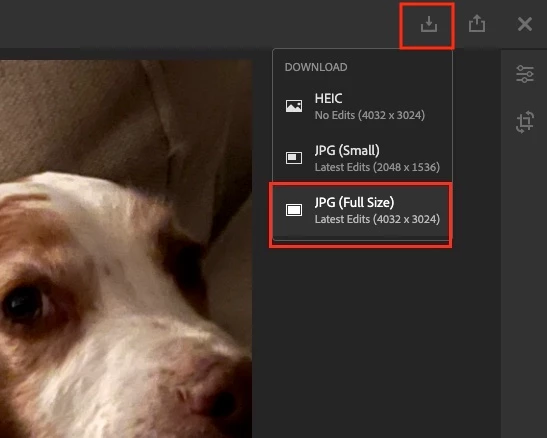
In my own LR Web screenshot here, I am showing the export options for this iPhone image I imported using the mobile app.  I see I can download the original HEIC or a full size JPG rendition with edits.  I hope after you import & sync an original image that already exists in cloud storage as a LR Classic smart preview, you will subsequently see the full size image available in this same LR Web view.


2 replies

Community Manager
September 7, 2021

@richardk3000 

Assuming you still have access to the original photos, can you try the following:

  • locate a couple which match up to images Classic imported (for which only Smart Previews are currently available
  • try importing them into Lightroom CC (not the Classic app)
  • after import, verify that the originals are now available in cloud storage
    • sign into your same account in a web browser at lightroom.adobe.com, and see if you can export the original or a rendition at the same dimensions as the original.


...The point here is I think LR CC should be able to import originals for existing photos and sync them to cloud storage without adding them as duplicate images.  This will spare you the effort of trying to migrate your old LR Classic catalog.  If my suggestion doesn't help, then please do try migrating the old catalog as Johan kindly suggested.

Participating Frequently
September 7, 2021

Thanks Charlie, I'm going to try that. The 'export using a browser' action is how you verify that the originals are available in cloud storage, right?


Charlie.DCommunity ManagerCorrect answer
Community Manager
September 7, 2021

Hi @richardk3000 

"is how you verify that the originals are available in cloud storage, right?"

Correct. This will hopefully show that the original image you have uploaded has been matched up with the smart preview LR Classic has previously synced to cloud storage.


In my own LR Web screenshot here, I am showing the export options for this iPhone image I imported using the mobile app.  I see I can download the original HEIC or a full size JPG rendition with edits.  I hope after you import & sync an original image that already exists in cloud storage as a LR Classic smart preview, you will subsequently see the full size image available in this same LR Web view.


JohanElzenga
Community Expert
Community Expert
September 6, 2021

What you should have done, and still can do is migrate the Lightroom Classic catalog to the cloud, using Lightroom desktop. It's under the 'File' menu of Lightroom desktop.


-- Johan W. Elzenga