
RichTphoto
Participant
February 20, 2021
Answered

How do I manually adjust amount I can flatten the curve for dark areas?

  • February 20, 2021
  • 2 replies
  • 426 views

Hi Adobe Friends,

I am enjoying using the preset that comes with Lightroom called 'lift shadows', this takes the start of the dark info of the curves and raises it by about a centimeter on the graph. It creates that flat shadows look. I would like to be able to adjust the amount it raises the shadow lift. When you move the slider it just lifts the shadows up or down from the start point but I can't find a way to influence where the start point of the lift begins.

I would like to influence this start point as the 'lift shadows' preset sometimes lifts it too much and introduces to much noise in dark areas at higher ISO's. Any help in this regard would be appreciated.

Rich 
 

This topic has been closed for replies.
Correct answer Rob_Cullen

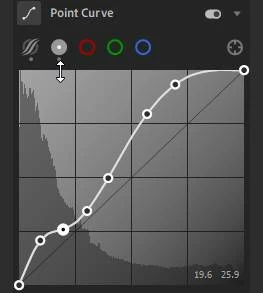
Select the 'Point Curve' (click on the white circle) and you can add as many points as you want to change the curve as you want.

2 replies

JohanElzenga
Community Expert
Community Expert
February 20, 2021

Yes, you can adjust the starting point of the sliders in the parametric curve. You do that by moving the small triangles.


-- Johan W. Elzenga
RichTphoto
Participant
February 23, 2021

Thank you for your reply Johan. I will play with the small triangles and get to know what influence they have. Have a great day.

Rob_Cullen
Community Expert
Rob_CullenCommunity ExpertCorrect answer
Community Expert
February 20, 2021

Select the 'Point Curve' (click on the white circle) and you can add as many points as you want to change the curve as you want.

Regards. My System: Windows-11, Lightroom-Classic 15.0, Photoshop 27.0, ACR 18.0, Lightroom 9.0, Lr-iOS 10.4.0, Bridge 16.0 .
RichTphoto
Participant
February 23, 2021

Thank you WobertC, that worked great. I was on Lightroom 2019 and had to upgrade to 2020 and then could see this option. Now I can make a ISO adaptive flatten curve preset.

Much appreciated!