


How do I prevent mobiledownloads.lrdata folder from populating ?
Hi everyone,
I'm hoping for some insight into an issue I experienced where the mobiledownloads.lrdata folder that lives in the Lightroom folder on my computer's hard drive (alongside my Lightroom catalog) auto-populated without me realizing it. For context: I recently ran out of room on my computer's internal hard drive (I have a Lenovo ThinkPad that runs on Windows 11), so I purchased a NAS and moved all of my photos from my computer to the NAS. To do so, I followed the instructions in this video and made sure to clean up all of my folder connections in Lightroom Classic (LrC) before copying the folders to the NAS in Windows Explorer. After I copied the photos, I reset the folder connections in LrC to route to the new folders on the NAS (the folder structure on my NAS is the same as it was on my computer). By the time I was finished with this process, the "Folders" panel on the left side of my screen in LrC only showed the folders and folder structure that now existed on my main NAS drive, which I labeled "Photography". I was also able to configure my NAS so that I can edit photos that live on the NAS both when I am at home and when I am away. This is worked well for the most part, with some minor speed issues at times.
A few days ago, however, I noticed that some new folder connections had appeard in the "Folders" panel in LrC. Several of the folders were labeled "Mobile Downloads" and one was labeled something like "[My Name]DesktopHQ" or something like that (forgive me for forgetting the name, the folder is now deleted and I can't remember it exactly). The drives that these folders appeared under were my current phone (Google Pixel 10), two of my old phones (a Google Pixel 7 and 5a), and one "Other Lightroom Device."
I clicked "Show in Explorer" on the new folders in the LrC "Folders" panel, and I discovered that they all existed in the mobiledownloads.lrdata parent folder. Since copies of all the images in the mobiledownloads.lrdata folders already existed on my NAS, I initially just deleted all of them thinking that I could reconnect the smartpreviews in LrC to the correct files on my NAS. This ended up removing the images from Lightroom altogether, so I restored them from the Trash in regular Lightroom and decided to re-connect the problem images to the proper files on my NAS before deleting them again. I did this by renaming the folders housed within mobiledownloads.lrdata, which prompted LrC to allow me to relocate the images they contained. This was time consuming (I had to relocate about 1500 images), but it worked. My "Folders" panel in LrC now looks like it did right after I finished copying my photos to my NAS (see screenshot below). However, I'm worried that something similar might happen again. Does anyone know how I can prevent the mobiledownloads.lrdata folder from populating in the future?
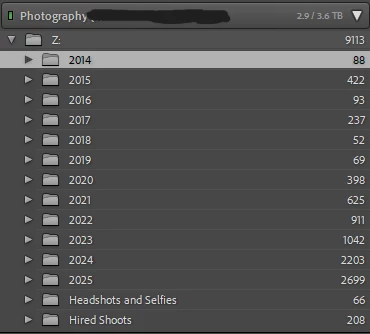
A few additional details: The photos that ended up in the mobiledownloads.lrdata folders were primarily older ones, mainly from 2014 through the first half of 2022. Looking into how to solve the issue, I've gathered that the mobiledownloads.lrdata folder exists as a sort of repository for photos that are uploaded to the Lightroom cloud from your phone and then downloaded to your computer the next time you run a sync in the desktop version of Lightroom or LrC. Strangely, however, almost all of the photos that ended up in the mobiledownloads.lrdata folders were not shot on my phone. They were uploaded from my camera directly to my computer and did not live anywhere else until I moved them to my NAS. I occasionally make small edits to my photos using Lightroom Mobile on my phone before posting them on social media, so is it possible this is tricking Lightroom into thinking that the images live on my phone instead of my NAS, causing it to create new folder connections that route to mobiledownloads.lrdata? This would explain some of the issue. However, there were other photos in the mobiledownloads.lrdata that I haven't looked at or edited in years on any device.
Some poeple have noted that checking the box in LrC sync preferences that says "Specify location for Lightroom's Synced images" can allow you to make it so images downloaded from the Lightroom cloud are stored somewhere other than your computer's hard drive. However, I'm not so much concerned with saving space on my hard drive as I am with staying organized. I would prefer not to have a bunch of random photos in lightroom connected to some extraneous folder that exists outside the folder structure I've set up on my NAS, even if that extraneous folder lives on my NAS instead of my hard drive. Ideally, I would like my photos in Lightroom to remain connected to the same RAW files that exist in my current NAS folder structure. Is there a way to do this? Or is it possible that something about the NAS itself is causing the issue described above to occur?

 AdChoices