Monipita
Participant
January 4, 2021
Answered

How do I remove histogram from Lightroom mobile

  • January 4, 2021
  • 2 replies
  • 10596 views

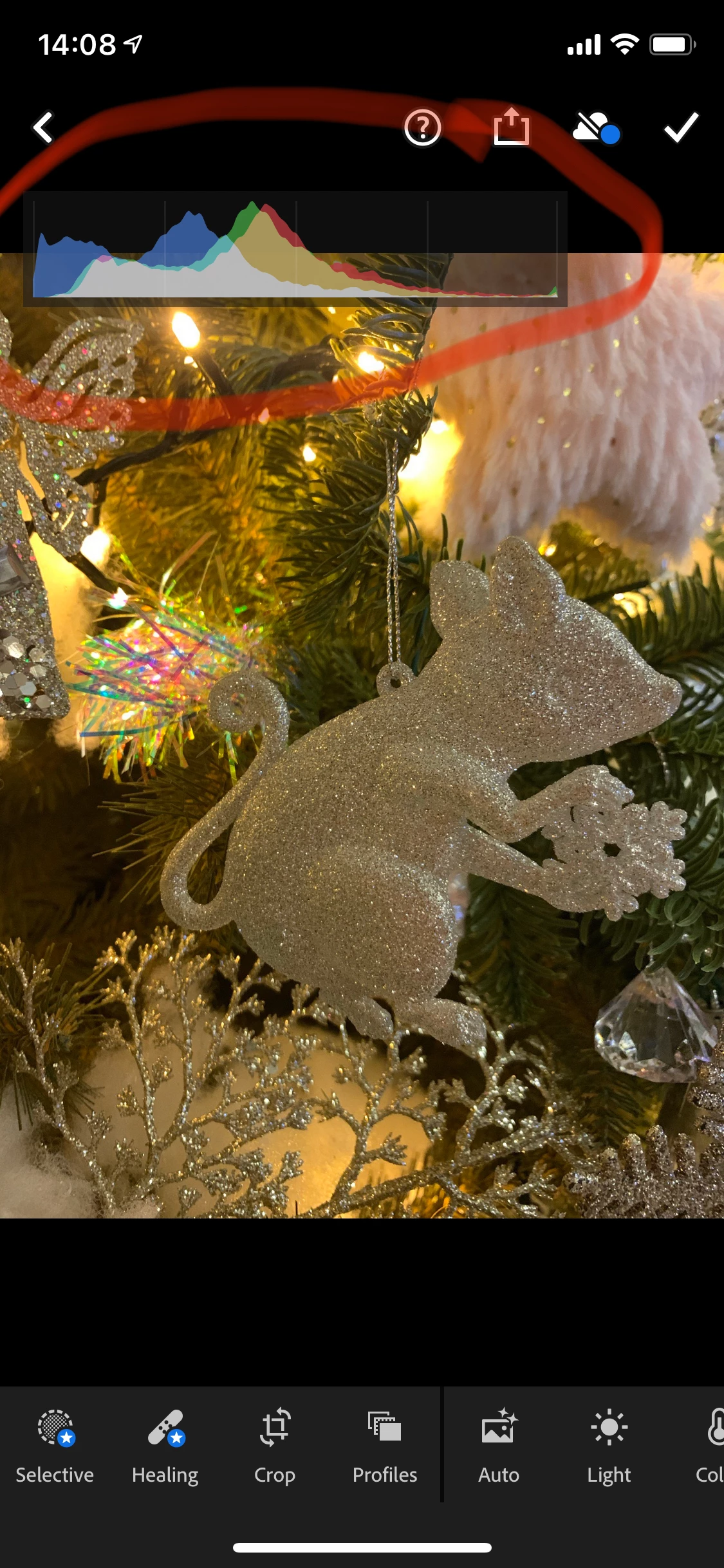
 How do I remove this diagram? 

This topic has been closed for replies.
Correct answer Akash Sharma

Hi there,


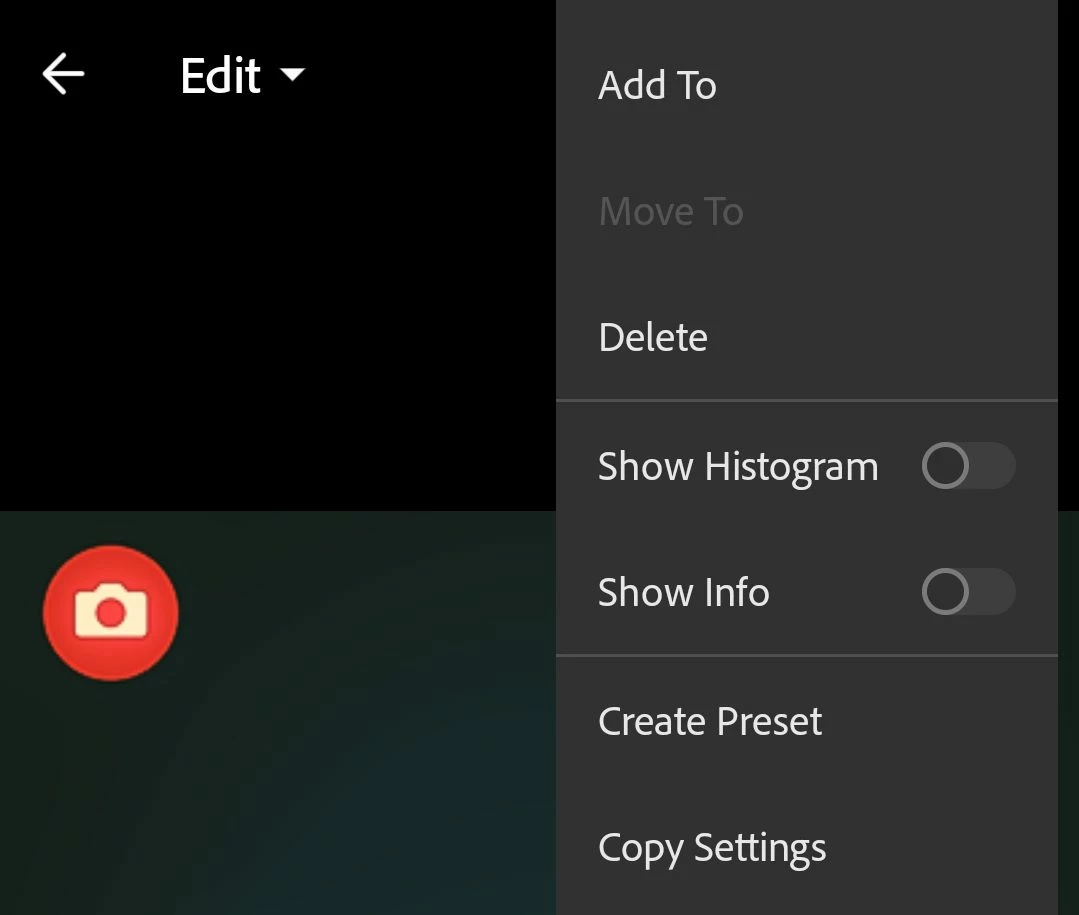
Please select the three dots on the top right and turn off "Show Histogram" option.


To bring up the Histogram again of a photo in the Loupe view, tap three dot icon at the upper-right corner and enable Show Histogram option from the menu that appears. You can now observe the Histogram as you adjust the tone controls.


 

Let us know how it goes.


Thanks,

Akash

2 replies

Akash Sharma
Akash SharmaCorrect answer
Legend
January 5, 2021

Hi there,


Please select the three dots on the top right and turn off "Show Histogram" option.


To bring up the Histogram again of a photo in the Loupe view, tap three dot icon at the upper-right corner and enable Show Histogram option from the menu that appears. You can now observe the Histogram as you adjust the tone controls.

 

Let us know how it goes.


Thanks,

Akash

Monipita
MonipitaAuthor
Participant
January 5, 2021

Yay, it worked. Thank you very much! 

Rob_Cullen
Community Expert
Community Expert
January 5, 2021

A TWO-FINGER tap on the image will toggle the "diagram" in three modes- Histogram <> Information <> Off.

The Histogram is a graphical indication of tones and exposure of the image.


Regards. My System: Windows-11, Lightroom-Classic 15.3, Photoshop 27.5, ACR 18.3, Lightroom 9.3, Lr-iOS 10.4.0, Bridge 16.0.3 .
Monipita
MonipitaAuthor
Participant
January 5, 2021

OMG the solution is so easy. Thank you very much!!!