You have bought them and downloaded.
For Lr-DESKTOP (Lightroom v9.1) on a Mac or PC and XMP presets:
1) Click on the Presets icon to open the Presets panel
2) Click on the three dots icon [. . . ] and [Import Presets...]
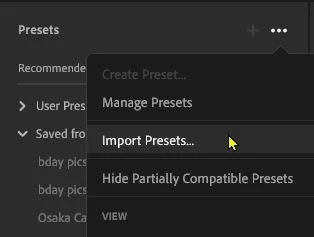
3) Navigate to the folder location of the XMP preset files and [Import]
For mobile Lightroom on iPhone, iPad, android, devices:
1) IMPORT/ ADD the DNG files exactly the same as you would any image/photo file,
2) EDIT the imported image, (Don't make changes if you want to preserve the effects of the purchased preset)
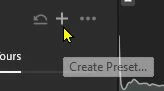
3) Click the [ + ] icon to [Create Preset...]
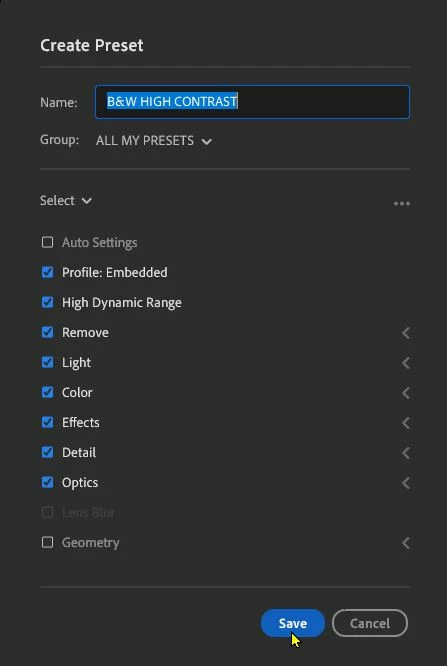
3) Save the Preset (as you would for creating your own presets with your edits)
4) Use the name of the puchased DNG as the Preset name. Select a Group to save the Preset,

To explain- DNG Presets are actually photo images (in the DNG wrapper) with embedded edits in metadata. After importing the DNG you can then save the metadata edits out as a Preset.



 AdChoices