Hi @leiman,
Thank you for reaching out and for sharing the screenshot. This makes the situation very clear, and I can explain exactly what's happening and why.
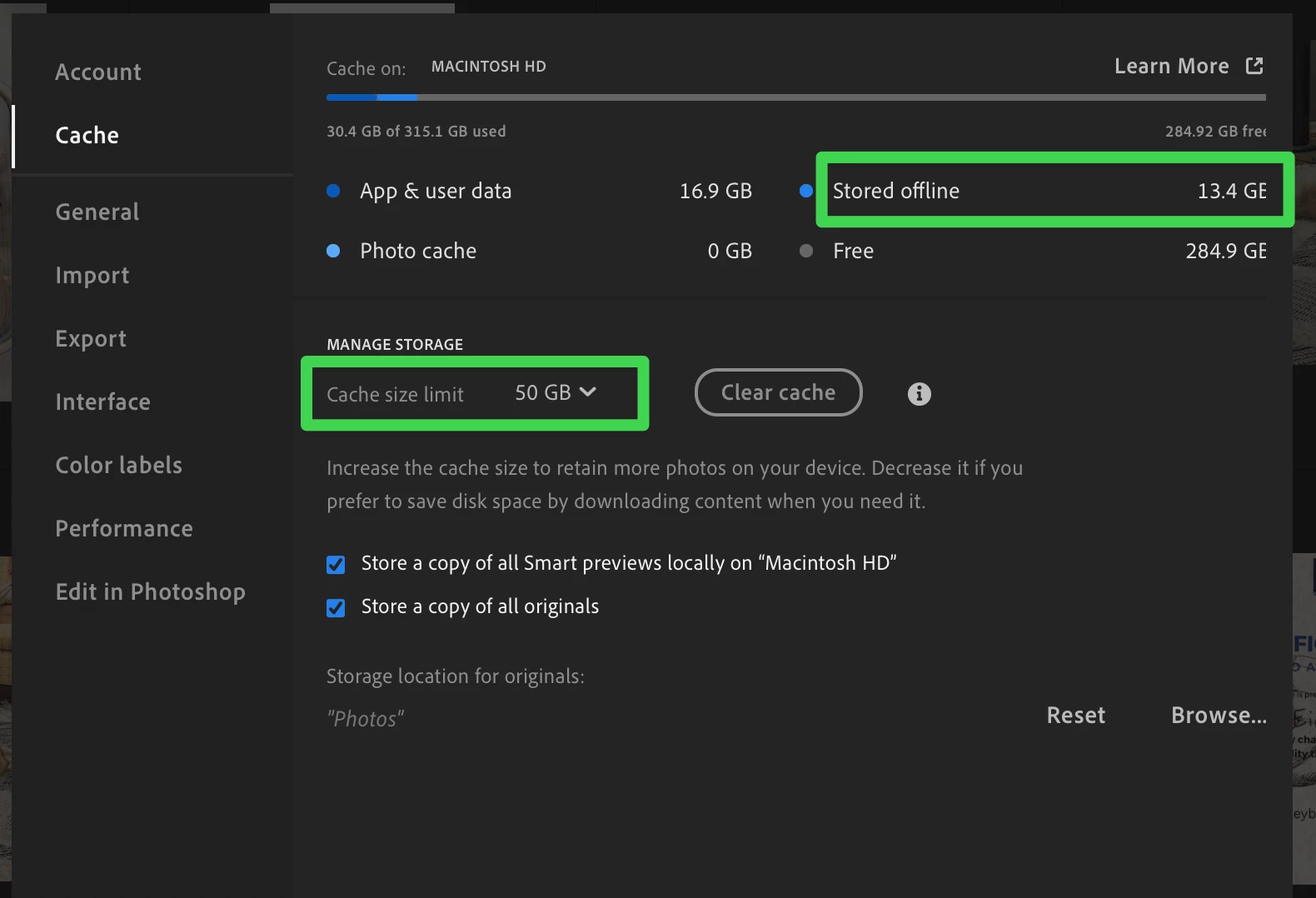
The short answer: Your 50 GB cache limit is working correctly, it's just not governing what you think it is.
Here's how Lightroom's local storage actually breaks down into three separate buckets, only one of which respects the cache limit:
| Storage Bucket | Governed by Cache Limit? | Your Current Setting |
|---|
| Photo cache (evictable working set for recent browsing) | Yes - this is the 50 GB slider | 0 GB (correctly limited) |
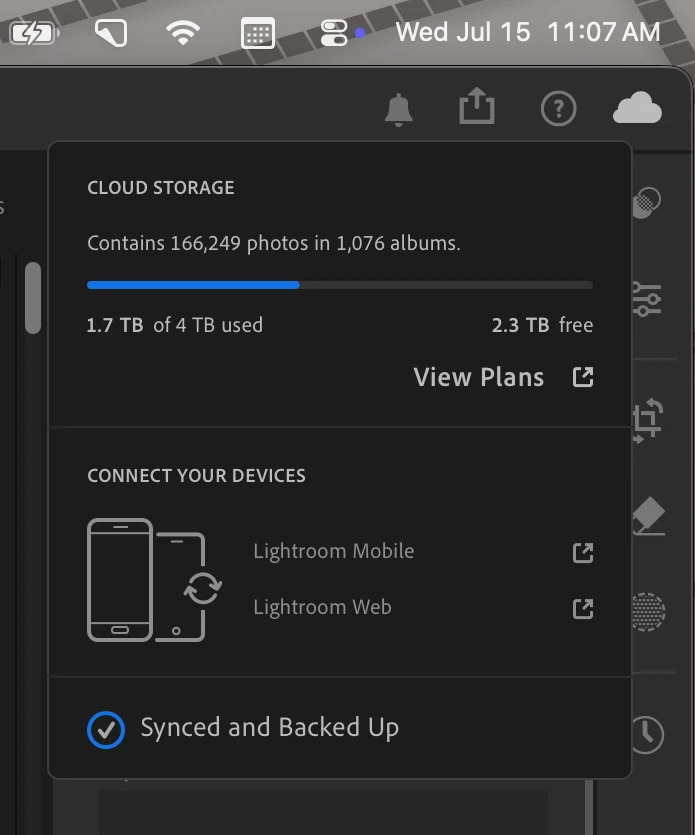
| "Store a copy of all Smart Previews locally" | Not evictable | Enabled - generates a proxy for all 166,249 items |
| "Store a copy of all originals" | Not evictable | Enabled - downloads full originals |
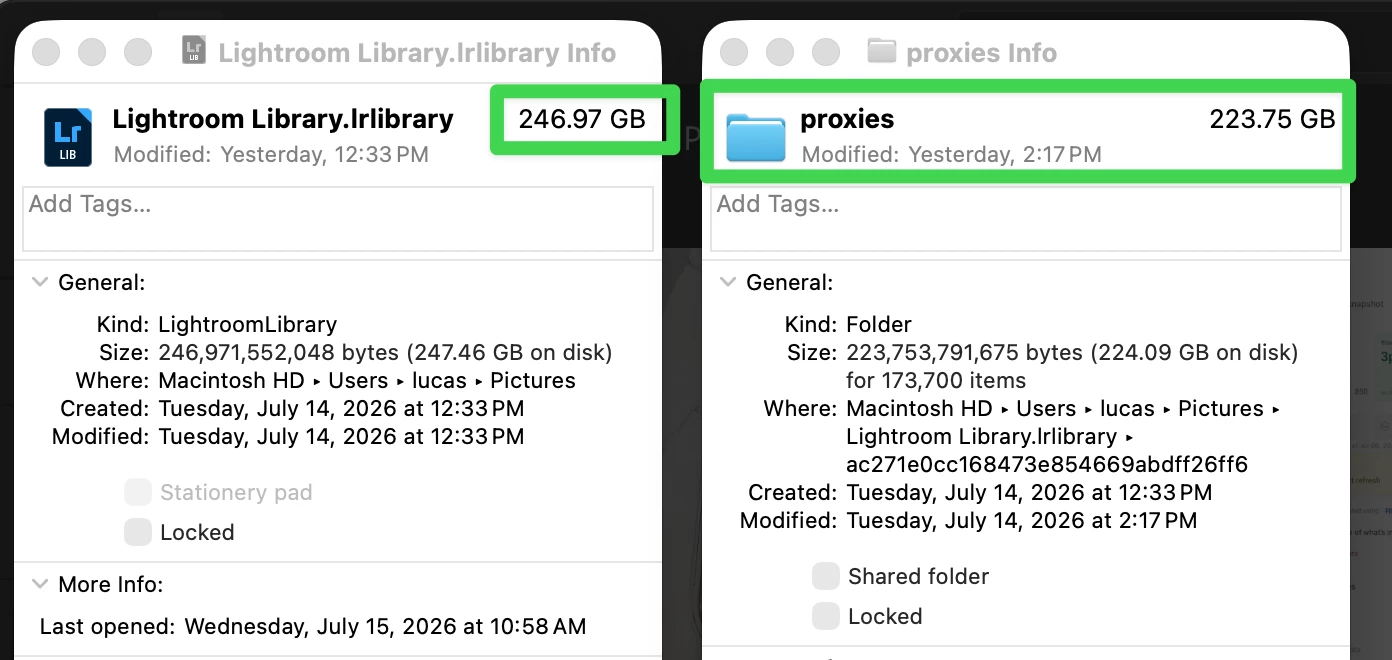
What's filling your 224 GB proxies folder: You have both checkboxes enabled. The "Store a copy of all Smart Previews locally" option tells Lightroom to generate and permanently retain a Smart Preview proxy for every single item in your library, including videos. These proxies are pinned to local data, not cache. They are explicitly excluded from the cache eviction mechanism because you asked Lightroom to keep them available offline at all times.
For videos specifically, the proxy files are significantly larger than photo Smart Previews (a photo Smart Preview is ~1–2 MB; a video proxy can be 50–500 MB depending on duration and resolution). With ~173,700 items, including videos, 224 GB is consistent with this behavior. Your cache limit is working; notice in your screenshot that "Photo cache" shows 0 GB. That's the evictable portion, correctly staying under your 50 GB cap.
To answer your specific questions:
1. Why are videos stored in the proxies folder despite the 50 GB limit? Because "Store a copy of all Smart Previews locally" is a permanent offline mirror instruction, it overrides the cache limit by design. The cache limit only governs the temporary/evictable working set.
2. Is this behavior expected? Yes. With both checkboxes enabled, your local library will grow to accommodate Smart Previews (and originals) for your entire 1.7 TB cloud library. The 50 GB limit only applies to the ephemeral "Photo cache" row you see at 0 GB.
3. Can you limit the library to 100–150 GB? Yes, here's how:
-
Adobe Lightroom menu > Preferences > Cache (on your Mac)
-
Uncheck "Store a copy of all Smart Previews locally"
-
Uncheck "Store a copy of all originals"
After this, Lightroom will keep locally only what fits within your cache limit, downloading on demand as you browse. Your originals remain safe in Adobe Cloud (your sync status confirms "Synced and Backed Up").
If you want some content offline without storing everything:
4. Are Smart Previews included in the 50 GB cache limit? No. When "Store a copy of all Smart Previews locally" is enabled, those previews are stored outside the cache limit as persistent data. They only become subject to the cache limit if you disable that checkbox, at which point Lightroom treats them as evictable cache and purges them when you exceed the limit.
Please feel free to let me know if you have any questions about this. I'm happy to walk you through it.
Best regards,
Anshul saini




 AdChoices