Participant
June 6, 2021
Answered

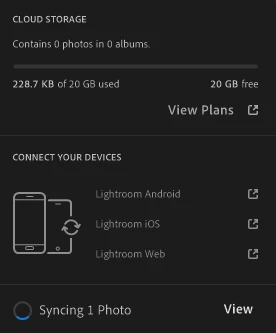
Lightroom Desktop stuck on syncing 1 image
  • June 6, 2021
  • 2 replies
  • 1122 views


For as long as I can remember Adobe Lightroom has shown that it is "Syncing 1 Photo".  When clicking to view that 1 photo lightroom is unable to display the file that it is stuck on.



I have recently deleted all my storage in an attempt to remove the problematic file.  This includes everything in lightroom's deleted folder (there are 0 photos currently synced).  


Any ideas what is causing this,  and if so is there something I can do to resolve this issue?


On Windows using version 4.2  


{Moderator note: Edited the thread title}

 

This topic has been closed for replies.
Correct answer Akash Sharma

Hi there,


Sorry that Lightroom Desktop 4.2 is stuck syncing 1 image.


Would you mind going to https://lightroom.adobe.com and remove the file from your Sync Issues folder and the Deleted items? If that does not help, please checkout the steps below: 


  1. In the My Photos area in the left pane, select the All Photos album.
    Switch to the Square Grid view which displays photos as equal-sized thumbnails along with their flag status, sync status, and rating.
  2. While holding down the Alt key (Win) or Option key (Mac), click the cloud icon, Lightroom CC now displays only those photos that it's trying to sync
  3. Press Ctrl+A (Win) or Command+A (Mac) to select all the photos displaying in the grid and then do any of the following:

a) Delete the selected photos by choosing the Edit > Delete option and then add the photos in Lightroom CC again.
b) Apply a flag or a star rating to selected photos.
c) The syncing issue should now be resolved. To check the sync status, click the cloud icon at the upper-right corner. 


Let us know how it goes.


Thanks,

Akash

2 replies

Mohit Goyal
Community Manager
Community Manager
June 11, 2021

Hi Kenny,


Were you able to resolve the syncing issue with Lightroom Desktop? If not, we're happy to help.


Thanks.

Mohit

Akash Sharma
Akash SharmaCorrect answer
Legend
June 7, 2021

Hi there,


Sorry that Lightroom Desktop 4.2 is stuck syncing 1 image.


Would you mind going to https://lightroom.adobe.com and remove the file from your Sync Issues folder and the Deleted items? If that does not help, please checkout the steps below: 


  1. In the My Photos area in the left pane, select the All Photos album.
    Switch to the Square Grid view which displays photos as equal-sized thumbnails along with their flag status, sync status, and rating.
  2. While holding down the Alt key (Win) or Option key (Mac), click the cloud icon, Lightroom CC now displays only those photos that it's trying to sync
  3. Press Ctrl+A (Win) or Command+A (Mac) to select all the photos displaying in the grid and then do any of the following:

a) Delete the selected photos by choosing the Edit > Delete option and then add the photos in Lightroom CC again.
b) Apply a flag or a star rating to selected photos.
c) The syncing issue should now be resolved. To check the sync status, click the cloud icon at the upper-right corner. 


Let us know how it goes.


Thanks,

Akash

Participant
October 7, 2021

Sorry for the late reply.  That looks to have fixed the issue,  thanks for your help!