

Serena Yu
Inspiring
May 30, 2021
Answered

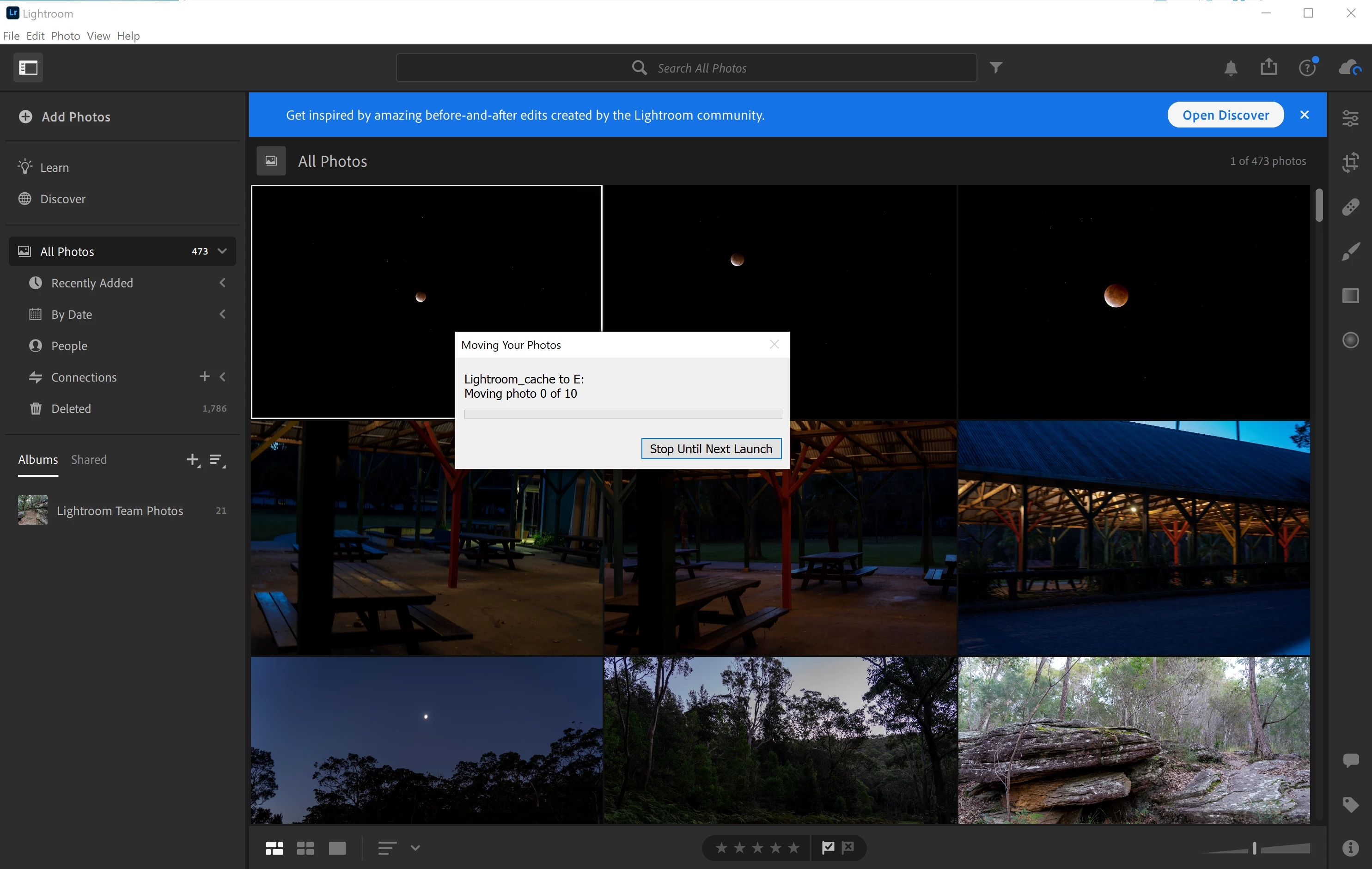
Lightroom freezes at "moving your photoes" upon startup

  • May 30, 2021
  • 2 replies
  • 532 views

Versions: Lightroom 4.2 latest, Windows 10 pro latest.


A couple days ago, I imported a lot of photoes and Lighroom quickly overflowed my SSD unexpectedly. Therefore, I decided to move the Lightroom cache to an HDD.  


The next day, this began to happen, as whenever I start Lightroom, it starts moving photoes and permananely freeze at photo 0 / xxx. This is extremely annoying. With this popup in place, I was not allowed to perform any actions, only receiving a warning sound, unless I choose "Stop Until Next Time" and give myself the hassle for the future.


What I have tried: 

  • Uninstall Lightroom
  • Uninstall Lightroom clearing all settings
  • Deleting the whole Lightroom cache folder
  • Recovered the Lightroom cache folder
  • Performed another Lightroom cache move to another drive
  • Performed a third Lightroom cache move back

None of these would remove this failed move. 


Why is it so stubburn? I don't care even if it deleted all these photoes since I have a copy in Microsoft Onedrive, but I need an option to ignore existing errors and carry on.


Thank you.

Serena


This topic has been closed for replies.
Correct answer Serena Yu

Well, I inspired myself when I wrote "I don't care even if it deleted all these photoes" and it was actually the only way to remove the error. I permanently deleted all Adobe cloud photoes and the error is now gone. 

2 replies

Serena Yu
Serena YuAuthorCorrect answer
Inspiring
May 30, 2021

Well, I inspired myself when I wrote "I don't care even if it deleted all these photoes" and it was actually the only way to remove the error. I permanently deleted all Adobe cloud photoes and the error is now gone. 

Known Participant
July 4, 2021

how did you do that?

Serena Yu
Serena YuAuthor
Inspiring
July 4, 2021

I first exported all photo originals. Most of them already have a backup at Onedrive so there weren't so many left behind. 

Then went to Lightroom web, clicked portrait on the top-right corner, Account Info -> Delete Lightroom Library. 


This removed the problematic library as a whole.


Than I re-imported and re-synced the photos. That took me a whole night.

Serena Yu
Serena YuAuthor
Inspiring
May 30, 2021

Corrention: it's not "Lightroom cache" but actually "Lightroom originals".