



Participant
March 6, 2023
Answered

Local storage and cloud

  • March 6, 2023
  • 2 replies
  • 3300 views

Photos are imported into LR. LR directly uploaded photos to the cloud and deleted local files. This is a good thing to save space, but I have enough local space. I want to edit the photos I just imported, but I have to download them from the cloud, which is very slow and time-consuming.
I want to ask if there is any way for iPad LR not to delete local files after backup or not to perform cloud backup?
I hope the app can be synchronized to cloud storage, but still saved to local storage.

This topic has been closed for replies.
Correct answer Jim Wilde

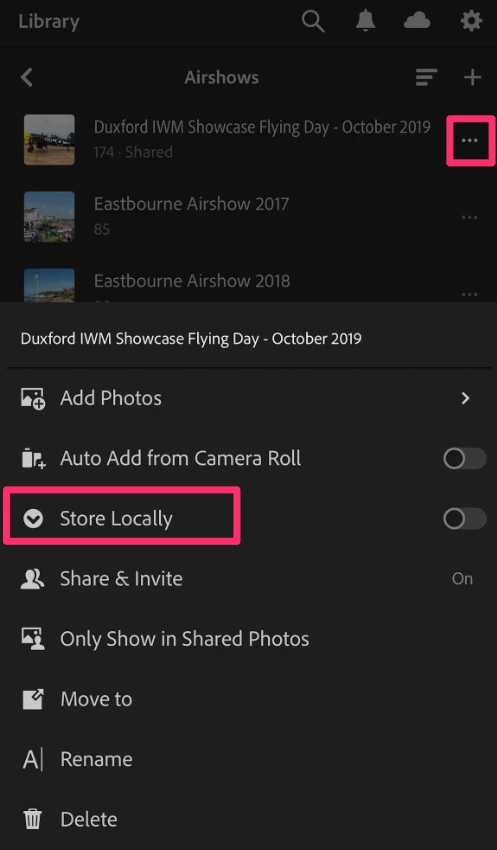
The option to store an album contents locally is only in the tri-dot menu for the specific album in the main album list. Tap on that icon and you'll see the "Store Locally" option, enable that and that should do the trick. See screenshot:


2 replies

Participant
March 9, 2023

I'd watch you cloud storage numbers. Adobe inflates them with somehow in order to get you to purchase more storage before you need it. I'm on an empty drive, including archives, at 15GB somehow? I'll be going back to pirating Adobe after this subscription expires. 

peter-b8062983
Adobe Employee
Adobe Employee
March 9, 2023

Sorry that you are running into issues with counting cloud  storage.  One thing to be aware of is that storage used as part of the Creative Cloud does get counted against your overall storage amount.  It looks like you may be using some storage as part of Creative Cloud use.  That said, we will look into your account to make sure your Lightroom totals are correct.


-Peter

peter-b8062983
Adobe Employee
Adobe Employee
March 9, 2023

Looks like there was some stale data being reported from Lightroom.  We have fixed that so you will see a lesser number now, all being consumed by non-Lr files in the Creative Cloud.


-Peter

Jim Wilde
Community Expert
Community Expert
March 6, 2023

You can put the images that you want to edit into an album, then choose the "Store Locally" option for that album. Then, if you also uncheck the option to "Only Download Smart Previews" (Settings>Cloud Storage & Sync tab), that will download the originals from the cloud and will keep them on the local device. If you do that soon after you import to the iPad, that'll probably stop the originals being removed from the local device when the cloud upload is complete.

Participant
March 7, 2023

Yesterday I edited the photo and downloaded the raw format. But today I opened it and downloaded raw from the cloud again. I checked the menu and found that the iPad lr has no 'local storage' option. Attached are some screenshots of my app. Is it my menu setting problem? My iPad has 512G storage capacity, but I always wait for slow download again and again.

Jim Wilde
Community Expert
Jim WildeCommunity ExpertCorrect answer
Community Expert
March 7, 2023

The option to store an album contents locally is only in the tri-dot menu for the specific album in the main album list. Tap on that icon and you'll see the "Store Locally" option, enable that and that should do the trick. See screenshot: