
Inspiring
March 10, 2024
Answered

Lr newbie question - What's the basic workflow for modifying a photo?

  • March 10, 2024
  • 1 reply
  • 1155 views

Hello,


Please excuse the stupid question as I'm new to Lr. I've tried some of the introduction tutorials but I'm struggling with the basic workflow. I've had a 'play' with some photos, to adjust settings etc., and it appears that Lr autosaves the photo? I don't know how to revert to the original photo (or how to perform a 'Save As' so that I can experiment with a photo). I'm sure I'm missing something basic and a simple explanation of how it's supposed to work would be much appreciated.


For information, I'm using 'Adobe Photoshop Lightroom' version 7.2 and I have a paid subscription. I'm using a MacBook Pro and the OS is Sonoma v14.3.1.

This topic has been closed for replies.
Correct answer leep40312335
quote

Perhaps it's me, but I might spend and hour trying some edits (experimenting with the recipe as you put it) and then decide I want the version I did 30 minutes ago. It would be nice to be able to flag a specific moment in time to get back to.

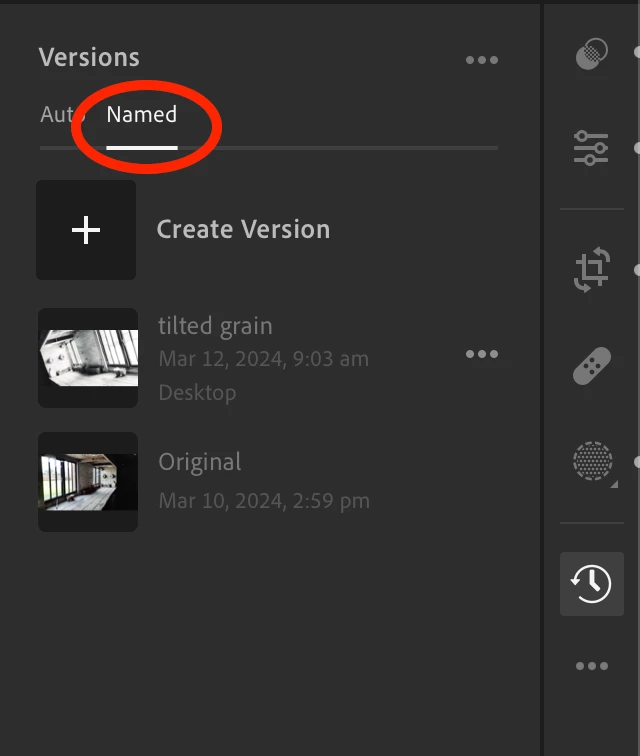
However, I have found a work around for this; if I come out of the image I'm editing (e.g. click on another picture in my gallery) then it saves it as a 'version' I can get back to in the 'reverse clock'.


At any point during the editing of the image (i.e. without exiting the image) you can create your own "named" version, rather than depending on that (unnamed) auto version that is created when you exit the image. Probably more useful as you can use the name to describe the version.


Thanks Jim, now you mentioned it I just noticed the 'named' option on the 'versions' flyout!


Easy, now I know where it is. Thanks for you help.


Cheers,


Lee


1 reply

Rob_Cullen
Community Expert
Community Expert
March 11, 2024

Perhaps my simple explanations will help-

" it appears that Lr autosaves the photo?"-  No. Lightroom never saves a 'photo' as a new file.  Instead your edit steps are 'saved' in a (hidden) text file in the Lightroom Cloud along with its original photo file. When you want to use your edited image for another purpose (eg. Printing, giving to a friend, etc.) you need to [Export] a derivative which creates a new file with the edits applied.

"how to revert to the original photo." - Within the 'three dot' icon menu there is a command to - [Reset Edits]

"how to perform a 'Save As' so that I can experiment with a photo" - That would require you to create versions of your edits. You can then apply different editing to each version. (The reverse clock face icon.)


Regards. My System: Windows-11, Lightroom-Classic 15.1.1, Photoshop 27.3.1, ACR 18.1.1, Lightroom 9.0, Lr-iOS 10.4.0, Bridge 16.0.2 .
Inspiring
March 11, 2024

Perfect! Thanks Rob.

The 'reverse clock' looks like the game changer for me as I can get back to a previous version of my "photo".

Sorry for being cheeky but I have just one other question; how do I apply any changes I make to my image? Say I do abit of editing, some cropping and some healing. Where do I click to apply them? i.e. so the image (not the original photo) is "saved' in Lr?

Thanks again for your help,

Lee

Rob_Cullen
Community Expert
Community Expert
March 11, 2024

There is nothing to do or "click". Your edits are being recorded instantly in 'real-time' as you make changes to an image. In effect that means that "Saving" is automatic.

But explaining again- Parametric editors (as is Lightroom) automatically save your edits to XMP data that accompanies each original camera file. The Original camera file image data is never changed!

Lightroom will show/display your photo as you have edited it by applying the edit parameters it has saved in the XMP.

Lightroom will never change or edit your original camera file data.

When you want to use your edited image for another purpose (eg. Printing, giving to a friend, etc.) you need to [Export] a derivative which creates a new file with the edits applied.

Read about "Parametric Editing" here-

https://www.dpbestflow.org/image-editing/parametric-image-editing


An analogy for Parametric editing-

You have flour, sugar, milk, etc, (the basic ingredients- your original photo file) and a Recipe (How you will combine the ingredients- XMP). A Parametric approach allows you to change the Recipe (XMP) at any time for a different result (Bread, cake, scones, etc). When you cook (Export) the cake (Ingredients + Recipe) you have the final product to feed the masses. 🙂


Regards. My System: Windows-11, Lightroom-Classic 15.1.1, Photoshop 27.3.1, ACR 18.1.1, Lightroom 9.0, Lr-iOS 10.4.0, Bridge 16.0.2 .