gpb14916
Participant
May 1, 2020
Question

LR Tutorial / Make Selective Edits / Use the Brush tool to change part of a photo - no eraser tool

  • May 1, 2020
  • 1 reply
  • 1127 views

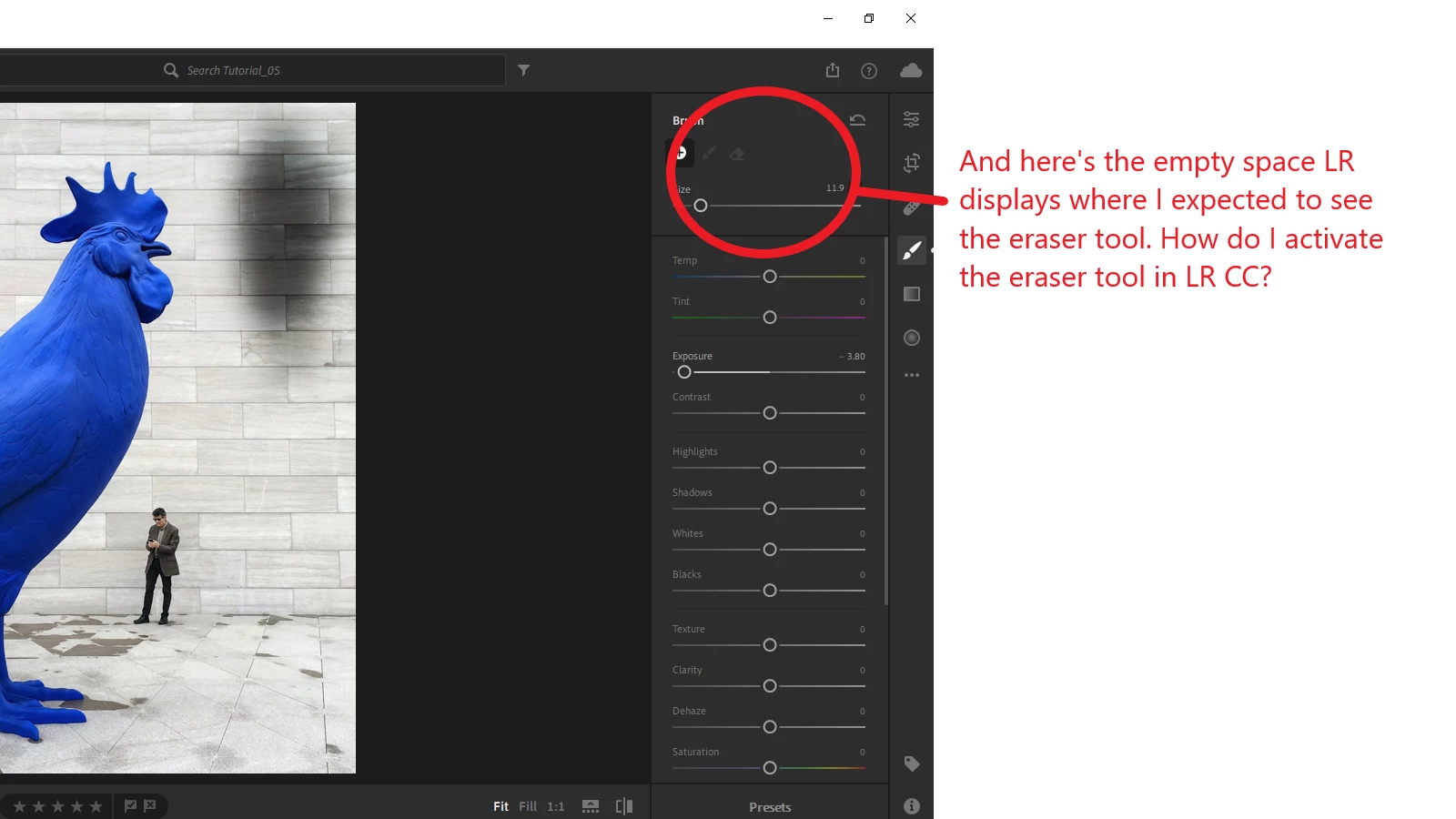
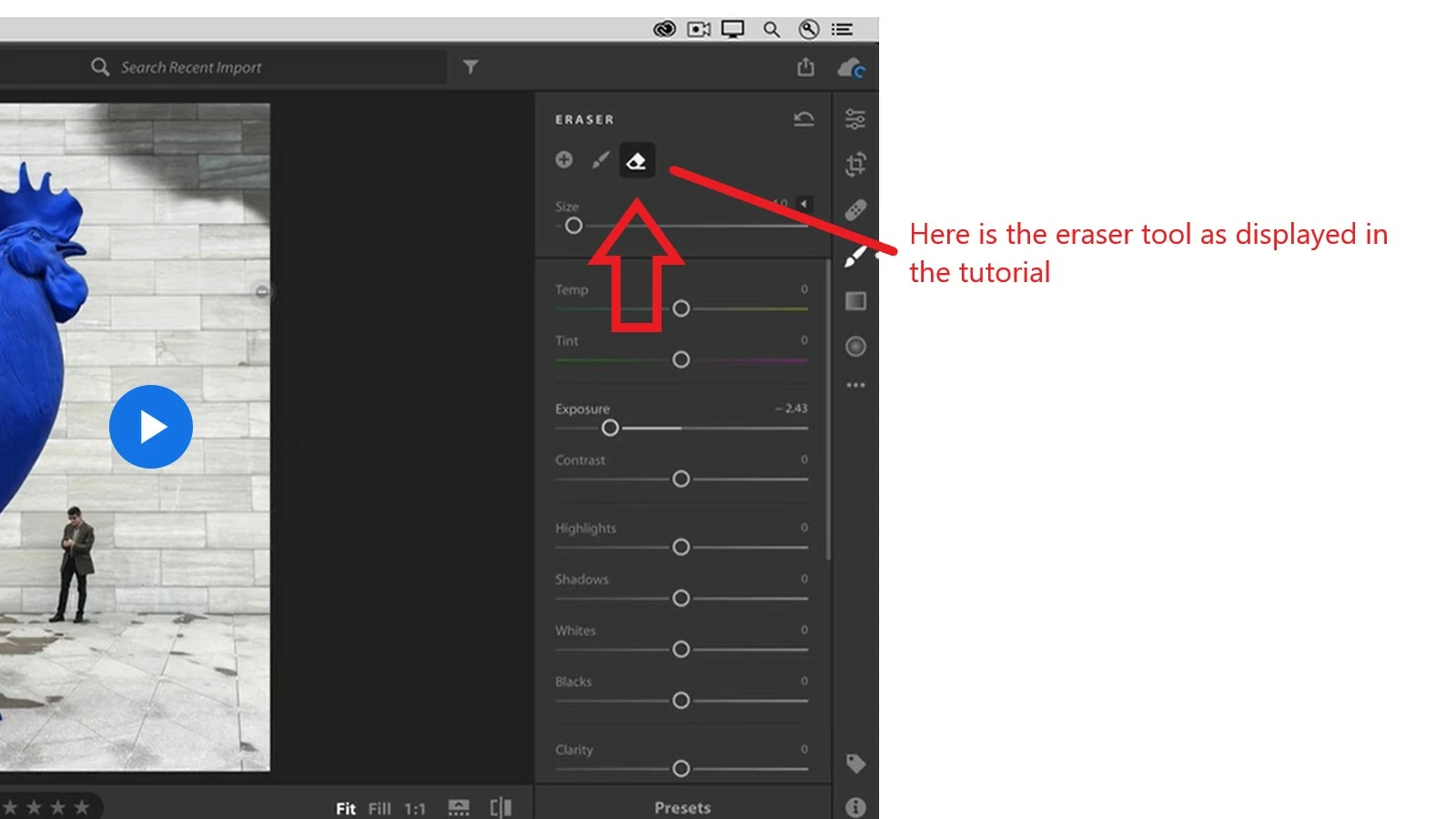
The subject line pretty much says it all. How do I access the Eraser tool when using the Brush tool?

Thank you.
This topic has been closed for replies.

1 reply

Rob_Cullen
Community Expert
Community Expert
May 2, 2020

Hold down the [ALT] key on the keyboard and the Brush will show a (-) in the brush circle to erase, but only when you have applied a Brush stroke! So apply some brushing, when you then have access to the erase function.

Simply selecting the brush Tool does not show either of the + or - brushes, as without a 'brushed' area there is nothing to erase.

(The 'Erase' function erases the Brush stroke- not the image.)

Regards. My System: Windows-11, Lightroom-Classic 15.1.1, Photoshop 27.3.1, ACR 18.1.1, Lightroom 9.0, Lr-iOS 10.4.0, Bridge 16.0.2 .
gpb14916
gpb14916Author
Participant
May 3, 2020

Thank you. Pressing the ALT key didn't affect anthing on either of my machines (HP desktop & HP laptop, both Windows 10). However, the eraser has mysteriously appeared on both machines after using the brush tool, even though it most certainly was not visible after using the brush tool before, which prompted my support request. In any case, thank you again! 

JohanElzenga
Community Expert
Community Expert
May 3, 2020

The Eraser is only visible when there is something to erase. In other words, it only becomes available when you have actually brushed something (or have selected a previously brushed area by clicking on the pin), not when you've only just clicked on the Adjustment brush to activate it.

-- Johan W. Elzenga