
Participant
January 18, 2020
Answered

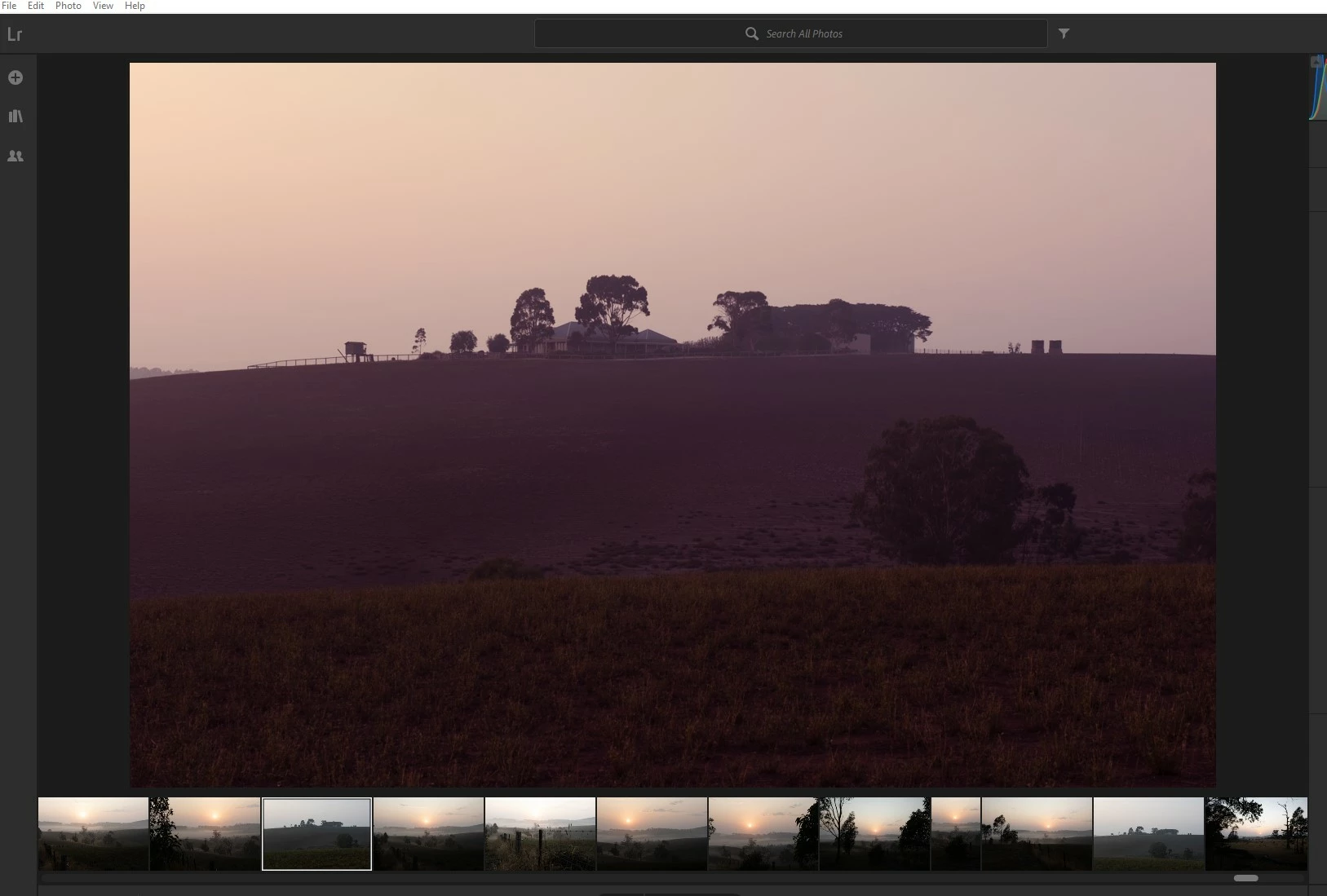
Magenta tint on viewing window prior to editing

  • January 18, 2020
  • 3 replies
  • 871 views

When I upload my RAW images to Lightroom, the image in the main pre-viewing window has a magenta tint but the same image in the flimstrip below appears correct? See attached. This is before I adjust any settings or parameters and makes it hard to process my image as I am not starting with the colours being correct. Can anyone pleaase advise?
This topic has been closed for replies.
Correct answer Todd Shaner

Your using LR Desktop 2.3. Please use the Creative Cloud app and update to the latest version, which is 3.1. Also update your graphics driver to the latest version 441.87 here NVIDIA GeForce GTX 960 When installing the graphics driver select 'Custom' and check 'Clean Install.'

3 replies

Todd Shaner
Legend
January 21, 2020

Kevin, you can't use screenshots via email. You need to open the post in your browser and then reply with a copy and paste of your system settings as outlined. Thank you.

Participant
January 22, 2020
Lightroom version: 2.3 [ 20190502-0902-47ed471 ] (May  3 2019)
Operating system: Windows 10
OS Version: 10.0 [18363]
Application architecture: x64
System architecture: x64
Logical processor count: 4
Processor speed: 3.4 GHz
Built-in memory: 8153.3 MB
Real memory available to Lightroom: 8153.3 MB
Real memory used by Lightroom: 1070.2 MB (13.1%)
Virtual memory used by Lightroom: 1366.7 MB
Memory cache size: 967.1 MB
Internal Camera Raw version: 11.3 [ 197 ]
Maximum thread count used by Camera Raw: 3
Camera Raw SIMD optimization: SSE2,AVX,AVX2
Camera Raw virtual memory: 523MB / 4076MB (12%)
Camera Raw real memory: 523MB / 8153MB (6%)
System DPI setting: 96 DPI
Desktop composition enabled: Yes
Displays: 1) 1920x1200
Input types: Multitouch: No, Integrated touch: No, Integrated pen: No, External touch: No, External pen: No, Keyboard: No
Graphics Processor Info: DirectX: NVIDIA GeForce GTX 960 (26.21.14.3200)
Application folder: C:\Program Files\Adobe\Adobe Lightroom CC

Todd Shaner
Todd ShanerCorrect answer
Legend
January 22, 2020

Your using LR Desktop 2.3. Please use the Creative Cloud app and update to the latest version, which is 3.1. Also update your graphics driver to the latest version 441.87 here NVIDIA GeForce GTX 960 When installing the graphics driver select 'Custom' and check 'Clean Install.'

Todd Shaner
Legend
January 20, 2020

OK, let's see if we can get your GPU working properly. In LR go to menu Help> System Info and click 'Copy' then paste in a reply here.

Participant
January 21, 2020
 
Todd Shaner
Legend
January 19, 2020

You may have a graphics card or driver issue. Go to menu Edit> Preferences> Performance and uncheck 'Use GPU for display.'

Participant
January 20, 2020

Thanks Todd for taking the time to respond; that worked!! Much appreciated.