



behnamprime
Known Participant
August 9, 2023
Question

Not being able to post to discover

  • August 9, 2023
  • 1 reply
  • 1928 views

I'm not sure what is wrong with Lightroom.
It has happened to my last two edits.
When I want to share my edit to discover, the first time I get this error:
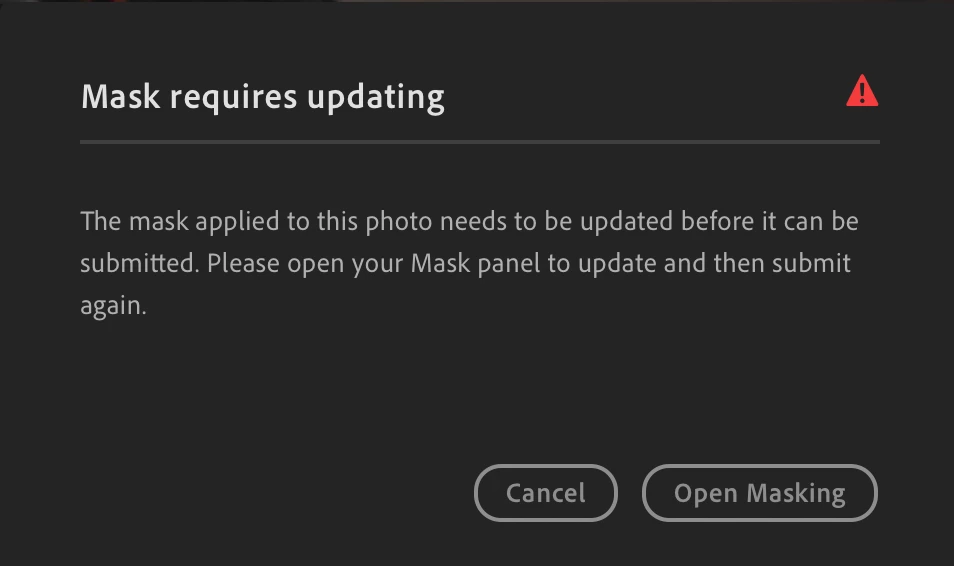
it does not show any mask in particular that it had a problem with.

If I try again, I get this error:
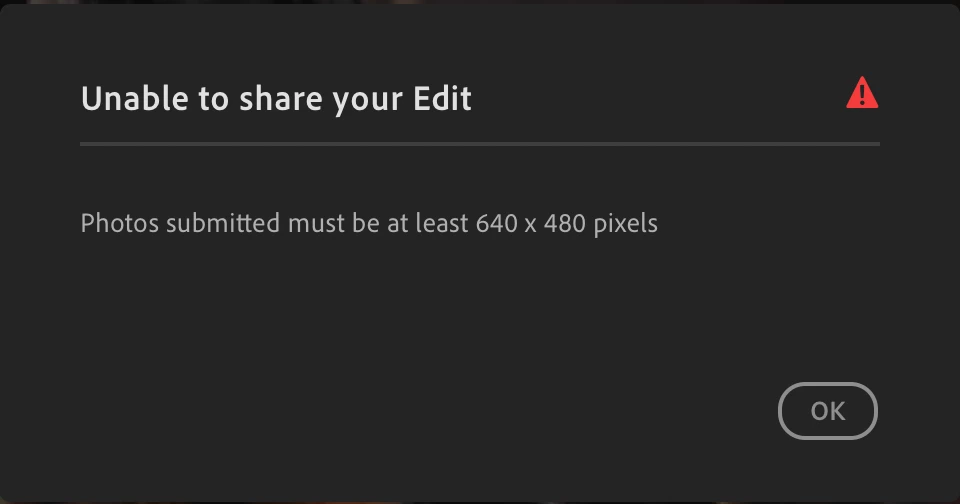
My image is 1800*1200, much larger than the what is mentioned here.

If try from the web page, it will show up on my page on discover but not in discover, when I selec t the image in my profile it says:

the edit is still processing, it might take a minute and stays there for even a day!

Any help?

This topic has been closed for replies.

1 reply

Rikk Flohr_Photography
Community Manager
Community Manager
August 9, 2023

I am not having any problems posting from Lightroom Desktop. It took under 60 seconds to sync and appear. 
It is not clear from your post which Lightroom client is giving you the errors. Can you elaborate step-by-step on your process?

Rikk Flohr: Adobe Photography Org
behnamprime
Known Participant
August 9, 2023

How many steps are there?

1- Select a photo

2- Share to discover

 On iPad, web, and Android:

it shows that it is uploaded, but says the edit is still processing and make take a few minutes, and this can continue even for a day, sometimes more, and sometimes it fails.

on Mac:

when selecting to share, I get these errors sometimes:

1- Mask requires updating but no mask is shown to be updated

2- when I try again I get the error the image should be at least 640*480.

my image size is 1800*1200.

I made my image larger to 2100*1400 and tried again, this time it will be like what  happens on web, android and iPad.

it says edit is still processing and make take a few minutes but will take forever and nothing will happen.

the screenshot of the errors are shown above.

Rikk Flohr_Photography
Community Manager
Community Manager
August 10, 2023

I've posted two more since my last reply from two different machines and they both worked in under 60 seconds. 

You may need to reset your Preferences File:

This procedure works for both Lightroom Classic and Lightroom Desktop.

If you are using Lightroom Desktop it can change the location of your local storage. Please review this setting after resetting preferences. 


Reset Procedure:

1. Close Lightroom.

2. Hold down [Alt/Opt]+[Shift] while restarting Lightroom.

3. Overwrite the Preferences when prompted by the dialog.

4. Close Lightroom.

5. Restart Lightroom.


Rikk Flohr: Adobe Photography Org