
Ken Nielsen
Legend
December 24, 2020
Answered

On Import 'No File Found' - Where is option to override and 'Include Subfolders?'

  • December 24, 2020
  • 1 reply
  • 562 views

I've been digging away for two months now and do not find where to set the preset to 'include subfolders' which is what Lightroom wants in order to import photos from my camera's CF card. Otherwise, I have needed to manually check 'include subfolders' on every import... Lightroom has very expansive controls and abilities, so much so, I am lost. Does anyone know how to set and where to set 'include subfolders' when importing images from a CF card?

Appreciation,


Ken

This topic has been closed for replies.
Correct answer Jim Wilde

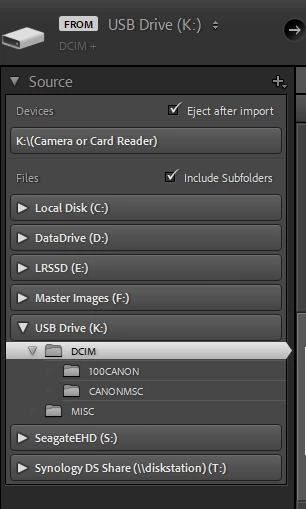
You should see the "Include Subfolders" checkbox in the Source panel of the Import Dialog:


If you're not seeing that checkbox, can you post a screenshot of the Import dialog when you have the CF card loaded into the card reader.

1 reply

Jim Wilde
Community Expert
Jim WildeCommunity ExpertCorrect answer
Community Expert
December 24, 2020

You should see the "Include Subfolders" checkbox in the Source panel of the Import Dialog:


If you're not seeing that checkbox, can you post a screenshot of the Import dialog when you have the CF card loaded into the card reader.

Ken Nielsen
Legend
December 26, 2020

Well, I don't have the 'eject after import' which I wish I had, but I do see the 'include subfolders' check box. Now, the big question is, and I have not tried a second round of shooting and importing yet, will Lightroom remember the check box choice next time I import, that would be perfect if it does.

Jim Wilde
Community Expert
Community Expert
December 26, 2020

Yes, it should be "sticky" until you uncheck the option.