Neox99
Legend
December 19, 2017
Answered

Orphan albums in Apple TV

  • December 19, 2017
  • 2 replies
  • 1058 views

I have zero Folders, Albums or Photos in the Lr CC ecosystem - verified by desktop version and Web version on PC, Mac and on iPhone app.

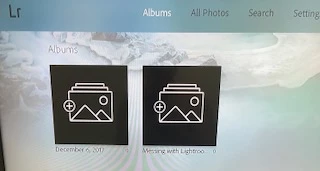
Yet 2 orphan Albums show on my Lr CC Apple TV. (see screen cap - below)

I have:

- Reset the Albums in Settings

- Reset the Apple TV

- Deleted then reinstalled the Lr CC Apple TV app

The Albums are still shown on the Apple TV

I have a utility which can search for text in any file on my system. I used it to search for the name of one of the albums.

It found 9 references to the text (name) in .dll, .jsx, .mcat, .sqlite files though no such albums exist.

I'll take any suggestions as to how to rid the system of orphan/errant albums!

Thanks

This topic has been closed for replies.
Correct answer Charlie.D

I really appreciate your assistance.

I just did as clean an uninstall as I know how.
Deleted any/all Lr CC and Lr Classic folders after uninstalling both.
I even search the registry for left over ghosts.

Restarted computer and installed Lr CC.

ReStarted Apple TV

Installed the Lightroom app and . . . .

. . . the albums REMAIN!


Hi Jim

I’m sorry to hear about all the difficulty you’ve experienced.  I’m going to offer some suggestions to fix this, but first I would like to request a diagnostic log in hopes it provides info that can help us learn what went wrong.

To generate a diagnostic log in Lightroom Classic, please open the app preferences, and then go to the Lightroom Sync tab.  In Lightroom Sync, hold down the Alt or Option key, and you should see a button appear titled “Generate Diagnostic Log.”  I’ll contact you off list about where to send it privately.

The next thing I want you to try is another button that also displays in LR Preferences > Lightroom Sync, when the Alt/Opt key is held down: “Rebuild Sync Data”

Click that button, and let Lightroom restart.  Then ensure that Lightroom is online and syncing.  Did that help clear the cruft from Lightroom TV’s view?

If that didn’t help, let’s try something slightly more aggressive…  Please quit Lightroom Classic and try renaming or deleting the sync.lrdata file:

On Mac: it's at /Users//Library/Caches/Adobe/Lightroom/Sync Data/Sync.lrdata

On Windows: it would be at C:\Users\\AppData\Local\Adobe\Lightroom\Caches\Sync Data\Sync.lrdata

Then restart Lightroom, and enable sync again.  This solution forces Lightroom to start a new sync database and is what we ask users to try when sync gets stuck.   I wonder if it might help clear some cruft that LR is wrongly trying to maintain on the server.

If that doesn’t help, let me ask, have you tried creating a new catalog in Lightroom Classic?  It’s possible the existing catalog is corrupt. Since you are trying to clear things out anyway, you might as well start with a fresh catalog. 

Again, I’m sorry for the trouble you’ve had.  I hope something above helps, but if not, let me know.  Stay tuned for a private message from me asking for that diagnostic log.

Thanks and kind regards,

Charlie

2 replies

Neox99
Neox99Author
Legend
December 19, 2017

Thanks much!

I can follow your requested steps but I'm not sure you will get a log of what happened since I have completely uninstalled  Lr Classic & Lr CC from my PC. I even deleted any folder that referenced Lightroom. I then reinstalled Lr CC. So, you see, I should have a clean, fresh install with new catalog.

The Sync.lrdata file has a creation date of today when I last installed Lr Classic.

I have nothing but a few 'test' images in the sync (cloud) system so I have nothing to lose by using the Classic sync feature in an attempt to clear those errant albums.

As an aside - This issue is not a stress here because I have a new iMac arriving soon (replacing old PC) and will start absolutely fresh then.

Michael J. Hoffman
Community Expert
Community Expert
December 19, 2017

Do you see the albums if you go to lightroom.adobe.com and sign in with your Adobe ID?

If you can see them there, try deleting them from the web interface. This has been my go-to process for fixing minor sync issues in the past.

Mike

Neox99
Neox99Author
Legend
December 19, 2017

ZERO albums there.

I have now uninstalled Lr CC Classic, and Lr CC from both my PC and Mac as well as the iPhone app.

I uninstalled the Apple TV app and did a restart of the device.

With PC, Mac and iPhone powered down (don't want any 'cloud' snooping for albums)

I installed the Apple TV app and those orphan albums still remain.

I am now in the process of doing a hard reset - with update - to the Apple TV device.

If those orphans still remain I'll have to conclude that Apple TV is getting them from the Adobe Cloud.

Will advice in a few minutes.

Update:

See above - plus:

Apple TV complete reset-with updates and the orphans still exist.

I even made sure there is nothing in my Creative Cloud or Document Cloud

IMHO - The only place the Lr CC Apple TV app can be getting that album info from is the Adobe cloud.

Next step is to reinstall Lr CC on PC then create a few albums to see if they will bump the orphans from the TV.

Neox99
Neox99Author
Legend
December 19, 2017

Reply to myself so post doesn't get to long - - -

- New install of Lr CC on PC

- Complete reset of Apple TV

- Added 6 images to 6 albums using Lr CC desktop

- Installed Lr CC Apple TV app

- Orphan albums REMAIN ? ? ?

- See screen cap -->> (I'm about to give up ) Not really 'cause this is like a Red Flag issue!