
Inspiring
April 20, 2026
Question

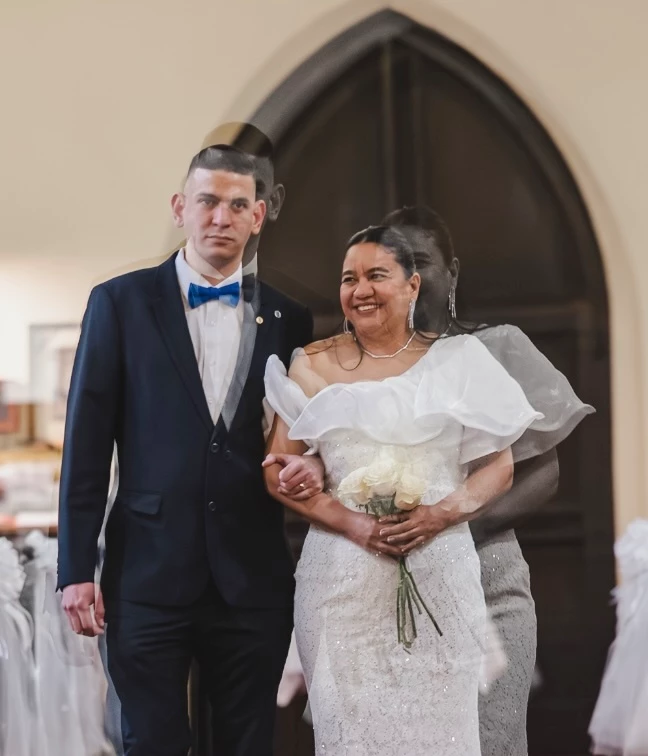
P: using arrow keys to navigate through images an image gets merged with the last one

  • April 20, 2026
  • 9 replies
  • 32 views

Arrowing through a number of images suddenly this image was overlayed with the previous one. Restarting Lightroom Desktop 9.3 on my MacBook Pro M2 Pro did not fix this. I was able to use the Versions tab to revert the image. Then I started arrowing through again and a minute later the same thing happened to a different image. At the time I wasn’t processing anything heavy on my MacBook, but the fan was running pretty fast so something was going on. A few minutes later and I now can’t duplicate the issue.


    9 replies

    Rikk Flohr_Photography
    Community Manager
    April 27, 2026

    Greetings all, 


    The team is having difficulty reproducing this issue. If anyone on this thread has precise, step-by-step instructions for reproducing this failure, please post them. 

    Thanks!

    Rikk Flohr: Adobe Photography Org
    Inspiring
    April 27, 2026

    I’ve seen a few posts now by others experiencing this kind of issue with settings/masks being transferred to the next photo. One thing I’ll add is that I’ve only had this happen while using my arrow keys to gravitate through the images. If I click on the next photo in the filmstrip so far that seems to be safe, but using the arrow keys is my usual way so I forget and start arrowing through and suddenly it will do it again and copy the edits. On Local there is no easy way to fix so I have to reset and then copy and paste edits from another photo and that will apply the masks and everything properly.

    Another point is I don’t remember this happening if I just open Lightroom and start arrowing through the images. If I start doing any quick edits on some images like hovering over the exposure slider and arrowing up or down, or other kinds of edits, that’s when the transfer will be more likely happen, not necessarily on the next image but maybe after a few after as I arrow forwards.

    Inspiring
    April 27, 2026

    I posted something about this as well a few days ago. For me so far it has only happened while using the arrow keys on my keyboard to move through the photos. If I click on the next photo in the bottom filmstrip with my mouse I haven’t had it happen yet but I’m always wanting to use the arrow keys. This only started happening with the latest version of LR. I even tried uninstalling and reinstalling LR.

    Participating Frequently
    April 27, 2026

    Sometimes, when scrolling from one photo to the next, the two images combine in a bizarre way that can’t be undone except by resetting. This seems to be related to the orientation bug I also reported. Basically, the app is occasionally behaving terribly when going from one photo to the next.


    Participant
    April 26, 2026

    I thought I was going crazy, but yeah, I had this on multiple photos today as well. It wasn’t just masks for me, but also crops and healing/cloning.

    Known Participant
    April 25, 2026

    Similar issue on windows where if you're adjusting AI denoise levels while switching back and forth between photos, sometimes a photo's Denoise layer will get applied to a different photo, creating what looks like a double exposure effect

    Participant
    April 25, 2026

    Same thing is happening to me on MacBook Pro m4 max! Happens both on cloud photos and local photos. It also transfers remove-stuff, like healing and cloning. It really sucks with local files, because it basically deletes the actual edit. It can only be reversed by manual resetting or by ctrl-z back past the specific moment it happened. 

    ViTepa
    Participant
    April 24, 2026

    While editing photos in Lightroom (cloud version), I am experiencing an issue where adjustments - including masks - are unexpectedly applied to other images.

    The problem occurs during normal editing: I edit one photo, then switch to another, and notice that adjustments from the previous image have appeared there, even though I did not copy or apply them.

    This has been happening frequently over the past few days and disrupts the editing process, as changes appear on photos where they were not intended.

    Steps to reproduce:

    1. Open Lightroom (cloud version)
    2. Edit a photo (including masks)
    3. Switch to another photo
    4. Continue working normally
    5. Observe that edits from a different photo may appear

    Expected behavior:
    Edits and masks should only appear on the photo where they were made, unless manually applied.

    Actual behavior:
    Edits and masks sometimes appear on other photos without any user action.

    Frequency:
    Occurs frequently.

    System information:

    • Lightroom version: 9.3 (arm64)
    • OS: macOS 26.3.1
    • Device: MacBook Air (Apple M2)
    • RAM: ~8 GB available
    • GPU: Apple M2 (Metal)

    Additional notes:

    • The issue affects both general adjustments and masks
    • Happens during normal editing and navigation between photos
    • Makes the editing process unreliable

    Attachments:
    Screenshots showing edits and masks appearing on unintended photos


    Claire H.
    Community Manager
    Community Manager
    April 22, 2026

    Hi ​@plaiditude, thanks for reaching out! To better help you with this issue, we would like a few more details. Can you send your system info and a screen recording of your issue? You can find your system info by going to Help > System Info, copying and pasting it into a text file, and attaching it here. Do you see any other patterns that might help replicate the issue? 

    In the meantime, I would recommend trying these basic troubleshooting steps if you haven’t already:

    1. Check for Updates: Ensure that Lightroom is updated to the latest version. Sometimes, performance issues are resolved in newer updates.

    2. System Check: Monitor the system performance when using Lightroom. Closing other applications may help free up resources.
    3. Reset your Lightroom preferences: https://adobe.ly/4o7JADQ

    If none of these steps work, please send us the information you requested, and we will continue troubleshooting. I hope this helps! ^CH