Participant
July 5, 2023
Answered

Pixieset install in recent Lightroom

  • July 5, 2023
  • 2 replies
  • 3907 views

How do I install Pixieset into Lightroom? All the instructions say to click on file then pluginmanager, but I don't have that option.

This topic has been closed for replies.
Correct answer Rob_Cullen

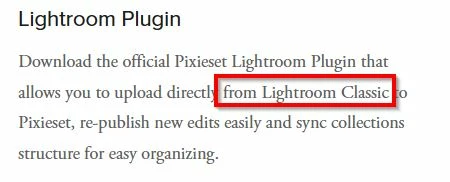
Lightroom does not support Plugins.

You would need Lightroom-Classic on a Mac or PC to run a Plugin.


2 replies

Known Participant
March 28, 2024
Just a word of caution when you are considering using the pixieset plugin with Lightroom....

If you have invested significant time and effort into creating collections and publishing photos to them, you should NEVER uninstall the plugin. Once uninstalled, all the photo assignments you've made across your collections will be permanently lost. After synchronization, you'll only be left with the collection folders themselves, while the collections in Pixieset will show zero images within them.
 
I recently experienced this issue when troubleshooting a problem with the plugin; thinking a reinstall might help - a fatal mistake! Despite working with pixieset support, there was ultimately no way to recover the image assignments. Once the image assignment associations are gone due to uninstallation, they can never be recovered, and support confirmed this.
 
In my case, I had hundreds of photos organized across numerous collections. I'm not redoing all that work. Instead, I've uninstalled this plugin and will manage my collections manually, uploading photos directly into the site. It's not as slick of a process, but I'll never lose track of what photos are assigned where again.
 
 
Rob_Cullen
Community Expert
Rob_CullenCommunity ExpertCorrect answer
Community Expert
July 5, 2023

Lightroom does not support Plugins.

You would need Lightroom-Classic on a Mac or PC to run a Plugin.


Regards. My System: Windows-11, Lightroom-Classic 15.1.1, Photoshop 27.3.1, ACR 18.1.1, Lightroom 9.0, Lr-iOS 10.4.0, Bridge 16.0.2 .