EbonyShae
Participant
January 29, 2026
Question

Presets Not Loading in Lightroom Cloud Desktop App

  • January 29, 2026
  • 1 reply
  • 29 views

Hello everyone, I would appreciate some help on the below issue;

I have recently got a new laptop and have reinstalled LR Cloud on it, signed in, and just resetting up Presets. 

  • I can find the Presets within my files and select them for import
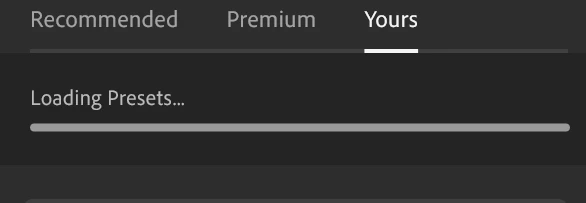
  • I click select and then I just get this loading bar, but they NEVER load, just constantly show this bar.
  • I have tried trying to sync them from Online but they don’t appear on Desktop app.
  • I have tried closing LR and restarting the program
  • PLEASE HELP! xx


    1 reply

    Sameer K
    Community Manager
    Community Manager
    January 29, 2026

    Hey, ​@EbonyShae. Welcome to the Lightroom Community. I’ll help you figure this out. 

    What operating system are you working on? Has this started happening since the recent Lightroom release? How many presets did you import at once? 

    Before proceeding, please check whether all images & edits have synced as expected in Lightroom Web (https://lightroom.adobe.com). 

    If you’re on macOS, try these suggestions:

    • Ensure Lightroom has the required permissions on macOS: macOS:https://adobe.ly/3WfrQf2
    • Choose Go > Go To Folder in the Finder window and type ~/pictures. Locate a bundle named Lightroom Library.lrlibrary.
    • Right-click or control-click this bundle and choose Show Package Contents. You'll find a folder inside it with a long cryptic string of numbers and letters (for example: d1a4f88d2b534c7d91022136fd182532). Open that folder.
    • In the folder, move out all the files named Managed Catalog.[anything] to the Mac's desktop. 
    • Launch Lightroom.


    Let me know how it goes. Thanks!

    Sameer K

    (Type '@' and type my name to mention me when you reply)