Known Participant
June 23, 2026
Question

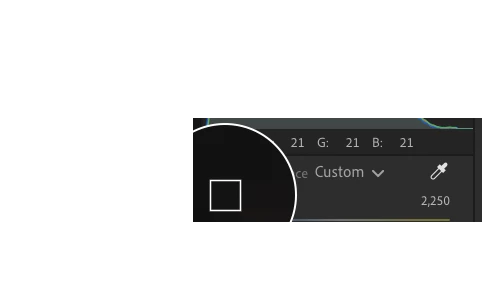
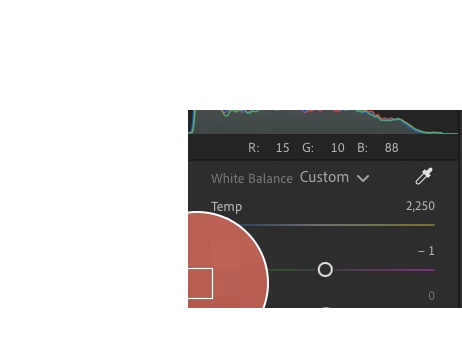
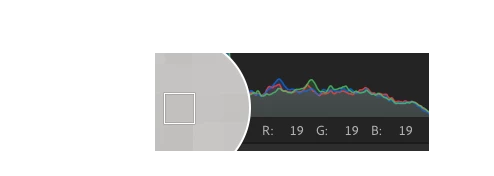
RGB values under histogram are laughably wrong
  • June 23, 2026
  • 2 replies
  • 43 views


The issue should be self-evident.


Tested on macOS Tahoe.

    2 replies

    Rob_Cullen
    Community Expert
    Community Expert
    June 24, 2026

    My comments- I cannot understand the square in a circle. Is that the position of the cursor?

    My Lightroom seems to give meaningful answers with the cursor on the image. 

    Examples

    Cursor on Black  ( Cursor Not visible with Windows snipping tool)
     
    Cursor on Blue.


    Regards. My System: Windows-11, Lightroom-Classic 15.4.1, Photoshop 27.8, ACR 18.4, Lightroom 9.4, Lr-iOS 10.4.0, Bridge 16.0.3 .
    Known Participant
    June 24, 2026

    It's the white balance tool. I have it selected as a visual aid so there's no doubt as to which color is select and has no bearing on the bug itself.

    Rob_Cullen
    Community Expert
    Community Expert
    June 24, 2026

    Yes, I now see your problem. Thanks (Forgot about the white balance tool)

    I cannot reproduce the problem in my windows system.  Hope you get an answer.


    Regards. My System: Windows-11, Lightroom-Classic 15.4.1, Photoshop 27.8, ACR 18.4, Lightroom 9.4, Lr-iOS 10.4.0, Bridge 16.0.3 .
    Claire H.
    Community Manager
    Community Manager
    June 23, 2026

    Hi @Generous_view0D45, Welcome to the Lightroom Community forum! We could use a few more details to figure out the issue. Can you send your system info, a screen recording of the issue, and a numbered list of the exact steps needed to replicate it? Does this happen with all of your images? You can find your system info by going to Help > System Info, copying and pasting it into a text file, and attaching it here. Thanks! ^CH

    Known Participant
    June 23, 2026

    Hi, there seems to be some confusion here. I don't see how a screen recording or a list of exact steps would be beneficial here, however I will do my best to accommodate your request. Unfortunately, uploading my screen recording to the forums fails for some reason, so the list of steps will have to suffice:

    1. Select an image.
    2. Open the edit panel.
    3. Move the mouse over the image.
    4. Read the RGB values listed.

    I'm using a 16" M5 Max MacBook with 128GB of RAM