
Participant
June 17, 2019
Question

Screwy thumbnails

  • June 17, 2019
  • 2 replies
  • 251 views

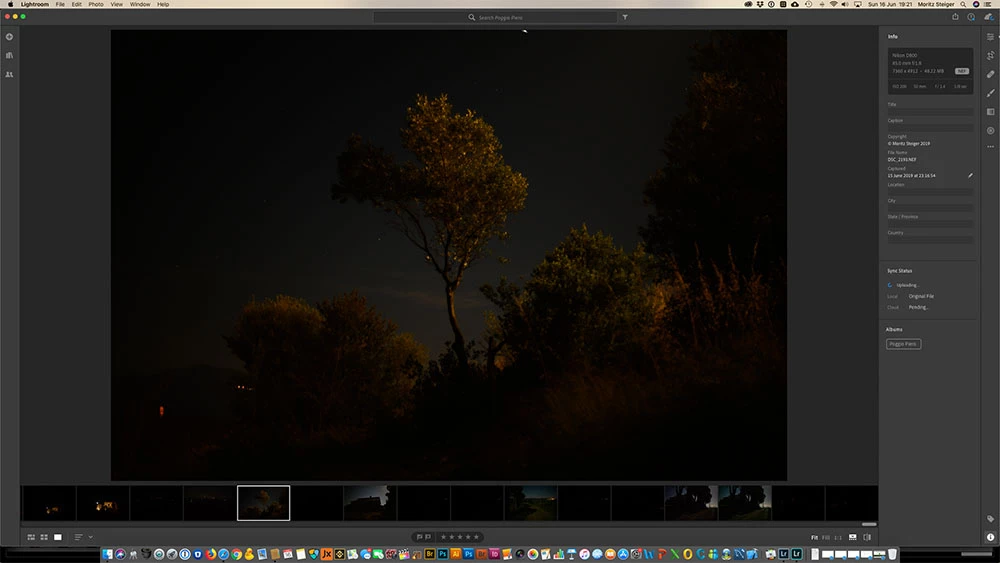
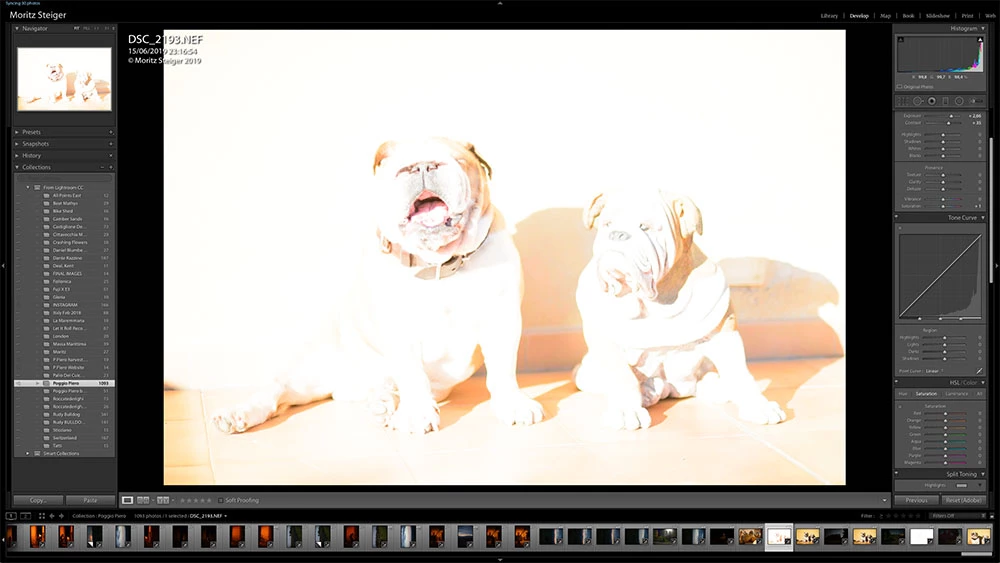
Lately when I am syncing images imported into Lightroom, Lightroom classic displays the wrong thumbnail for that image and also displays the wrong image.

It does show the correct date and time for when the imported picture was taken. It seems to be using files that have the same name that I previously imported but then deleted. For example these images both have the filename DSC_193.NEF, usually when there is a duplicate filename is imported the app adds (-2) to the file name but I think as its been previously rejected/deleted it seems to use the thumbnail of the deleted image file, possibly from the cache, which I have already purged.

Above is Lightroom with the image I am importing and then below in Lightroom classic, how it looks. The one in LR Classic is an image I had previously deleted. I've just been doing some more imports and its happening in both apps.

Any suggested fixes would be greatly received.
This topic has been closed for replies.

2 replies

Dr-Glenn
Participant
September 30, 2019

I just encountered a problem like this with LR6 6.14. After importing some photos, renaming, adding metadata and changing the "date-time original" (these are scanned from old slides), I notice a few duplicated thumbnails. They weren't there the previous day! When I select a duplicate for "develop", I see the correct image. But I did not change anything in develop mode, so when I return to navigator, the thumbnail remains the same (wrong). I tried re-sync the folder and rename the photos. Other solutions that I found by search seemed extreme (deleting some catalog files).

My solution was to use Windows to copy the files elsewhere, then import those photos to a new folder. In the process I also renamed them. This worked and now I can delete the original files. 

I wonder if there are other folders (that I was not working on) that got messed up?

Sahil.Chawla
Adobe Employee
Adobe Employee
June 17, 2019

Hi Moritzs,

That does not seem right, let's fix this.

As the thumbnails in Lightroom Classic are displayed wrong, have you tried rebuilding the previews? Please try the steps below and let us know how it goes.


Windows:

  1. Exit out of Lightroom.
  2. Navigate to the folder that contains your Lightroom catalog. The default location is in the My Pictures/Lightroom folder under your user folder.
  3. Locate and open the [Catalog-name] Previews.lrdata folder.
  4. Drag the previews.db and root-pixels.db files to the trash.
  5. Restart Lightroom. If you continue to have the same issue. return to the folder you opened in step 2.
  6. Drag the entire [Catalog-name] Previews.lrdata folder to the trash.
  7. Restart Lightroom.
    Note: You do not need to delete the [Catalog-name] Smart Preview.lrdata folder, if one exists. This folder contains smart previews, which are different from previews.


Mac OS
:

  1. Quit out of Lightroom.
  2. Navigate to the folder that contains your Lightroom catalog. The default location is in the Pictures/Lightroom folder under your user folder.
  3. Locate and drag the [Catalog-name] Previews.lrdata file to the trash.
  4. Restart Lightroom.
    Note: You do not need to delete the [Catalog-name] Smart Preview.lrdata folder, if one exists. This folder contains smart previews, which are different from previews.

    Please check this article for more info: Lightroom error on preview cache or displays gray thumbnails

Regards,
Sahil

Participant
June 17, 2019

Hi Sahil

I did as you suggested but it hasn't had any affect. I deleted the previews file and let it rebuild after restarting Lightroom but the previews are just the same.

Thanks

Moritz