chrisa38635176
Participant
July 15, 2018
Answered

selective colors lightroom cc

  • July 15, 2018
  • 1 reply
  • 1894 views

Hey guy's,

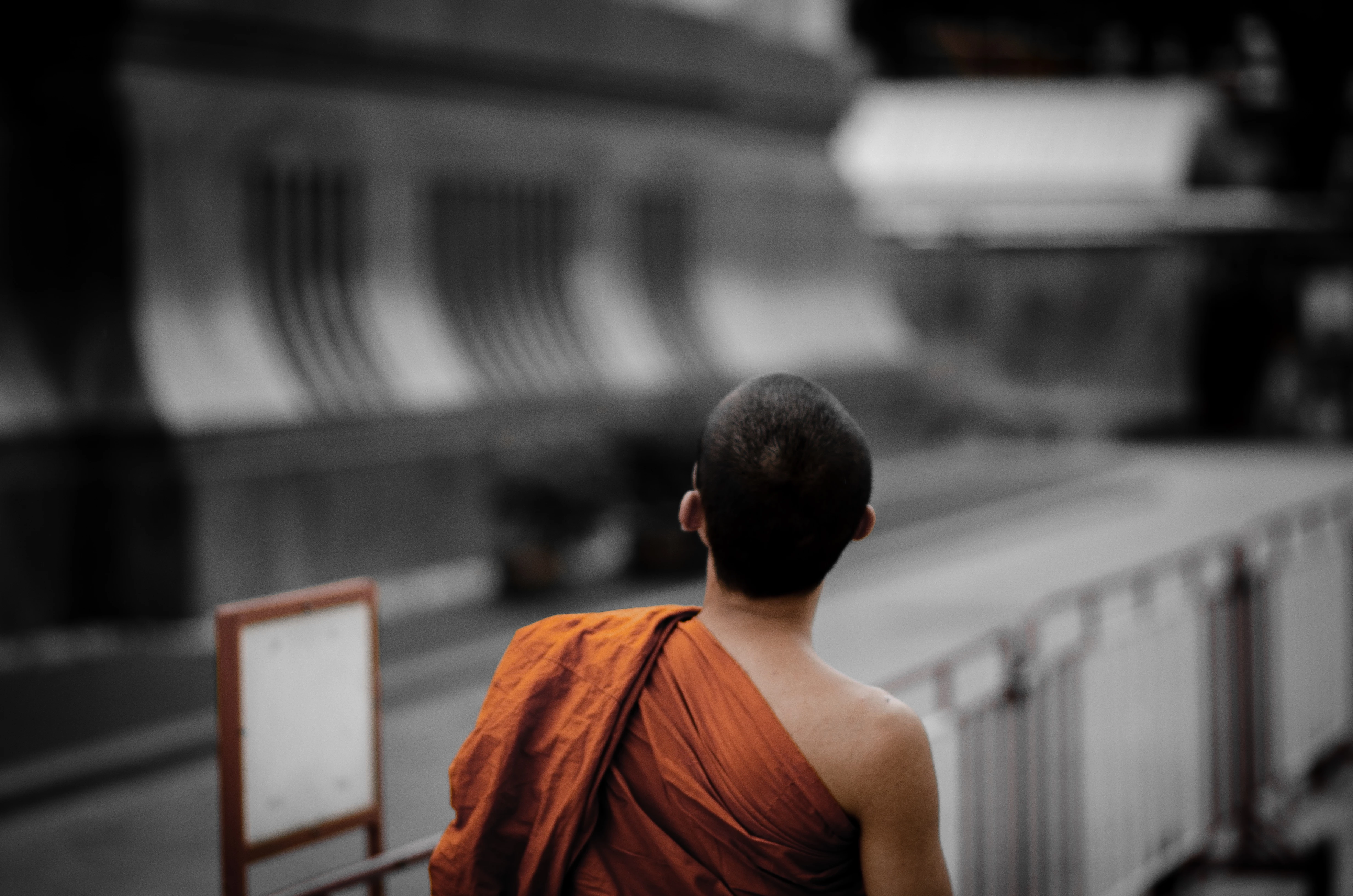
Im having a bit of troubles on my picture (attached below). I want to have the whole picture Black & White, except the Monk.

So as you can see, the Sign down left is also in Orange.
My question is now: How can i get the sign also in Black & White?

Appreciate the help!
This topic has been closed for replies.
Correct answer Ian Lyons

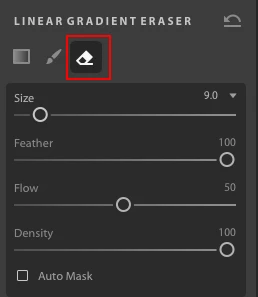
Not sure how you got to where you are now. However, taking a slightly different tack to before. Open the Linear Gradient tool and set the saturation to -100, then place the cursor as close to bottom of image as possible and drag down. The entire image should be desaturated. Next select the eraser brush in gradient tool and brush on the monk to bring back the colour.

1 reply

Ian Lyons
Community Expert
Community Expert
July 15, 2018

The easiest way is t choose the Local brush, set saturation to -100 then brush the item you want as B&W. You can, with the same brush, add contrast, clarity or whatever adjustment might be necessary to boost the contrast/tone lost by desaturating.

chrisa38635176
Participant
July 15, 2018

Hey @Ian Lyons, i already tried that. It didn't work for me.. Probably because the picture is already Black & White and all colors except orange are removed ? Hmm..

Ian Lyons
Community Expert
Ian LyonsCommunity ExpertCorrect answer
Community Expert
July 15, 2018

Not sure how you got to where you are now. However, taking a slightly different tack to before. Open the Linear Gradient tool and set the saturation to -100, then place the cursor as close to bottom of image as possible and drag down. The entire image should be desaturated. Next select the eraser brush in gradient tool and brush on the monk to bring back the colour.