
Participant
October 31, 2020
Answered

Sudden interface change in Release 10. Where did the red and blue highlights come from?

  • October 31, 2020
  • 1 reply
  • 337 views

Hi,


I am baffled by a change in its Lightroom Classic behavior after its auto-update yesterday to V10. I wonder if anyone in the Community can help identify what it is doing and how I can turn off a "feature" that is blocking my ability to do some basic editing.


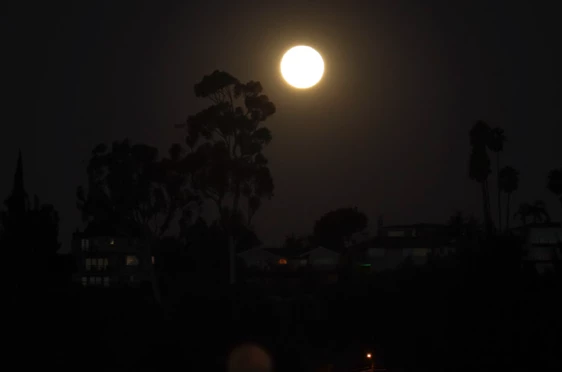
Here is the source image in "Library" view:
When I move to "Develop" view, it looks like this:
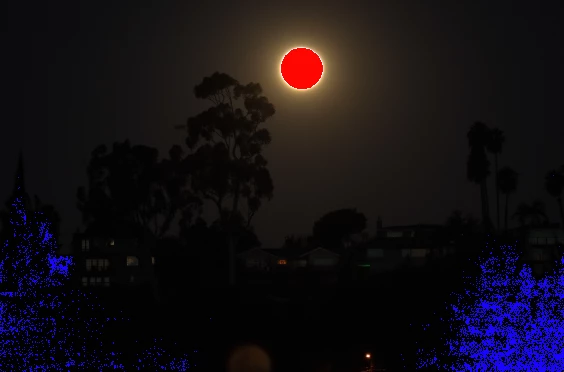
 

Where did these red and blue highlights come from, and how can I get rid of them? 


I tried turning "off" all of the panels on the right hand side, especially the Color Grading panel, but this had no effect. I tried looking at different Presets, and that moved the red and blue and in one instance removed the red but not the blue.


I have been using Lightroom (Classic) for several years but I am obviously not an advanced user. I don't think I have ever seen it do this.  I don't know what it is doing nor what term to use to search for this behavior. 


Perhaps the more advanced users will recognize what the program is doing here and provide suggestions how to turn this red and blue highlighting off?


Thanks in advance!!

Laura


This topic has been closed for replies.
Correct answer Rob_Cullen

The Red & Blue highlights are "CLIPPING INDICATORS"

They indicate full Black (Blue) and total White (Red).

Press Keyboard [J] to toggle them on/off,

or click on the triangles above the Histogram to selectively turn the indicators on/off.

If you are editing raw files then you might be able to recover 'clipped' areas by adjusting the Blacks & Whites sliders.


It has been a 'feature' that I have known since Version 4.0, and possibly since v1.0


1 reply

Rob_Cullen
Community Expert
Rob_CullenCommunity ExpertCorrect answer
Community Expert
November 1, 2020

The Red & Blue highlights are "CLIPPING INDICATORS"

They indicate full Black (Blue) and total White (Red).

Press Keyboard [J] to toggle them on/off,

or click on the triangles above the Histogram to selectively turn the indicators on/off.

If you are editing raw files then you might be able to recover 'clipped' areas by adjusting the Blacks & Whites sliders.


It has been a 'feature' that I have known since Version 4.0, and possibly since v1.0


Regards. My System: Windows-11, Lightroom-Classic 15.1.1, Photoshop 27.3.1, ACR 18.1.1, Lightroom 9.0, Lr-iOS 10.4.0, Bridge 16.0.2 .
Participant
November 1, 2020

WobertC


Thank you so much for identifying the UI color artifacts and their meaning. I must have typed J by accident when I brought up the new version. 

At your suggestion, I'll try using it on purpose!


Laura