I’ve read all the FAQs related to synching my LR Classic library to the LR ecosystem and my online Adobe storage, but things just do not seem to work. The instructions are confusing, at best.
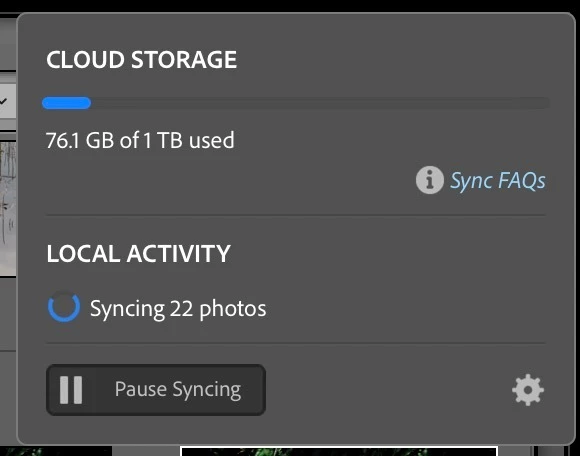
See the screenshot below. It shows the exact same numbers now, 76.1Gb used and synching 22 photos as it showed 6 hours ago. Doesn’t look like it is doing ANYTHING. What is going on with this? I have something like 5700 photos I’m trying to synch. What is the point of paying for this online storage if actually getting any use out of it is so difficult?
Correct answer Rob_Cullen
To address your topic points-
1] There are plugin duplicate finders for Lightroom-Classic. But leave this until a bit later until you can understand how duplicates are handled by LrC. DUPLICATE FINDER Teekesselchen: Home and my suggestion - do not use dupe finders that are external to LrC, they just cause more problems.
2] Do Not create a new Catalog in Lr-Classic. Sync will only work with one catalog. If you start another new catalog everything in the cloud will download again making just more duplicates and more confusion, and you lose all the edits you have done in the ‘old’ catalog.
3] Yes you can delete everything in the Cloud AFTER LrC believes it has downloaded everything from the Cloud- it does this automatically without intervention to the folders you have chosen in the Preferences [Sync] tab.. The LrC Cloud dialog will show “Synced” under Local Activity when complete.
If you then delete an image from the All Synced Photographs special collection in LrC, it will be removed from the cloud AND from any synced collections. This will clear the space in the cloud that was occupied by that image.
*If you want to preserve existing Collections in LrC- Turn off sync specifically on the collection(s) you want to preserve. Select all photos in the Collection and remove them (the selected images) from the All Synced Photographs special collection. This will remove them from the cloud, and clear the online space that was occupied by the image.
You can then Re-sync the collection(s) which contain the images. This will cause a smart preview version of the image to be uploaded to the cloud. These smart previews do NOT count against your online storage space quota.
I don’t suggest having all your photos from the LrC Catalog synced up to the Cloud. Only sync Collections of selected images that will show as Albums in Lightroom - much neater to find the photos in Lightroom.
“What is the point…..” Well Lightroom-Classic was not designed to sync when first introduced about 2006. Syncing is an after-thought so has limitations.
Basically-
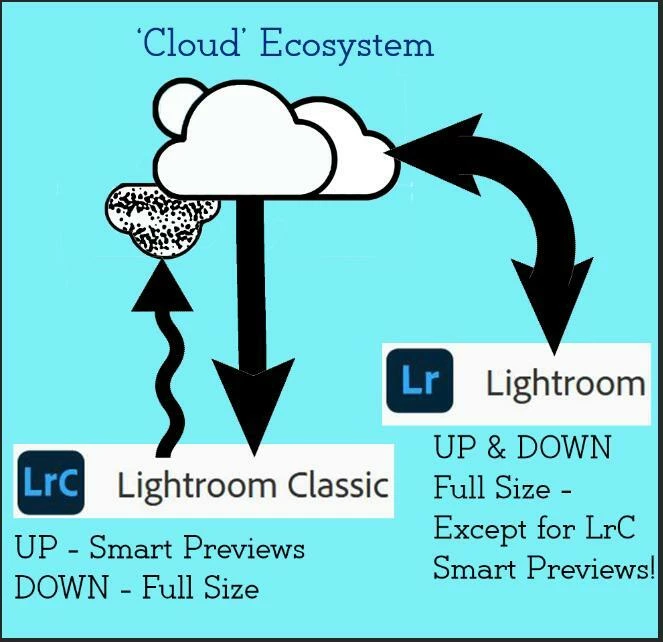
1] Everything you sync UP to Lr from Collections in LrC sends Smart Previews- quite sufficient to display and edit remotely.
2] All photos you IMPORT (ADD) to any version of Lightroom (not LrC) will occupy your Cloud storage as full-size files, AND they automatically sync DOWN to the LrC catalog.
1] There are plugin duplicate finders for Lightroom-Classic. But leave this until a bit later until you can understand how duplicates are handled by LrC. DUPLICATE FINDER Teekesselchen: Home and my suggestion - do not use dupe finders that are external to LrC, they just cause more problems.
2] Do Not create a new Catalog in Lr-Classic. Sync will only work with one catalog. If you start another new catalog everything in the cloud will download again making just more duplicates and more confusion, and you lose all the edits you have done in the ‘old’ catalog.
3] Yes you can delete everything in the Cloud AFTER LrC believes it has downloaded everything from the Cloud- it does this automatically without intervention to the folders you have chosen in the Preferences [Sync] tab.. The LrC Cloud dialog will show “Synced” under Local Activity when complete.
If you then delete an image from the All Synced Photographs special collection in LrC, it will be removed from the cloud AND from any synced collections. This will clear the space in the cloud that was occupied by that image.
*If you want to preserve existing Collections in LrC- Turn off sync specifically on the collection(s) you want to preserve. Select all photos in the Collection and remove them (the selected images) from the All Synced Photographs special collection. This will remove them from the cloud, and clear the online space that was occupied by the image.
You can then Re-sync the collection(s) which contain the images. This will cause a smart preview version of the image to be uploaded to the cloud. These smart previews do NOT count against your online storage space quota.
I don’t suggest having all your photos from the LrC Catalog synced up to the Cloud. Only sync Collections of selected images that will show as Albums in Lightroom - much neater to find the photos in Lightroom.
“What is the point…..” Well Lightroom-Classic was not designed to sync when first introduced about 2006. Syncing is an after-thought so has limitations.
Basically-
1] Everything you sync UP to Lr from Collections in LrC sends Smart Previews- quite sufficient to display and edit remotely.
2] All photos you IMPORT (ADD) to any version of Lightroom (not LrC) will occupy your Cloud storage as full-size files, AND they automatically sync DOWN to the LrC catalog.
If you are only syncing photos up to the Lr cloud by marking Collections in Lr-Classic to sync, then something is amiss. Syncing UP from Lightroom-Classic does not use any of your cloud storage for the photo previews. (Only minimal megabytes for Cloud control)
So where does the 76GB come from?
Are you importing files to the cloud version of Lightroom?
Are you using Lightroom-mobile on a phone or ipad?
Problems with syncing can often be found by opening the browser version of Lightroom at Lightroom.adobe.com and check for “Sync Issues” located in the left-hand panel under ‘All Photographs’.
I have a total mess. I do have Lightroom mobile on my iPad, but I’ve not been using it because I’m so confused about this whole synch/ecosystem thing. I obviously must have screwed something up at some point. In the browser version of LR it shows that I have over 8300 photos. Many are duplicates, triplicates, quadruplicates etc. Only 1 synch issue shown, and is apparently a file that didn’t finish uploading from my iPad
What I would like to do is, perhaps, start over from scratch and:
Cull all the duplicates and files I’m not interested in keeping from Lightroom Classic stored locally on my Mac.
Do whatever I need to do to prepare for upload to Adobe Cloud: Create a new library? Put them all in a collection set to synch?
Delete the whole mess in the cloud currently and then upload all files remaining from steps 1 & 2.
If I could find someone to give me a 1 on 1 lesson and walk me through this I would gladly pay a fee.




 AdChoices