

Kindhearted_Buttercup0D4D
Inspiring
May 5, 2020
Answered

Why is my LR CC library 192GB?

  • May 5, 2020
  • 3 replies
  • 2383 views

I have been looking into why my Lightroom CC (not classic) library file is 192GB. When I click on 'show package contents' on 'Lightroom Library.lrlibrary' I get the following list:
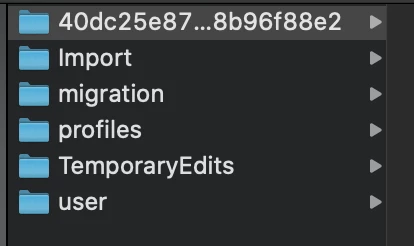


The top folder contains another folder called 'originals' which seems to contain all my RAW files for the past four years. I thought it was supposed to store RAW's in the cloud and therefore free up space on the computer? If so (and I have set my local cache setting to 10% of available space so I can work on recent images) then why would local storage be so high and why are there RAW files in there?
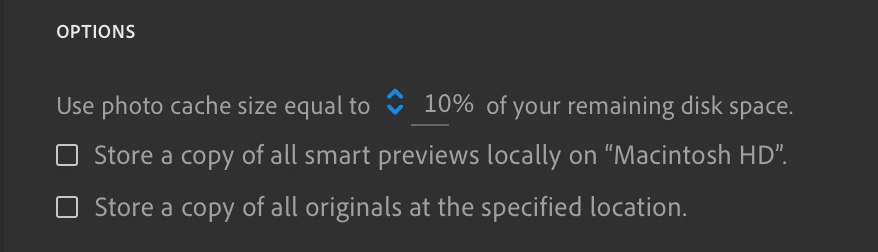


As you can see, I haven't asked it to keep original files on the computer.


Thanks.

This topic has been closed for replies.
Correct answer Kindhearted_Buttercup0D4D

I spoke to Adobe and in the end they deleted the .lrlibrary file and let it rebuild itself. Apparently it's normal that the application can download 0-5% of the original images from the server if some of them can't be converted into smart previews for whatever reason. My case was a bug. Either way, the answer is to rename or delete the file and let it rebuild on it's own.

3 replies

Kindhearted_Buttercup0D4D
Kindhearted_Buttercup0D4DAuthorCorrect answer
Inspiring
May 8, 2020

I spoke to Adobe and in the end they deleted the .lrlibrary file and let it rebuild itself. Apparently it's normal that the application can download 0-5% of the original images from the server if some of them can't be converted into smart previews for whatever reason. My case was a bug. Either way, the answer is to rename or delete the file and let it rebuild on it's own.

JohanElzenga
Community Expert
Community Expert
May 6, 2020

If you see the photos in Lightroom, and Lightroom does not show you the 'syncing' icon in the upper right corner, then you can assume they are online. If you really want to make sure, you can go to https://lightroom.adobe.com and login. That is the web interface of the Lightroom ecosystem, so any image you see there must be online.


I have reported this issue internally to Adobe, so you do not have to contact them about it.

-- Johan W. Elzenga
JohanElzenga
Community Expert
Community Expert
May 5, 2020

I have seen this more often. Lightroom is supposed to remove these after the images have been synced, but that does not always happen. This looks like a bug and has been reported already. If you are sure that all these files are safely online, then you can simply delete the originals manually.

-- Johan W. Elzenga
Kindhearted_Buttercup0D4D
Inspiring
May 6, 2020

Thanks Johan (and thanks for your other reply).


I'm glad you said that as I couldn't figure out what was happening. Perhaps my internet connection isn't fast enough to upload such large files in time. I'll keep an eye on the folder size and see if it decreases at all between adding new shots. Still, 4 years old seems odd. 


How can I check if they're stored online? If I try to remove the originals folder and rename it as a test, CC builds a new folder and starts to repopulate it with originals again. Not sure how to contact Adobe over this, or to report it. Do you know?


Thanks.