

michaelp29954971
Participant
October 24, 2023
Question

Won't show files

  • October 24, 2023
  • 3 replies
  • 188 views

I have a directory with several files, but none show up in Lightroom. I've checked Mac permissions, converted files to various formats, moved files to another directory. Still no luck. Screen pic attached.
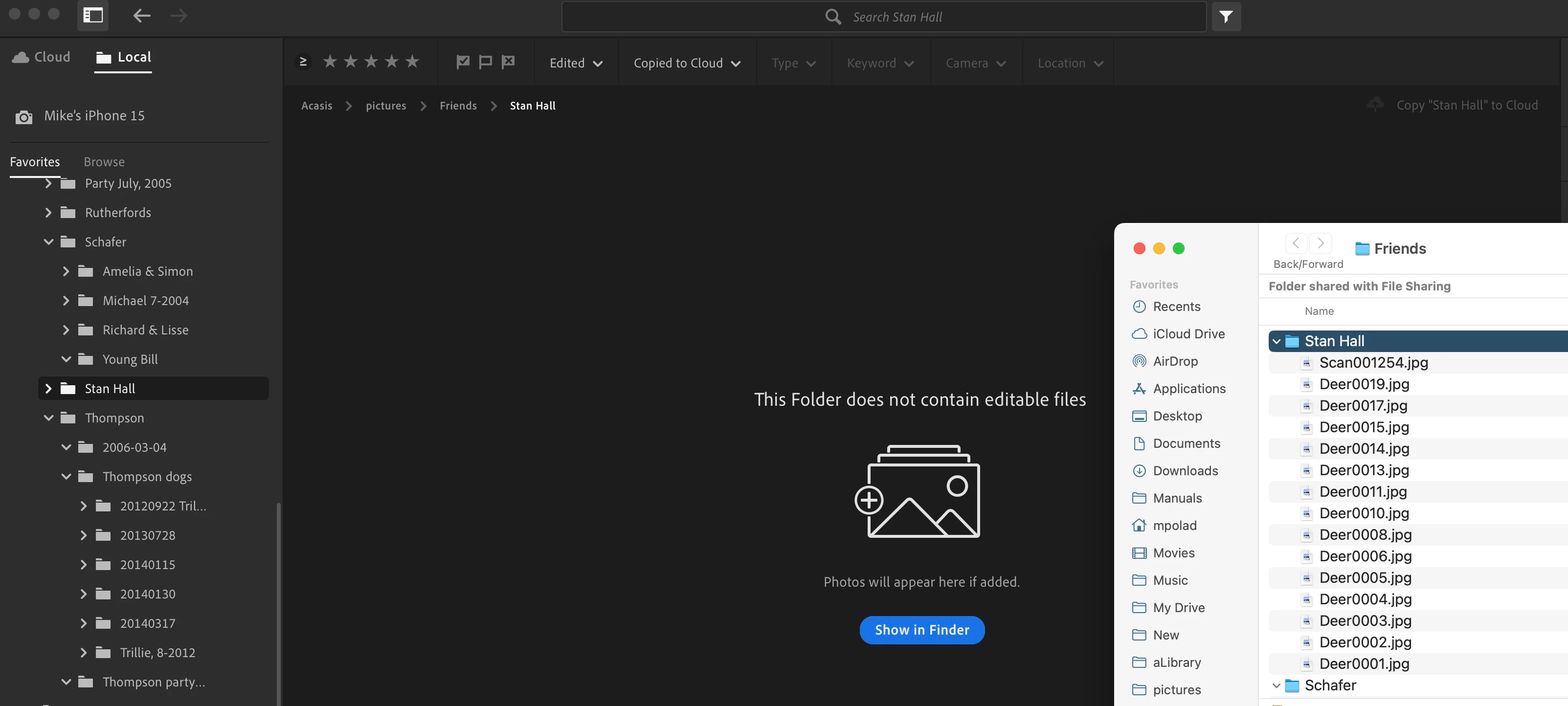


Mike

 

This topic has been closed for replies.

3 replies

Adobe Employee
October 26, 2023

Sorry if I'm asking the obvious, but I take it that quit and relaunch and / or reboot does not change anything?

Also, when you first selected the folder and were asked by the system to allow access, did you choose the root folder for the rlevant files?

Rob_Cullen
Community Expert
Community Expert
October 25, 2023

Thinking of possibilities- Are the files actually 'Local'?  Your screen-clip indicates they might only be in a 'shared' location (offline?).  What do the icons beside each JPG file represent?


Regards. My System: Windows-11, Lightroom-Classic 15.1.1, Photoshop 27.3.1, ACR 18.1.1, Lightroom 9.0, Lr-iOS 10.4.0, Bridge 16.0.2 .
michaelp29954971
Participant
October 25, 2023

Files are local. And I have several tens of other nearby folders with many files that work correctly. I saw this a couple of times before, where the no-see files were .tif. When I changed those to .png they showed up. But I've tried many formats with this batch with no change.

JohanElzenga
Community Expert
Community Expert
October 24, 2023

You say "I've checked Mac permissions", but what exactly did you check? The link below mentions Lightroom Classic, but the same thing applies to Lightroom. Apple changed the security requirements in MacOS Monterey and later. Go to MacOS 'System Settings - Security & Privacy' and add Lightroom to "Full Disk Access". See also Quick Tips: How to give Full Disk Access to Lightroom Classic on macOS


-- Johan W. Elzenga
michaelp29954971
Participant
October 25, 2023

Fixed the Full Disk Access. No change. BTW, I have Lightroom CC, not Classic.