


MeredithStotzner
Community Manager
Community Manager
May 23, 2023
Answered

Generative Fill in Photoshop Beta

  • May 23, 2023
  • 106 replies
  • 144208 views

Dream Bigger with Generative Fill - now in the Photoshop (beta) app 
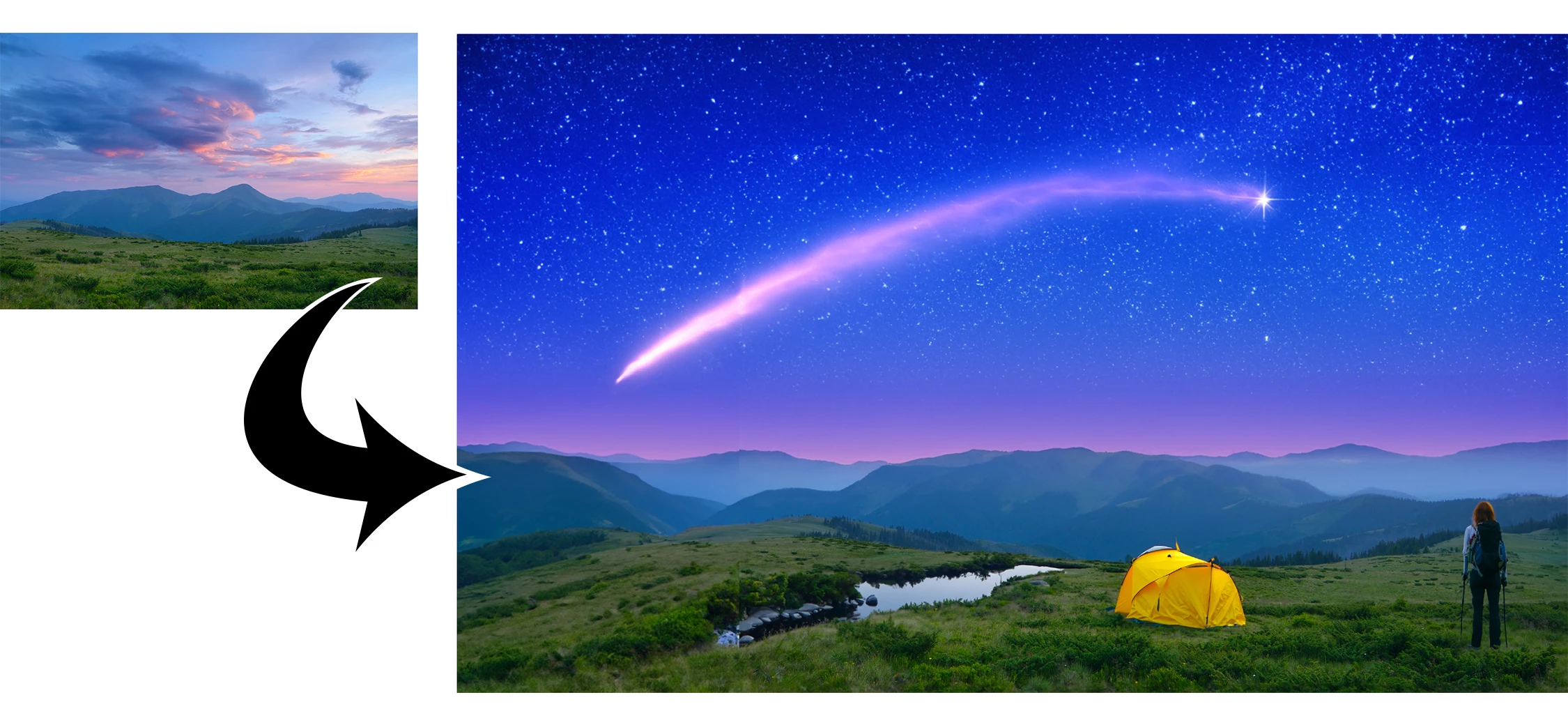
 

This under-construction, revolutionary new AI-powered Generative Fill allows you to create/generate new content in your image or remove objects like never before!

The process is simple: make a selection – any selection, then tell Photoshop exactly what you want placed there. The GenAI models will return an object or scene you described. You can:
 

Generate objects: Select an area in your image, then describe what you’d like to add.

 

Generate backgrounds: Select the background behind your subject, then generate a new scene from a text prompt.

 

Extend images: Expand the canvas of your image, then make a selection of the empty region. Generating without a prompt will create a seamless extension of your scene.

 

Remove: Select the area you want to remove, then let the GenAI technology make it disappear.
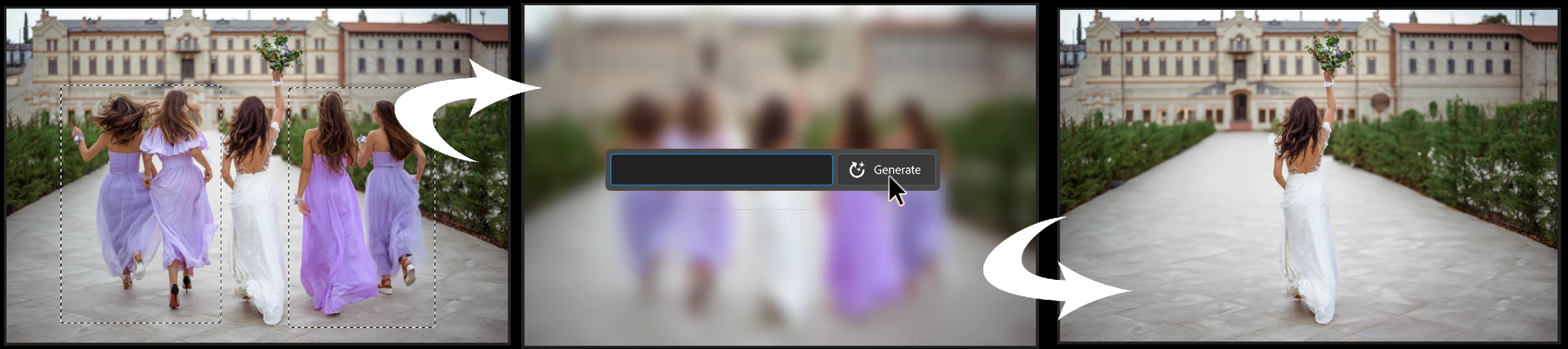
 

And more… Generative fill is incredibly versatile. Discover new ways to use this powerful feature.


How to use Generative Fill

Full instructions and helpful links are here:   https://helpx.adobe.com/photoshop/using/generative-fill.html


Rate the results!
Releasing this amazing new technology as a public beta allows Adobe to hear from you!

Let us know if the Generative Fill feature is meeting your expectations!
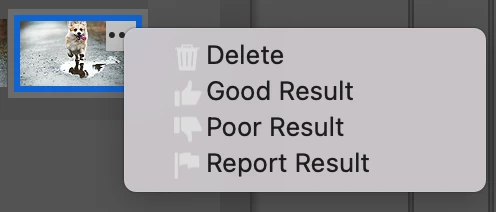
As you use Generative Fill, please rate each variation image.

Simply hover over the [•••] on the thumbnail and give it a thumbs up, or thumbs down, then follow the link to tell us more.


Report Result option
Prompts may also unintentionally generate problematic or offensive images; in such cases you can use the Report Result option to let us know.


Provide Feedback and help shape Generative Fill

If you would like to provide feedback on the overall experience, report any bugs, or suggest new features please let us know in this thread! If you prefer Discord, you can find us there too!


Helpful Tips

  • Use simple language
    Leave out commands like “add” or “remove” - Example: asking to "remove the red boat" will generate more red boats.
    Try using 3-8 words to describe what you want to see.
    Include a subject with descriptive language.. Example: A red barn in a field of flowers.
  • Select part of the original image when extending 
    Make sure you select part of the image along with the empty part of the canvas. This will give a better result that will blend in with the rest of your image.
  • Get inspired and inspire others
    Share what you create with the beta community!
    Check out the 
    Adobe Firefly Gallery to see what others have created with Adobe Firefly and Generative Fill. Click on an image to see the prompt that was used.


Related Links:

          Learn about and install Photoshop (beta) app

          Experience the future of Photoshop with Generative Fill

          Firefly FAQ

          Stock and Firefly FAQ

          Make selections in your composites

          Retouch and repair images


Correct answer Kevin Stohlmeyer

Try entering a basic prompt. We are seeing a high volume of failures for GF without prompts.

106 replies

Participant
May 24, 2023

i've just tested this out today and it works great! 

https://www.facebook.com/abellangs/videos/213225931515957


Participant
May 24, 2023

When will the Generative Fill feature be available in China and other regions, it's very important for designers, thanks!

Participant
May 24, 2023

Generative Fill eats a ton of storage while in use. I'm noticing a drop of about 20GB of storage while playing with the tool and testing its capabilites. My prompts aren't super complicated either. "The Efifel tower lawn, with the Eiffel tower centered in the background"

Participant
May 24, 2023

Instantly regained 10GB of storage when I closed Photoshop Beta.

Participating Frequently
May 24, 2023

16bit only! Is 32bit planned for HDR content? Thanks

Participating Frequently
May 24, 2023

It really needed to work with 32bit ref frames from After Effects.

Participant
May 24, 2023

In there a way to turn off anti-aliasing for the Generative Fill option (in the Beta)? The test case is something like pixel art where you want fairly clean pixels. 

Example image: On the left is the image with clean pixels. On the right is a sample of Generative Fill.


Any thoughts to generate non aliased results?


Pete.Green
Community Manager
Community Manager
May 24, 2023

Try adding "Pixel art" or "Pixels" as your prompt and let us know how that goes!

Participant
May 24, 2023

No dice, still replaced a person with a person, 

BP1510
Known Participant
May 24, 2023

It appears that Generative Fill AI is overly aggressive, in some cases, to what it determines to be in breach of Adobe Generative AI Beta User Guidelines. For example, people wearing swimwear or activewear. Hopefully this is addressed before it is rolled out to current version of PS 2023

daniellei4510
Community Expert
Community Expert
May 26, 2023

Same here. It's a tad aggressive at times, when attempting to hide an arm or hand. Sometimes even on random objects. It's especially irritating that the warming states the result "is a violation of your agreement." I'm not the one in violation. It's the bot. 🙂

Adobe Community Expert | If you can't fix it, hide it; if you can't hide it, delete it.
Participant
May 24, 2023

FIX FOR THIS ISSUE - Go to BEHANCE enter you DOB and the the Genrtative fill option will be active. 

Participant
May 24, 2023

Looking for a way to save generative fill layers so that I can keep the background consistent throughout my photos.  

Inspiring
June 7, 2023

If you make the generative fill with your background as a separate layer, then you can copy the layers to another document. Or flatten and copy, if you don't think you will need to change it. Of course, I haven't tested this, but it's a start. 

Participating Frequently
May 24, 2023

Did find a solution to the inactive (grey) button, check comment in the relevant thread: Re: P: Generative Fill Button greyed out

Participating Frequently
May 24, 2023

BRO THANK YOU!!!


Inspiring
May 24, 2023

After a quick play with extending images using generative fill I have found that the extra fill is significantly lower quality than the original image.


I have been testing it on fairly high resolution images (8000 x 8000px) and while the extended area is sometimes quite good (but also sometimes comically bad!) it can't be used as it is nowhere near sharp enough to match the original image. See the attached image where the top half is the original image and the bottom half the generative fill extension.


Maybe I'm just expecting too much of it. Are other people noticing this?

Participant
May 26, 2023

Yes I am getting the same results. Probably because it's still in beta