Participant
April 4, 2025
Answered

26.5 update - files not opening

  • April 4, 2025
  • 2 replies
  • 268 views

Since the last update - to version 26.5, photoshop wont open any of the new files that i save. 

Ive tried saving them in different locations on the disk, and on different disks, and still wont work.


Also noticed that the text tool will not allow me to create any new text layers.

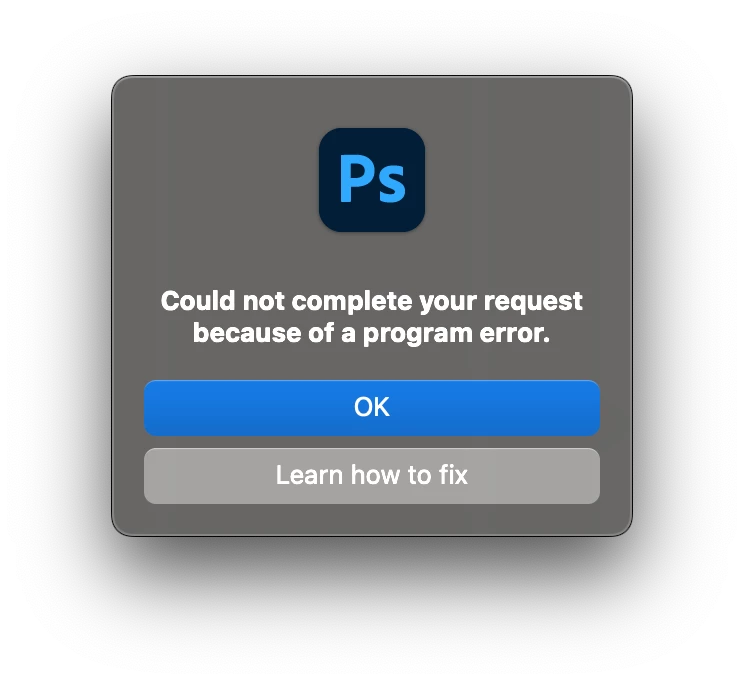
I get the same alert window every time.

Working on a macbook pro, updated to the latest version of Sonoma.

Correct answer ktaki
@mariob50768817  If you use bulleted and numbered list in your text layers, please follow the steps below. If you do not use bulleted and numbered list, ignore the steps below and please describe what you have in the text layers of the document.
 
If you use bulleted and numbered list, I am sorry to say you need to recreate text layers that are causing this issue.
Before opening the document, the first thing you need to do is to open Preferences dialog. Click on Type tab. Look for "Automatic detection of Bulleted and Numbered lists while typing" near the bottom of the Type Options box. Uncheck this option. Close the Preferences dialog.
 
Open the document having the issue. When you open the document, you will see a dialog saying "Some text layers might need to be updated..." Click "No". Then open Layers panel and look for text layers. You need to delete all the text layers that have a gray triangle with an exclamation mark inside. Before deleting them, take a screenshot of each of them so that you know the contents to recreate. Selecting the offending text layer will show the program error dialog. Click OK and hit the delete key to delete the layer.
 
After deleting all offending text layers, recreate the text layers. Sorry, you need to retype the text. Do not use "Bullets and Numbering" function in text layers until this issue is fixed in Photoshop application. You can manually type bullets and numbers list, but never turn on the functionality in the Properties panel.
 
Save the doc as new name, close it, and reopen it. You should not see errors this time.
I hope this helps. Again, sorry for the trouble you experienced. We are working on the fix.

2 replies

ktakiCorrect answer
Adobe Employee
April 4, 2025
@mariob50768817  If you use bulleted and numbered list in your text layers, please follow the steps below. If you do not use bulleted and numbered list, ignore the steps below and please describe what you have in the text layers of the document.
 
If you use bulleted and numbered list, I am sorry to say you need to recreate text layers that are causing this issue.
Before opening the document, the first thing you need to do is to open Preferences dialog. Click on Type tab. Look for "Automatic detection of Bulleted and Numbered lists while typing" near the bottom of the Type Options box. Uncheck this option. Close the Preferences dialog.
 
Open the document having the issue. When you open the document, you will see a dialog saying "Some text layers might need to be updated..." Click "No". Then open Layers panel and look for text layers. You need to delete all the text layers that have a gray triangle with an exclamation mark inside. Before deleting them, take a screenshot of each of them so that you know the contents to recreate. Selecting the offending text layer will show the program error dialog. Click OK and hit the delete key to delete the layer.
 
After deleting all offending text layers, recreate the text layers. Sorry, you need to retype the text. Do not use "Bullets and Numbering" function in text layers until this issue is fixed in Photoshop application. You can manually type bullets and numbers list, but never turn on the functionality in the Properties panel.
 
Save the doc as new name, close it, and reopen it. You should not see errors this time.
I hope this helps. Again, sorry for the trouble you experienced. We are working on the fix.
Sameer K
Community Manager
Community Manager
April 4, 2025

Hey, @mariob50768817. Welcome to the Photoshop Community. I'll help you figure this out. Please share the system info from Photoshop Help > System info > Copy and paste into a text document > Upload and attach here. 


Are you opening layered PSDs or image files (JPEG or RAW?)


Try this: If you're opening image files, press and hold the CMD + OPT key, go to Photoshop > Settings > Camera Raw Preferences, and select 'Yes' when prompted to reset Camera Raw preferences.


If the error appears when you use the Type tool, try resetting the Type tool case. Right-click on the Tool icon in the Toolbar menu and select Reset Tool.


Let me know how it goes. Thanks!

Sameer K

(Type '@' and type my name to mention me when you reply)