


Known Participant
July 30, 2026
Answered

Action

  • July 30, 2026
  • 6 replies
  • 52 views

Action now produces a bluish, washed-out image instead of improved tones. Worked recently but now fails. Photoshop 27.9.0 on M1 Ultra/macOS 26.5.2. First Action step alone causes issue. Manual Levels Auto corrects it. Auto Tone shows same fault. Tested PSD/PNG/JPG.

    Correct answer Jeff Arola

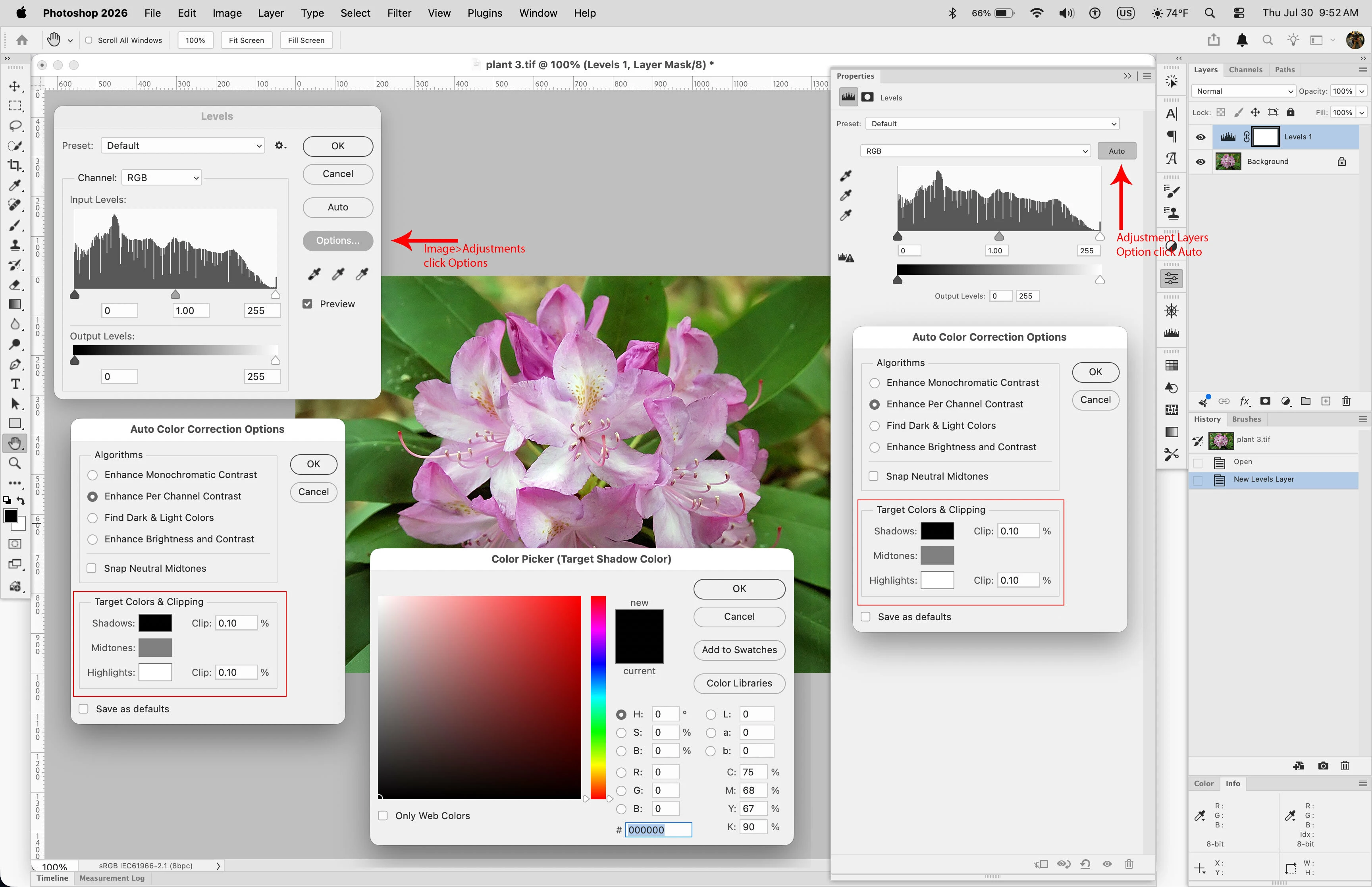
    In the Levels or Curves Adjustment layer dialog, Option click on the Auto button, click on one of the choices other than Enhance Brightness and Contrast and confirm the settings for Target Colors and Clipping are not set wrong. Click on the color chips to bring up the color picker. The defaults are Shadows 0,0,0 RGB, Midtones 128,128,128 RGB and Highlights 255,255,255 RGB. (in the Levels or Curves dialog under Image>Adjustments click on the Options button)


    6 replies

    Community Expert
    July 30, 2026

    @jmshrrsn wrote: Action now produces a bluish, washed-out image instead of improved tones. Worked recently but now fails. Photoshop 27.9.0 ...


    Photoshop 27.9 is a Beta version. In the meantime a new version is available. Install version 27.10 and check again.

    If this doesn’t help you’d be better off posting on the Photoshop (Beta) | Adobe DME forum.

    This here is the forum for the released version. Actual is this version 27.8


    My System: Intel i7-8700K - 64GB RAM - NVidia Geforce RTX 3060 - Windows 11 Pro 25H2 -- LR-Classic 15 - Photoshop 27 - Nik Collection 9 - PureRAW 6 - Topaz Photo AI
    davescm
    Community Expert
    Community Expert
    July 31, 2026

    @AxelMatt 27.9.0 is the current release version, it was released earlier this week. The Beta is 27.10.

    Dave

    Community Expert
    July 31, 2026

    @davescm  Thanks for the info, but I don’t see and heard anything about the release of Photoshop 27.9. I don’t see already any infos here in the forum.

    Therefore, for me is Photoshop 27.8 the current version.

    There should be a better communication!!!

    My System: Intel i7-8700K - 64GB RAM - NVidia Geforce RTX 3060 - Windows 11 Pro 25H2 -- LR-Classic 15 - Photoshop 27 - Nik Collection 9 - PureRAW 6 - Topaz Photo AI
    Jeff Arola
    Community Expert
    Jeff ArolaCommunity ExpertCorrect answer
    Community Expert
    July 30, 2026

    In the Levels or Curves Adjustment layer dialog, Option click on the Auto button, click on one of the choices other than Enhance Brightness and Contrast and confirm the settings for Target Colors and Clipping are not set wrong. Click on the color chips to bring up the color picker. The defaults are Shadows 0,0,0 RGB, Midtones 128,128,128 RGB and Highlights 255,255,255 RGB. (in the Levels or Curves dialog under Image>Adjustments click on the Options button)


    jmshrrsnAuthor
    Known Participant
    July 31, 2026

    That’s it!  I thought it might have been this but just wasn’t looking properly.  I’d changed the defaults in the Curves adjustment layer, not thinking they’d be reflected in the Layers adjustment layer!  Thank you so much for being more beady-eyed than me!