


Charles91
Known Participant
February 27, 2023
Question

Action to save as Jpeg into original folder [2023]

  • February 27, 2023
  • 2 replies
  • 2678 views

Hi community, 


I have quite some issues with an action that will save my edited image into the same original folder.


I have a folder with many subfolders full of images. So what I will do is, see all images within bridge, drag them one by one and edit them, Then run action to flatten them and save them with their same original format. see action : 
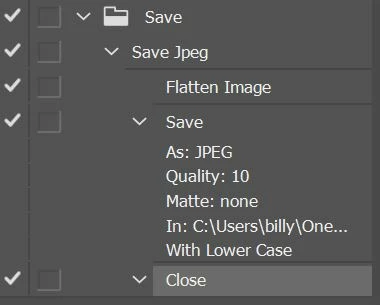
The thing is, that it will always save where I located it to save to... an not like I want to its original folder. (Even if in preferences > File Handling is set to "save as to original folder", and "save as to legacy" is cheked). So is it a bug? like many suggest here ( https://community.adobe.com/t5/photoshop-ecosystem-discussions/save-a-copy-not-saving-file-to-original-folder-in-photoshop-problem-or-error/m-p/13611432/page/2#M709631 ) ? 


if yes, what script could I integrate to bypass this ? (orginial Jpeg ---» Jpeg /quality 10/)


Thank you!!

-CC


This topic has been closed for replies.

2 replies

Stephen Marsh
Community Expert
Community Expert
February 27, 2023

As noted, your action has a recorded save path (I can't tell if it also has a filename as the panel isn't wide enough).


If you just need to save, insert the save command instead of recording the save.

Charles91
Charles91Author
Known Participant
February 28, 2023

@Stephen Marsh , 


I inserted a "save as" (or save as a copy, don't remember) command instead of "save" that doesn't allow me to save in Jpeg sometimes (only .psd and few more options). And in order to record the action I had to gave him a random path.


Am I mistaking somewhere?

-CC


Stephen Marsh
Community Expert
Community Expert
February 28, 2023

If you just wish to resave the JPEG over the top of itself, simply insert the menu item "Save". If the JPEG files were not previously saved from Photoshop and you don't wish for the JPEG options box to appear with every save, you probably wish to use Save As a Copy and include the file format options, without touching the filename so that isn't recorded... But the path will be recorded, that is how actions work (scripts offer more possibilities).

Legend
February 27, 2023

Why not just use the Image Processor script?

Charles91
Charles91Author
Known Participant
February 27, 2023

Right, @Lumigraphics , 

I was using advanced batch script as I need to process images with an integrated "stop" within the action (to use the brush tool). But the whole thing gets complicated, especially if the script didn't work properly. So I tryed a more "manual" way but with few steps I can control with simple actions.

Legend
February 27, 2023

Your action has the file location embedded, if you have to do stops though you have found out that it really just doesn't work right with batch actions.