bartonlew
Legend
February 29, 2020
Answered

add a selection to an existing mask

  • February 29, 2020
  • 4 replies
  • 24275 views

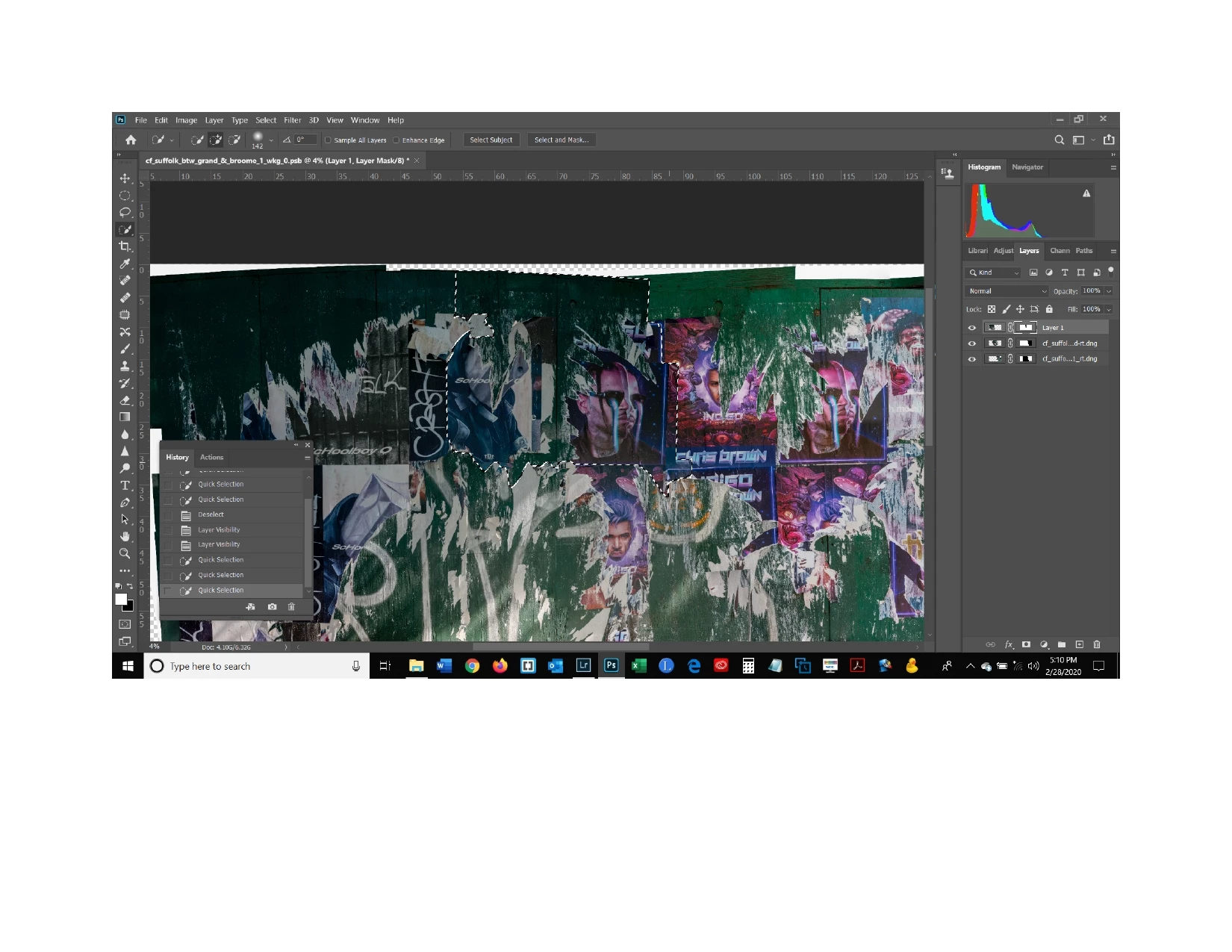
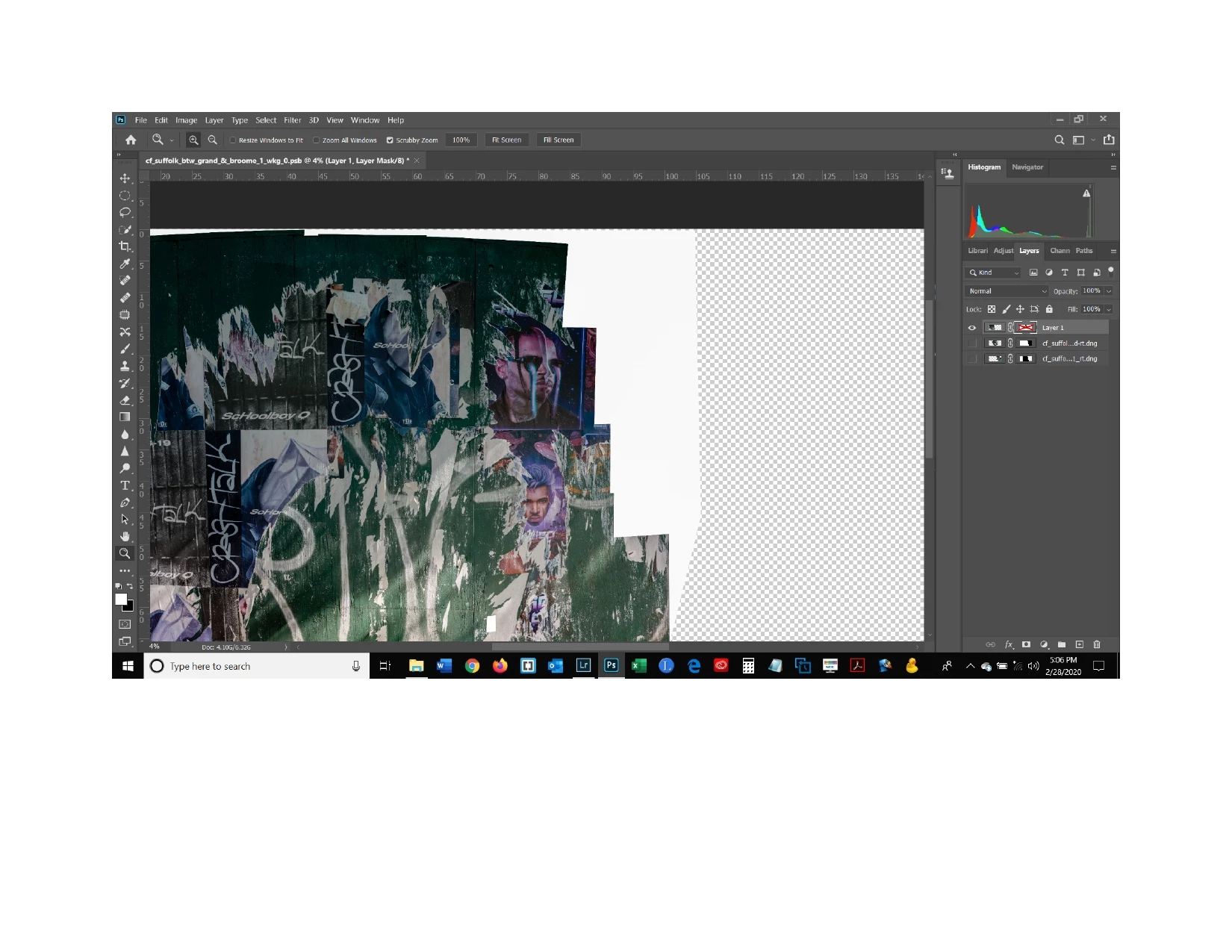
I created a mask that hid part of a layer allowing the layer underenath to show through as shown in the first screen shot.  The mask is turned off so you can see the portion that I hid.  Now I want to hide another portion of that same layer so that the layer undereath will show through - the selection shown in the second screen shot.  I tried finding a solution by typing the words "how do you add a selection to an existing mask in a layer" and got the following answer:  "Select the new objects and apply whatever refinements you require. Hold Shift and Ctrl (PC) or Cmd (Mac) and click the mask thumbnail. This will add the new selections and the original mask selections together. Now you can fill with black or white on the mask layer."  But when I do that, it just makes the selection either black or white, it doesn't hide it.   I think I would need to press Ctrl i in order to actually hide the selected portion (and not the rest) but that doesn't work either.  So what am I doing wrong?  
 

Correct answer barbara_a7746676

You want to edit the mask so that another part of the layer underneath is showing.

First click on the mask to make it active. Using any selection tool, make a selection of the area you want to hide. Then with the mask still active, fill the selection with black.

4 replies

Participant
January 1, 2025

I followed step by step, and is not adding the new selection to a previous selection mask. Are there any other properly working methods?


barbara_a7746676
Community Expert
barbara_a7746676Community ExpertCorrect answer
Community Expert
February 29, 2020

You want to edit the mask so that another part of the layer underneath is showing.

First click on the mask to make it active. Using any selection tool, make a selection of the area you want to hide. Then with the mask still active, fill the selection with black.

bartonlew
bartonlewAuthor
Legend
February 29, 2020

that worked.  Thank you!

barbara_a7746676
Community Expert
Community Expert
February 29, 2020

I'm glad that worked for you!

lambiloon
Community Expert
Community Expert
February 29, 2020

Hi check the following video hope you understand it all....regards


https://youtu.be/kVPelC_AoGA

Ali Sajjad / Graphic Design Trainer / Freelancer / Adobe Certified Professional
bartonlew
bartonlewAuthor
Legend
February 29, 2020

Great video and channel - thanks!

Legend
February 29, 2020
Standing on the mask, select something (for example, using the lasso) and press Del.


barbara_a7746676
Community Expert
Community Expert
February 29, 2020

For example, here is a layer with a layer mask. The black area in the mask lets the underlying layer show through.

Click the mask to make it active. You should see a double line around the edge of the mask when it is active.

Using any tool, make a selection. In this example, I have a rectangular selection.

Fill the selection with black.

Any area of the mask that is black will hide the top layer and show the layer underneath. Any area of the mask that is white will hide the layer underneath. If  there is gray in the make, it will partly hide and partly show the layer underneath, like this:


I hope this helps.