
GraemeVR
Participant
January 9, 2025
Question

Add Cup to scene with correct lighting

  • January 9, 2025
  • 3 replies
  • 157 views

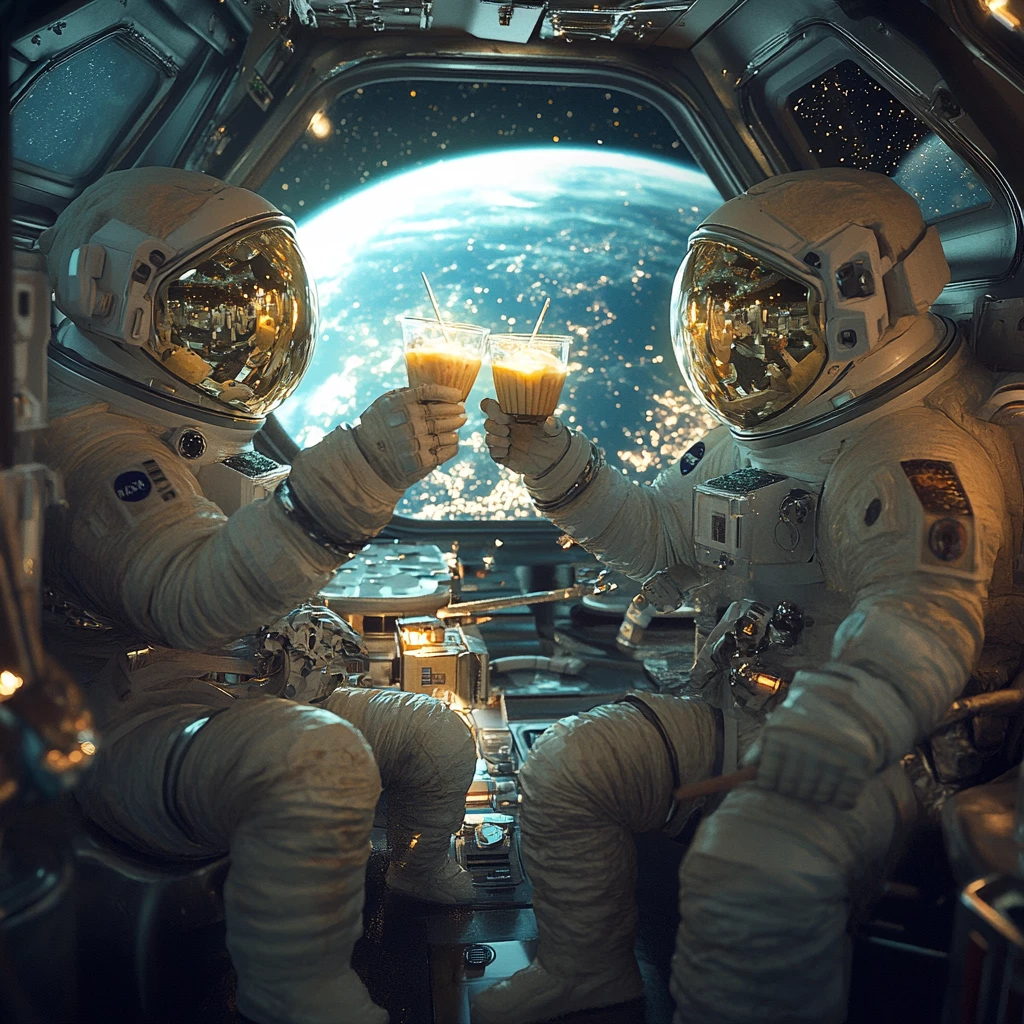
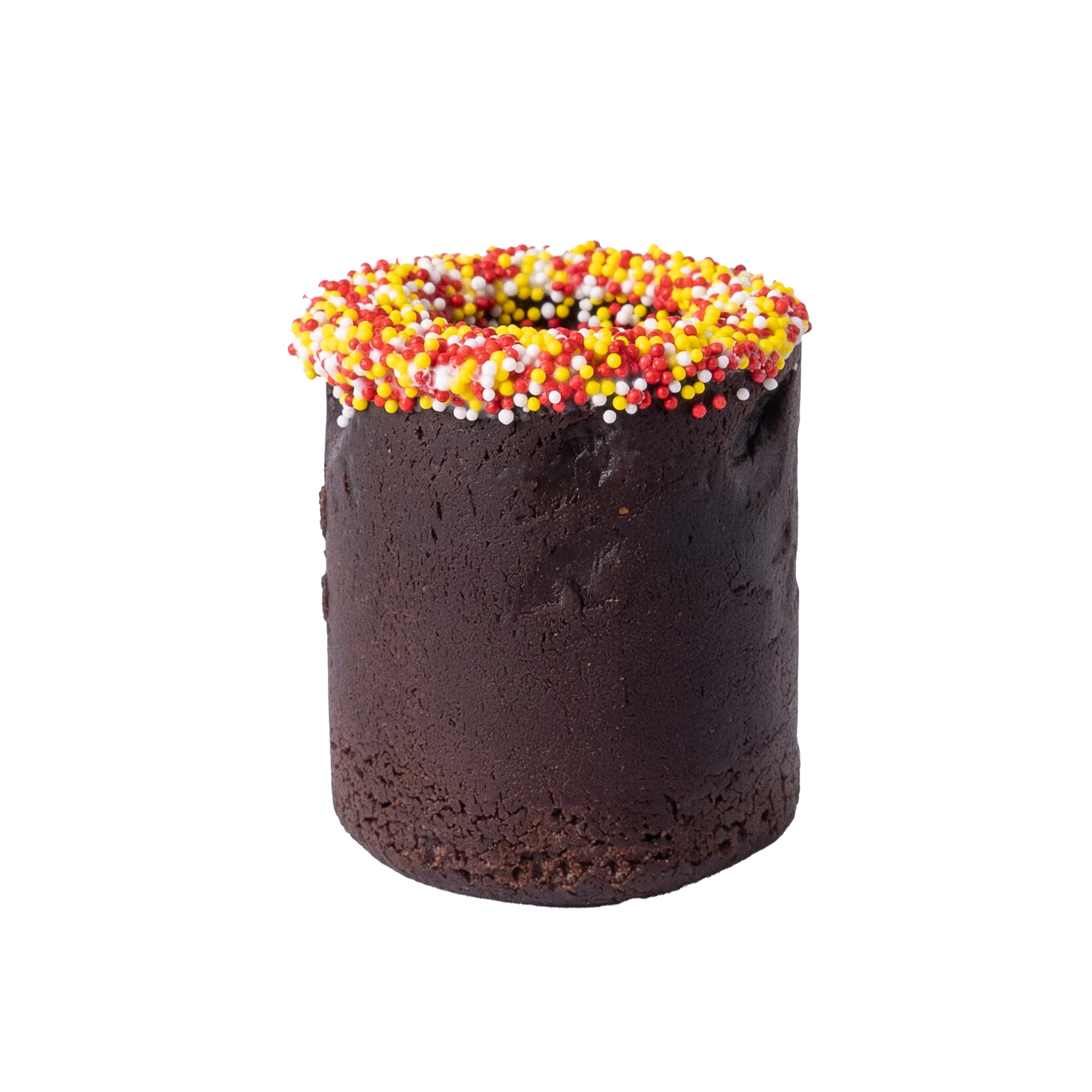
Hi, I have a image of two astronauts toasting each other on the space station. I want to replace the cups they are using with my clients signature cookie cups for the toast. I have a product shot of my clients cup, and I've tried using the Beta version of Photoshop and Generative fill to replace the original cups, but it wont work. Also I need to match the lighting of the replaced cookie cup with the spaceship scenes lighting. As Im still a noob with Photoshop, can I not do this using Generative Fill AI? Its tricky cause I need the astronauts hands to wrap around the cup I place in the scene so it looks natural.
 

Any suggestions, resources, tutorials or videos showing how I could accomplish this?

3 replies

Trevor.Dennis
Community Expert
Community Expert
January 10, 2025

Your space station image is 1024 x 1024 pixels, so I am guessing you generated it with Firefly, or the Firefly generative enging inside Photoshop?  That makes the hands a bit too small to make a decent selection of, so I upsized tht eimage to 3462 x 3462 using an Ai plugin.


Then you need to select the original cups doing so tightly around the gloves, but leaving a wee bit of space away from the gloves.  II used the Pen tool to do this.


You can make the path into a selection by either double clicking the path, or clicking on the Make Selection icon at the bottom of the paths panel.


It's pot luck from here hoping that Generitive Fill will do a decent job of removing the cups.

Two of the results had an addition finger (hey, it's space.  They might not be humans). The third was messed up, but had the bits we need.

Firefly messed up to of the fingers on the image right hand, so we'll try using fingers from the left hand.

Note: I have cloned out some of the extranious finger pixels


I have a few layer going on now, and I need to combine some of them so I can copy those parts of the hands (the fingers) that will be in front of the new cups, so I select the upp most layer (at that stage) and make a Copy Merged Layer (Shift Ctrl Alt E).

Add the new cup.  It's a PNG with transparency, so you need to File > Place Embedded to retain that transparency.

I have selected and copied the fingers to new layers at the top of the stack, and placed the new cups below them.

Always convert introduced elements into Smart Objects (Right Click the layer).

Resize and position.


I'm getting a bit bored now, so I'll upload the full res image at this stage. 


Have a go at fixing the rest.  I (or someone else) will help you later if still stuck.


Participant
January 9, 2025

hi @GraemeVR ,


To replace the cups, cut out the cookie cup from your product shot and adjust its lighting using Match Color or Curves to match the space scene. Use layer masks to erase parts of the cup so it looks like the astronauts' hands are gripping it. Add highlights or shadows with a soft brush for seamless blending. Thanks!


Chris 486
Community Expert
Community Expert
January 9, 2025

Hi @GraemeVR ,


Welcome to the community! Generative AI is just a single tool in the full tool suite that Photoshop offers. You'll need to use others tools in the program together to get the effect you want. Below are some videos that should help you start your journey. There are many different ways to do this so I'll post some videos that show different tools.


Removing objects in Photoshop:

https://www.youtube.com/watch?v=WmDG0xp2liA

https://www.youtube.com/watch?v=JCwBxVvyL9s

https://www.youtube.com/watch?v=OdUCjRcJTaI


compositing objects:

https://www.youtube.com/watch?v=g6DRHyxsqWw

https://www.youtube.com/watch?v=XJxPZdlJVRU&list=PLLlSBGLVsEPKb5JxfOJKKVTxFELozl8Og

https://www.youtube.com/watch?v=GNmCWEYmu_M&list=PL7JpMMpENaD3UODaWN7dW3uwxPp42abLv


I would recommend watching that content to start and then taking a stab at doing your own composite with your materials. if you run into specific issues, feel free to post them here and we can help provide solutions.