


rob-mcp
Inspiring
February 25, 2025
Answered

Add Reset to Default in the Light menu on Photoshop

  • February 25, 2025
  • 3 replies
  • 459 views

I opened a RAW file in Photoshop 25.11.0 (2024 ?) I set the image to AUTO using that button.

Now I want to do something else to the image - Without the AUTO setting.

I know that you can open it again in RAW, click the ... icon and then see a popup menu with Reset to Default which will remove the AUTO setting.

Is there any way to ADD that option for faster selection, to the LIGHT menu option. I friend has a MAC and sent me a screenshot showing that option in the Light drop down menu. Is this possible on windows?

Correct answer Conrad_C
quote

Is there any way to ADD that option for faster selection, to the LIGHT menu option. I friend has a MAC and sent me a screenshot showing that option in the Light drop down menu. Is this possible on windows?
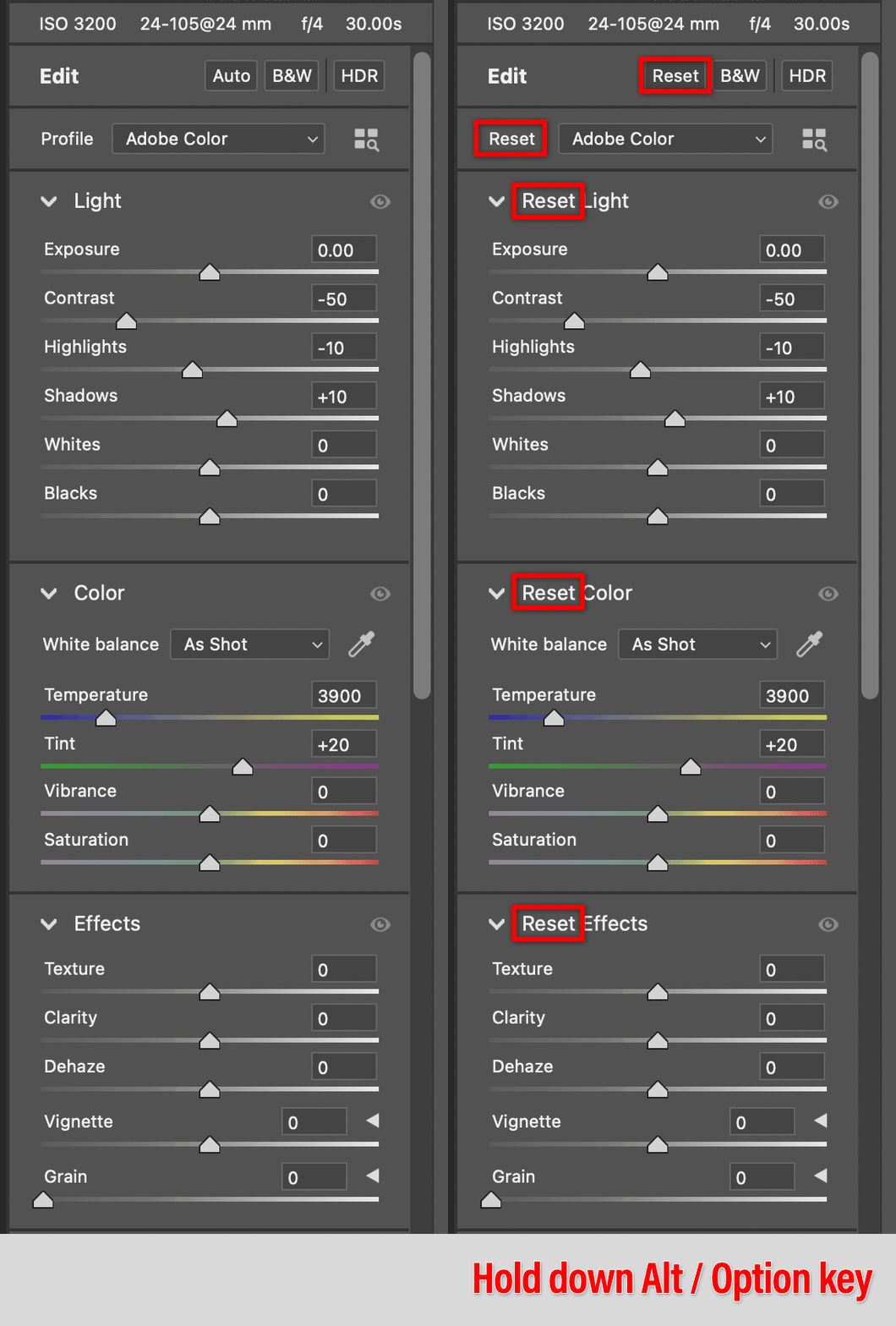
By @rob-mcp


Does the demo below match what your friend showed you? Because in Adobe Camera Raw, there is already a Reset button for every section of the Edit panel stack including Light, on both Windows and macOS. However, the Reset button is visible only when you hold down the Alt (Windows) or Option (macOS) key.


So hold down the Alt key, and a Reset buttton should appear in the Light section, and you can click that.


3 replies

Conrad_C
Community Expert
Conrad_CCommunity ExpertCorrect answer
Community Expert
February 26, 2025
quote

Is there any way to ADD that option for faster selection, to the LIGHT menu option. I friend has a MAC and sent me a screenshot showing that option in the Light drop down menu. Is this possible on windows?

By @rob-mcp


Does the demo below match what your friend showed you? Because in Adobe Camera Raw, there is already a Reset button for every section of the Edit panel stack including Light, on both Windows and macOS. However, the Reset button is visible only when you hold down the Alt (Windows) or Option (macOS) key.


So hold down the Alt key, and a Reset buttton should appear in the Light section, and you can click that.


Trevor.Dennis
Community Expert
Community Expert
February 26, 2025
quote


So hold down the Alt key, and a Reset buttton should appear in the Light section, and you can click that.


By @Conrad_C


I have heard Michael Ninness, and other Adobe people, describe the Alt key as the 'Make Better Key' in Photoshop.  It's one of those things always worth trying, like hitting Escape if the UI gets stuck.

rob-mcp
rob-mcpAuthor
Inspiring
February 26, 2025

Thanks as well.

Trevor.Dennis
Community Expert
Community Expert
February 26, 2025

You could always delete thew sidecar file.  If you process a RAW file in ACR and ether open it or click on Done, it will create a .XMP file with the same file name. That file contains all of the ACR settings.  Note this is not the case with .DNG files that save the setting integrally.

Trevor.Dennis
Community Expert
Community Expert
February 26, 2025

Another tip for if you only have a few sliders adjusted, is to double click the slider, which returns it to its zero position.


BrettN
Community Manager
Community Manager
February 26, 2025

If you click the Auto button and the settings are already what Auto would do, then it resets everything back to 0. So, if you clicked Auto and changed one or more of the Light settings, click Auto twice. The first click reapplies the Auto, and the second resets. 


I'm curious about what your friend showed you. The options are the same between Win and Mac. My guess is they've installed an additional plug-in if they are seeing some extra functionality

rob-mcp
rob-mcpAuthor
Inspiring
February 26, 2025

They have a MAC, which I've not seen. His showed the LIGHT dropdown WITH the Reset to Default option in the list to select - instead of having to click the ... to the right.