
Inspiring
June 21, 2022
Answered

Adding effects to a video layer for drawn animation?

  • June 21, 2022
  • 2 replies
  • 412 views

Hello,

Using PS 22.5.6


I'm new to doing drawing animation in Photoshop and using layers to create them.

What I'd like to know is if I can manipulate a layer such as add a blur, change the hue saturation, etc.

When I try with an adjustment layer it will just alter that one frame.

As mentioned before I am creating these as multiple video layers.

Thank you in advance.
 

This topic has been closed for replies.
Correct answer Weaver23

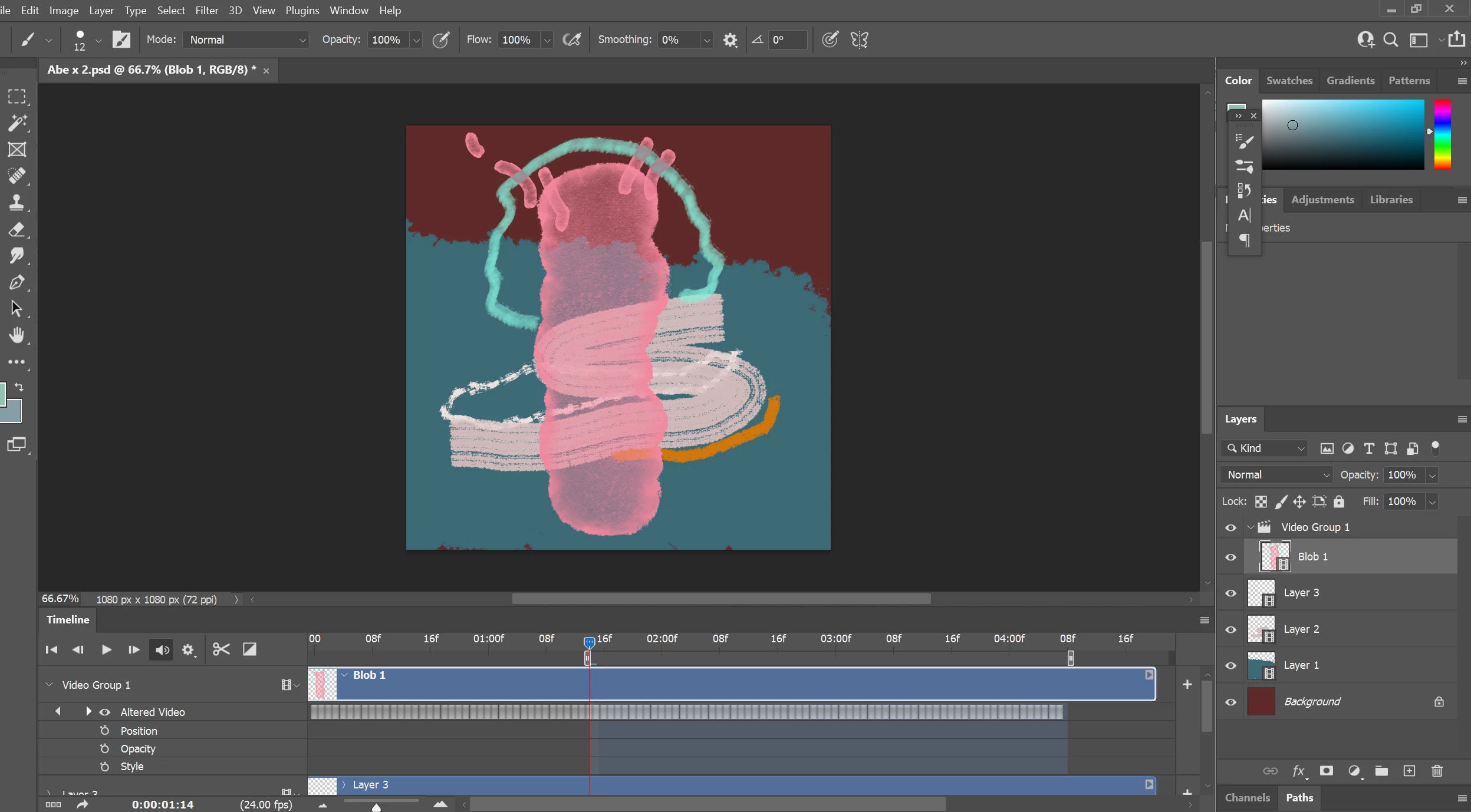
Thank you but when I try to add a gaussian blur to a layer it adds it to only 1 frame in the timeline, an adjustment layer seems to work for the entire timeline though:)

Here is a screen cap


2 replies

Trevor.Dennis
Community Expert
Community Expert
June 22, 2022

Hi Weaver23


The video clip you want to affect will have a coresponding Video Group in the Layers panel.

Right click the layer and make it a Smart Object.

Then apply the filter, plugin whatever to the layer, and it will affect the entire clip.  You apply multiple affects.

You can use the mask to restrict where the affect is applied.

You can already add Adjustment Layers to a video group, and wouldn't need to use Smart Object for that, but they would still work for the entire clip either way.


Weaver23AuthorCorrect answer
Inspiring
June 22, 2022

Thank you but when I try to add a gaussian blur to a layer it adds it to only 1 frame in the timeline, an adjustment layer seems to work for the entire timeline though:)

Here is a screen cap


Weaver23Author
Inspiring
June 22, 2022

Okay! I think I've got it. First time I did the smart object it didn't seem to work, this time it has and I now have a blur affecting only that layer. Wonderful!


Thank you!

Michael Bullo
Community Expert
Community Expert
June 22, 2022

Any chance you could post a screen shot that includes your Layers and Timeline panels?

Weaver23Author
Inspiring
June 22, 2022

Hi , I posted it below.