Inspiring
August 20, 2025
Answered

Adobe Photoshop 26.9 can not test:When the memory<32GB, prompt "Could not complete the Liq

  • August 20, 2025
  • 1 reply
  • 1429 views

0. Power on Windows 11 24H2 + adobe Photoshop 26.9
1. 
Open Photoshop Pugetbench and Click "Start Test".
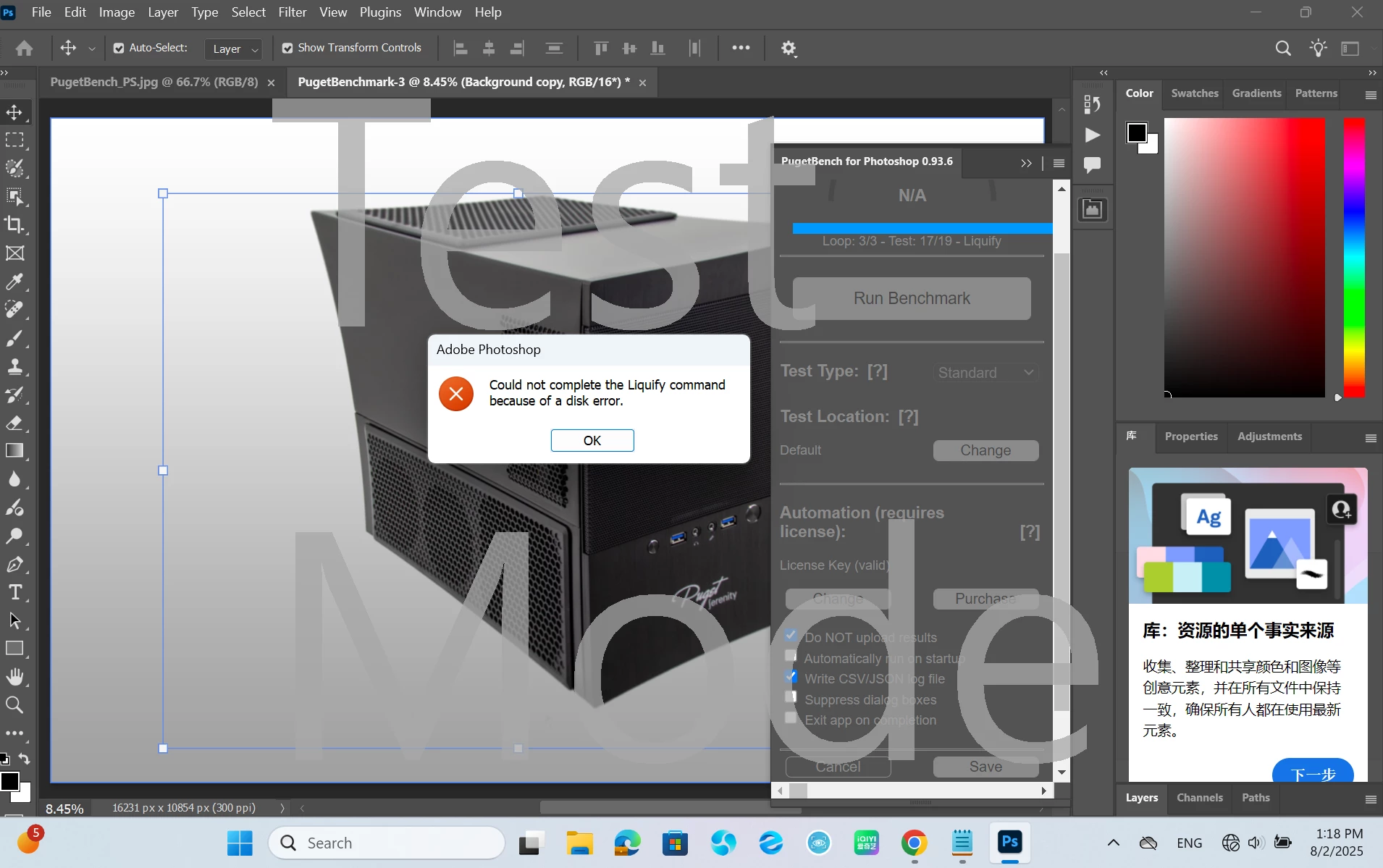
2. When the memory<32GB (8G, 16G, 24G run Benchmark failed), prompt "Could not complete the Liquify command because of a disk error". ==>Preblem

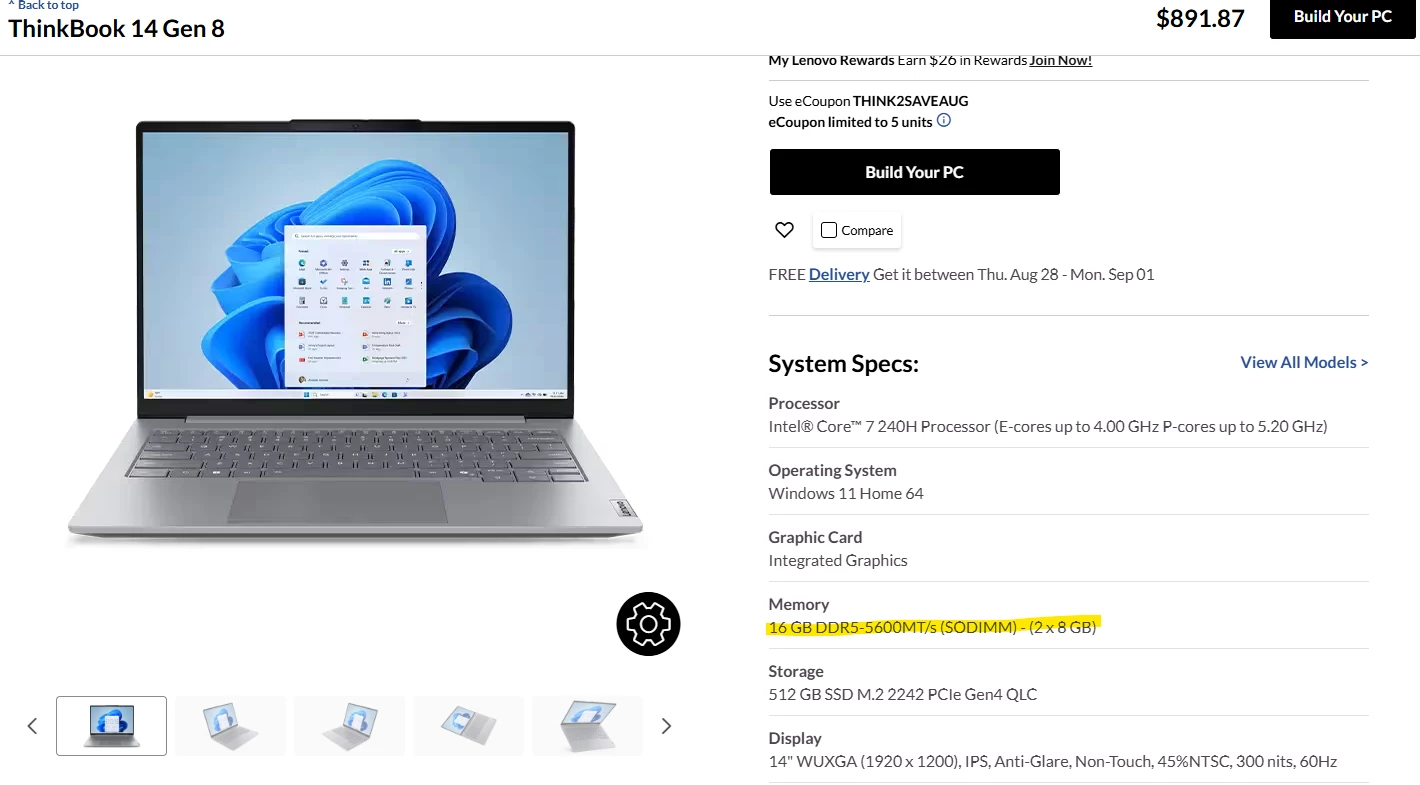
Laptop System: Lenovo ThinkBook 14 Gen8 RPL (this issue can be duplicated on others system with RPL chipset+16G memory)
https://www.lenovo.com/tw/zh/p/laptops/thinkbook/thinkbook-series/lenovo-thinkbook-14-gen-8-14-inch-intel/len101b0051


Correct answer leon_6771

Thank you for sharing the additional details, @leon_6771. After reviewing your system info, here are some important points and next steps:

  • In your GPU section, multiple fields such as driver date and version appear as “Unknown.” This usually happens when Photoshop cannot read complete information from the Intel graphics driver. While not harmful by itself, it means Photoshop may not be able to fully optimize GPU usage.

  • This can contribute to instability in memory-heavy operations like Liquify, especially on systems with 16 GB RAM and no dedicated GPU. PugetBench stresses memory usage further, which may explain why you see the disk error in those scenarios.

  • Please confirm if Liquify works normally outside of PugetBench on a single image. This will help us distinguish whether the issue is Photoshop-wide or benchmark-specific.

  • As a test, try disabling GPU acceleration in Preferences > Performance and rerun Liquify. With integrated graphics, this can sometimes improve stability.

  • Also, check under Preferences > Performance > Memory Usage if lowering Photoshop’s allocated RAM percentage helps during Liquify.

Let us know the outcome of these checks so we can pass a complete report to the product team.


Best,

Anshul Saini


Hi @Anshul_Saini  @Sameer K,


Use the "PugetBench for Creators" application can get positive result with 16G RAM.
Thanks for help.

1 reply

Sameer K
Community Manager
Community Manager
August 20, 2025

Hey, @leon_6771. Welcome to the Photoshop Community. I'll need more info to help you figure this out. Press share the system info from Photoshop Help > System info > Copy & paste into a text document > upload & attach here. 


Does this happen when you use Liquify without using the external plugin? Please check the workaround shared here: https://adobe.ly/41P1ItG


Let me know how it goes. Thanks! 
Sameer K
(Type '@' and type my name to mention me when you reply)

leon_6771Author
Inspiring
August 24, 2025

Hi, @Sameer K,


This workaround "try setting remove tool to "More Stable" in preferences" is not effective for me.

Do you have suggestion ? Need to attach "Photoshop Help" info ? Thanks.

leon_6771Author
Inspiring
August 25, 2025

Please find the log. Thanks.