Participating Frequently
Nov 10, 2026 2:53 PM UTC
Question

AI assisted question

Hello, I have an issue going on with the AI-assisted feature.

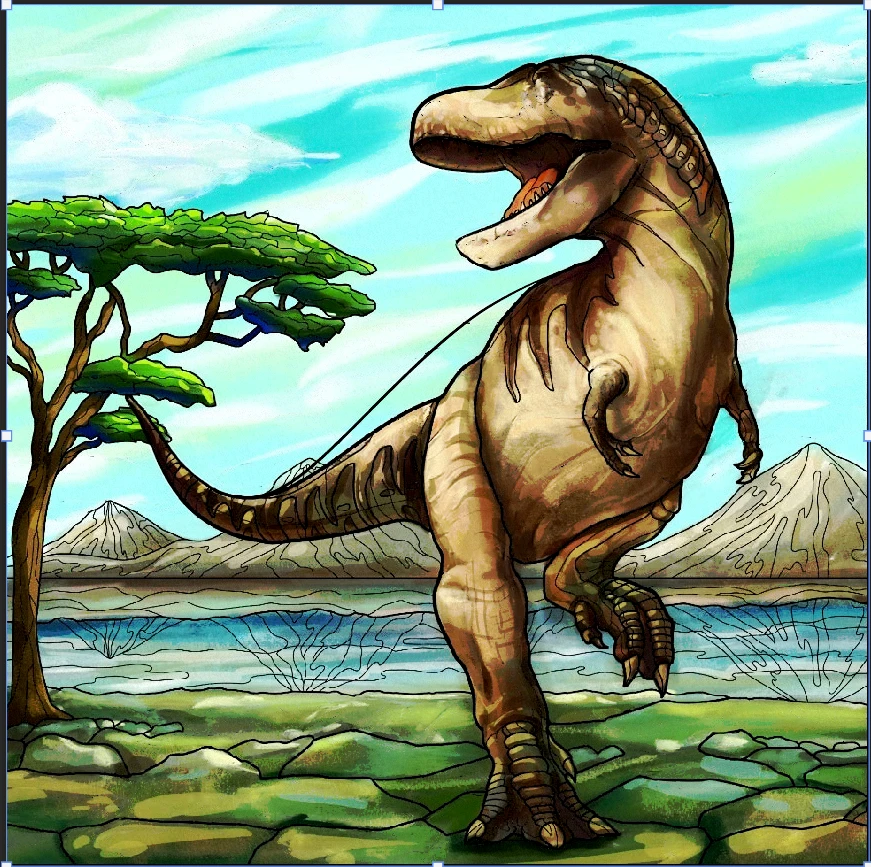
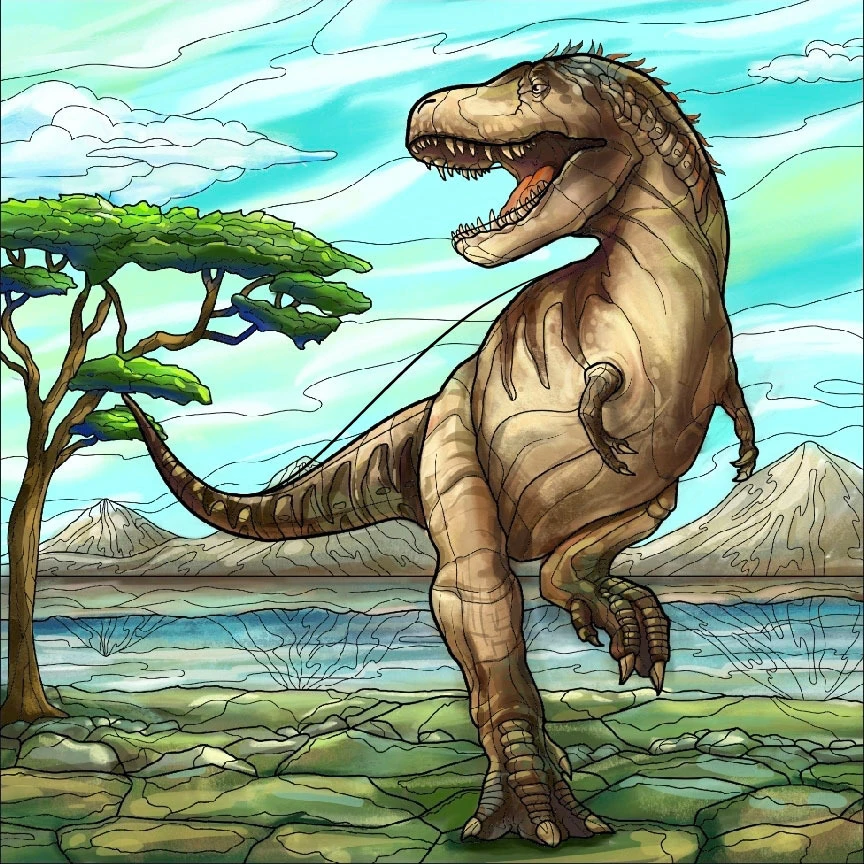
So when I am erasing the black lines using the AI-assisted feature in Photoshop, I've noticed that the image gets darker after using AI-assisted; it becomes more saturated and has heavier dark shading in places, particularly around the dinosaur's torso and legs, and the foreground takes on a more mottled, painterly appearance.

I wish to keep the quality of the first image while erasing the unneeded black lines.

Can someone help me?


    2 replies

    Participating Frequently
    Nov 19, 2026 3:22 AM UTC

    I'm sorry for not getting back to you sooner, but thank you, thank you, thank you! It has made a huge difference. 


    Now, could you tell me how I can fill the outlined space with colors that match the dinosaur's body and add matching reflections of the mountains in the water?


    Translate
    CORCTON34033231
    Community Expert
    Community Expert
    Nov 10, 2026 3:12 PM UTC

    Hi Robert, thanks for sharing the screenshots — that darker, more saturated, painterly result is what happens when the Remove tool (or Generative Fill) regenerates the area with generative AI, instead of filling it from the pixels already in your image.


    For this kind of flat illustration, try it with generative AI switched off:


    1. Select the Remove tool (press and hold the Spot Healing Brush tool in the toolbar to find it).

    2. In the options bar, set Mode to “Generative AI off”.

    3. Choose a brush Size slightly larger than the black line, then brush over just the line — keep the stroke tight to the line so as little as possible around it is replaced.

    4. If you need several strokes, turn off “Remove after each stroke” first, so you can make all of them before it applies the fill.


    With “Generative AI off”, Photoshop fills the brushed area from the surrounding image instead of generating new content, so the original colours and flat style should stay much closer to your first image. Work on a duplicate layer too, so you can compare and undo easily.


    Adobe's Remove tool help: https://helpx.adobe.com/photoshop/using/tool-techniques/remove-tool.html


    Hope that keeps the look you want — let us know how it goes!

    Translate