Inspiring
March 7, 2025
Respondido

Apply Curves adjustment using Channels ?

  • March 7, 2025
  • 2 respostas
  • 1045 Visualizações

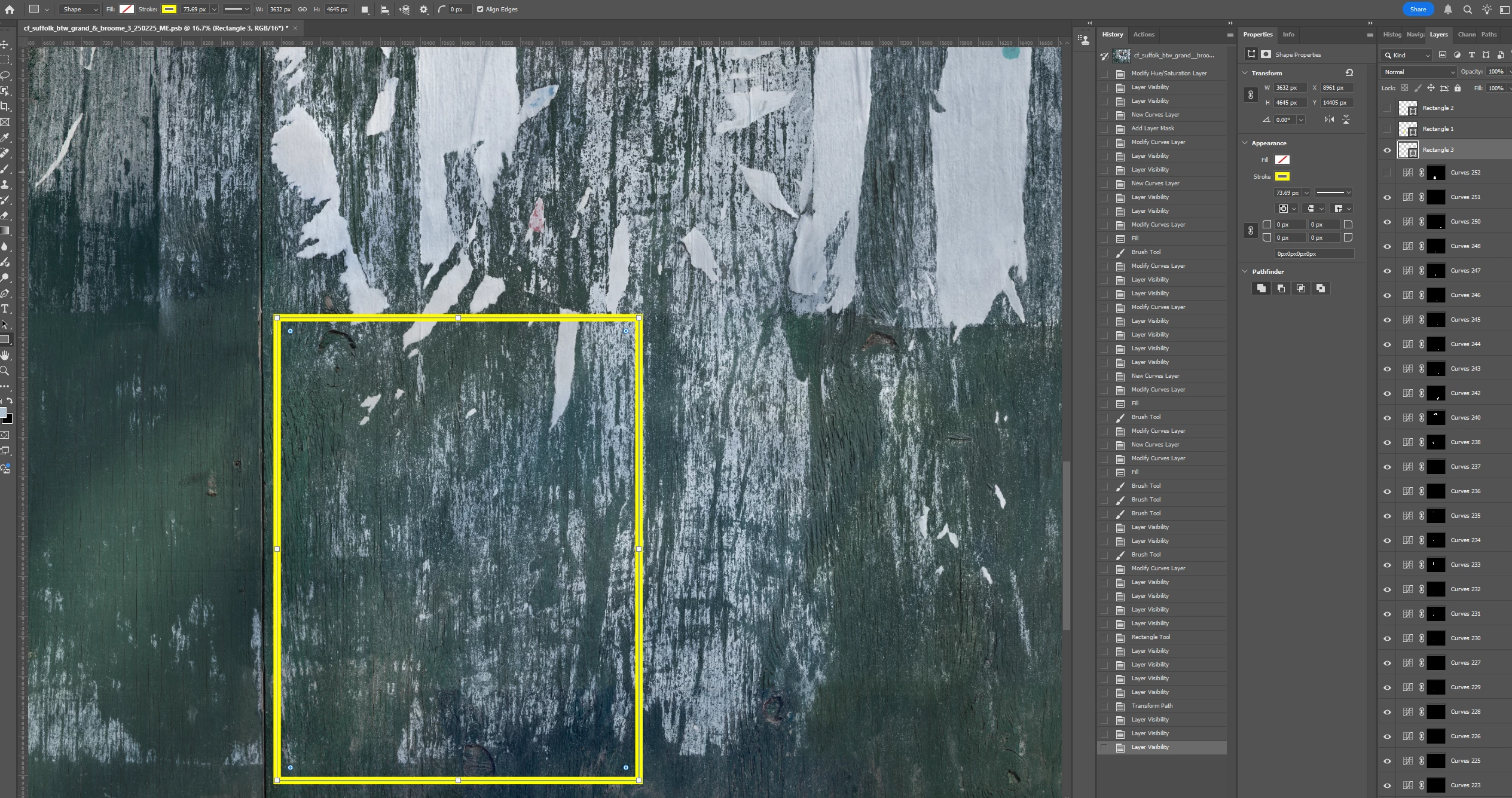
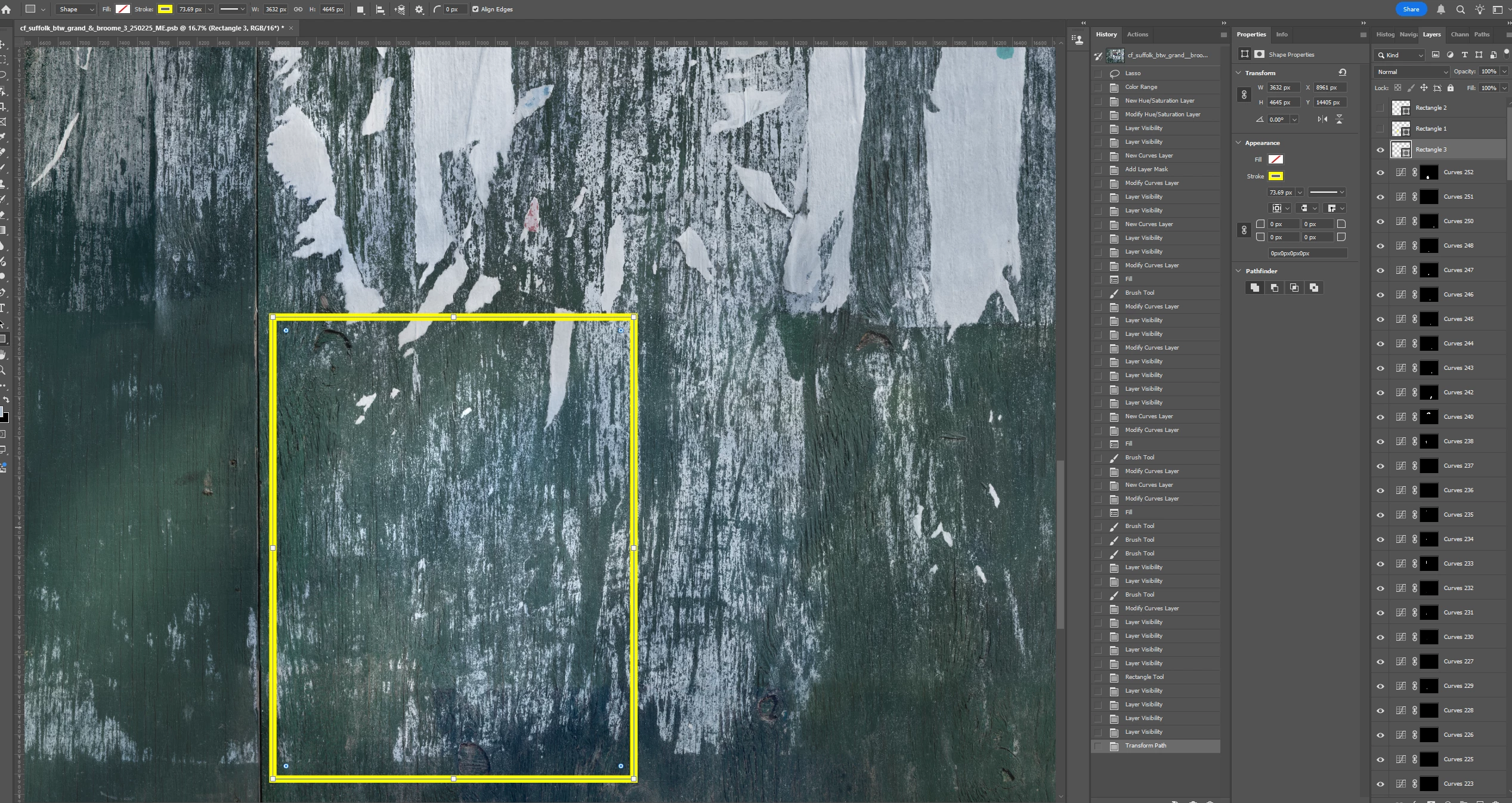
I think the following can be achieved using Channels but I don't know how, as I have very little experience with them.  In the first screenshot, I have a Curves adjustment layer lightening the highlights in the area bounded by the yellow rectangle.   Even though the Curves layer is applied to highlights only, it is somewhat affecting the entire area.  I only want the white paper pieces lightened, and not the dark green background.  (In the 2d screenshot, the adjustment layer is turned off, showing the unaffected background as I want it to appear.)   Is this best done by using Channels, and if so, how?  Thanks.  


Melhor resposta por Semaphoric

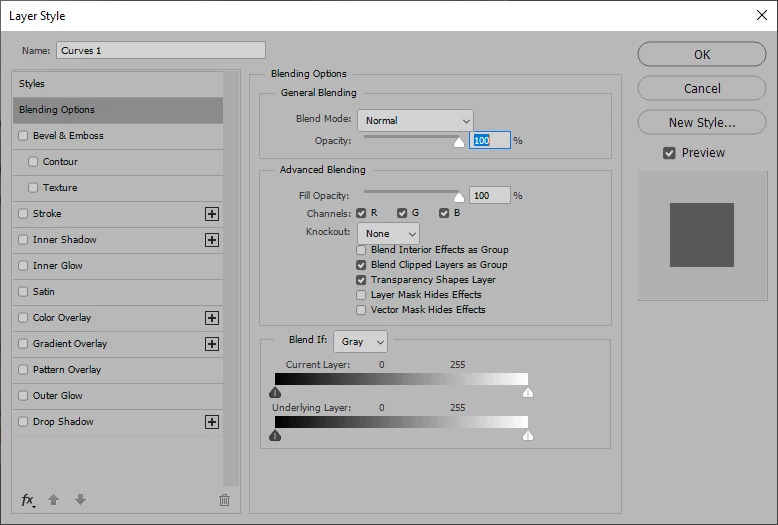
Right click on the Path layer thumbnail, and select Blending Options from the pop up, to open the Layer Style dialog:

In particular, note the Blend If section. It can operate on all channels (Gray), or Red, Green, and Blue individually. The sliders on the controls below can be split, by Alt-dragging one side, and the blend will occur over a range.

2 Respostas

c.pfaffenbichler
Community Expert
Community Expert
March 7, 2025

Sometimes one may do such a thing with a Layer Mask based on one of the Channels, but that causes the problem that subsequent touch-up on the lower layer will not be reflected in the Mask. 

So @Semaphoric ’s reommendation of using Blend If-settings is an excellent one. 

Semaphoric
Community Expert
SemaphoricCommunity ExpertResposta
Community Expert
March 7, 2025

Right click on the Path layer thumbnail, and select Blending Options from the pop up, to open the Layer Style dialog:

In particular, note the Blend If section. It can operate on all channels (Gray), or Red, Green, and Blue individually. The sliders on the controls below can be split, by Alt-dragging one side, and the blend will occur over a range.

Inspiring
March 8, 2025

Amazing!  That works great.  By dragging the control from the left towards the right, the shadows are made darker.  Per the message while hovering over the control, I used the Alt key while dragging to produce a similar - perhaps somewhat better? - result.  I don't understand what is being "blended" - shadows and highlights? - or what that means.   "Blending" to me suggests that the distinctions between shawdows and highlights are being lessened, but that's not what I would descirbe as happening here.  I guess I can read up on it online.  Anyway, thank you for providing a solution.  


c.pfaffenbichler
Community Expert
Community Expert
March 8, 2025

It seems you did not split the handle, please try to do by alt-click-dragging. 

And you used »Current Layer«, which works out for a Curves Layer, but not necessarily with some other Layers. 


The Blend If-settings determine the visibility of a Layer depending on 

• its own values (Current Layer)

• or the values of the lower Layer/s (Underlying Layer).