Oct 14, 2018 6:20 PM UTC
Answered

Applying feather has no effect

i applied feather to a rectangle in photoshop but it's not showing any effect....

    This topic is closed to new replies. Start a new post to keep the conversation going.
    Inspiring
    Oct 14, 2018 8:03 PM UTC

    If you want to make a feathered selection; first define the feathered amount in the options bar on the top of the screen.

    Then draw your selection and then you can fill it with white.

    I'm really not a big fan of this method because it's destructive. The better way is:

    • Make a background

    • Draw a shape layer (tools below beside the arrow pointer); check it in the options bar if it is defined as a shape.

    • After you draw your shape. Go to properties and find here feather.

    This is totally non-destructive if you save it as a PSD for a working file. Save a copy as PNG or JPG for other uses.

    Best way ever!!! Tell it to everybody.

    Good luck.

    Patrick
    10 replies

    Participant
    May 19, 2022 8:24 PM UTC

    I just had this same problem and then realized it was because the image I had selected was in "Indexed" color mode. I had to change it to somethine else for the feather function to work.

    Translate
    Trevor.Dennis
    Community Expert
    Community Expert
    May 19, 2022 10:11 PM UTC

    A useful trick for assessing feather is to hit the Q key to go into Quickmask.

    Translate
    Semaphoric
    Community Expert
    Community Expert
    May 20, 2022 1:20 AM UTC

    And you can feather it even more (but not less) by applying a Gaussian Blur to the Quick Mask.

    Translate
    Inspiring
    Oct 14, 2018 8:03 PM UTC

    If you want to make a feathered selection; first define the feathered amount in the options bar on the top of the screen.

    Then draw your selection and then you can fill it with white.

    I'm really not a big fan of this method because it's destructive. The better way is:

    • Make a background

    • Draw a shape layer (tools below beside the arrow pointer); check it in the options bar if it is defined as a shape.

    • After you draw your shape. Go to properties and find here feather.

    This is totally non-destructive if you save it as a PSD for a working file. Save a copy as PNG or JPG for other uses.

    Best way ever!!! Tell it to everybody.

    Good luck.

    Patrick

    Translate
    Inspiring
    Oct 14, 2018 7:46 PM UTC

    Hello,

    The filter has absolutely no effect on a selected area.  A selection is a closed area that is previously defined by a feather. On the other hand, the feathering that will work on your artwork is 'Feathered selection' and then fill with the gradient.

    Or you put that gradient on a layer and Gaussian blur that layer.

    Good luck.

    Patrick

    Translate
    davescm
    Community Expert
    Community Expert
    Oct 14, 2018 7:10 PM UTC

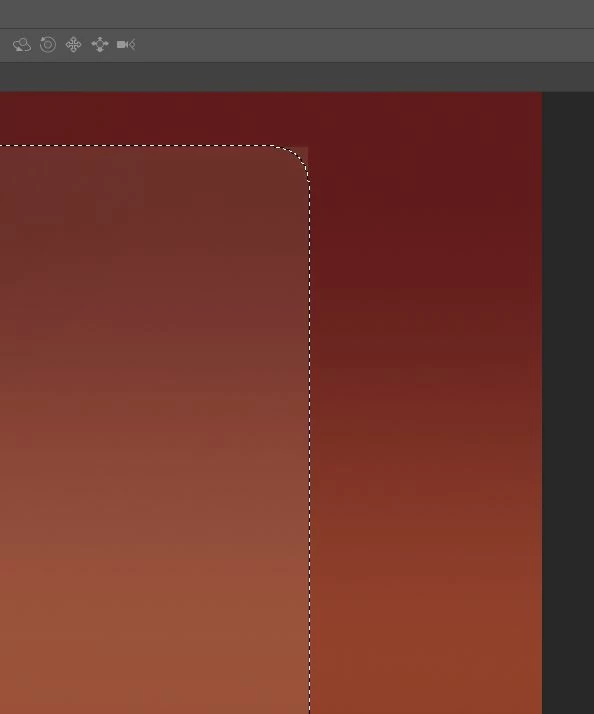
    Can you please explain the exact steps you have taken up to your screenshot. On its own it is hard to tell what problem you are facing.

    Dave

    Translate
    Oct 14, 2018 7:40 PM UTC

    1.first i drew a rectangle using the rectangle tool 2.filled it with white color

    3.reduced the opacity

    4.selected the rectangle using clt+click on the layer 5.shift+f6 and entered a value

    Translate
    davescm
    Community Expert
    Community Expert
    Oct 14, 2018 7:50 PM UTC

    OK so what that does is feathers the selection not the image  - i.e.it makes the selection itself have a soft border.

    You now need to do something with that selection for example use it to copy, or fill it etc

    Translate