Loucas B.
Participating Frequently
Jul 13, 2023 6:38 PM UTC
Question

Automate/batch insert unique text from a CSV file to multiple different images in Photoshop

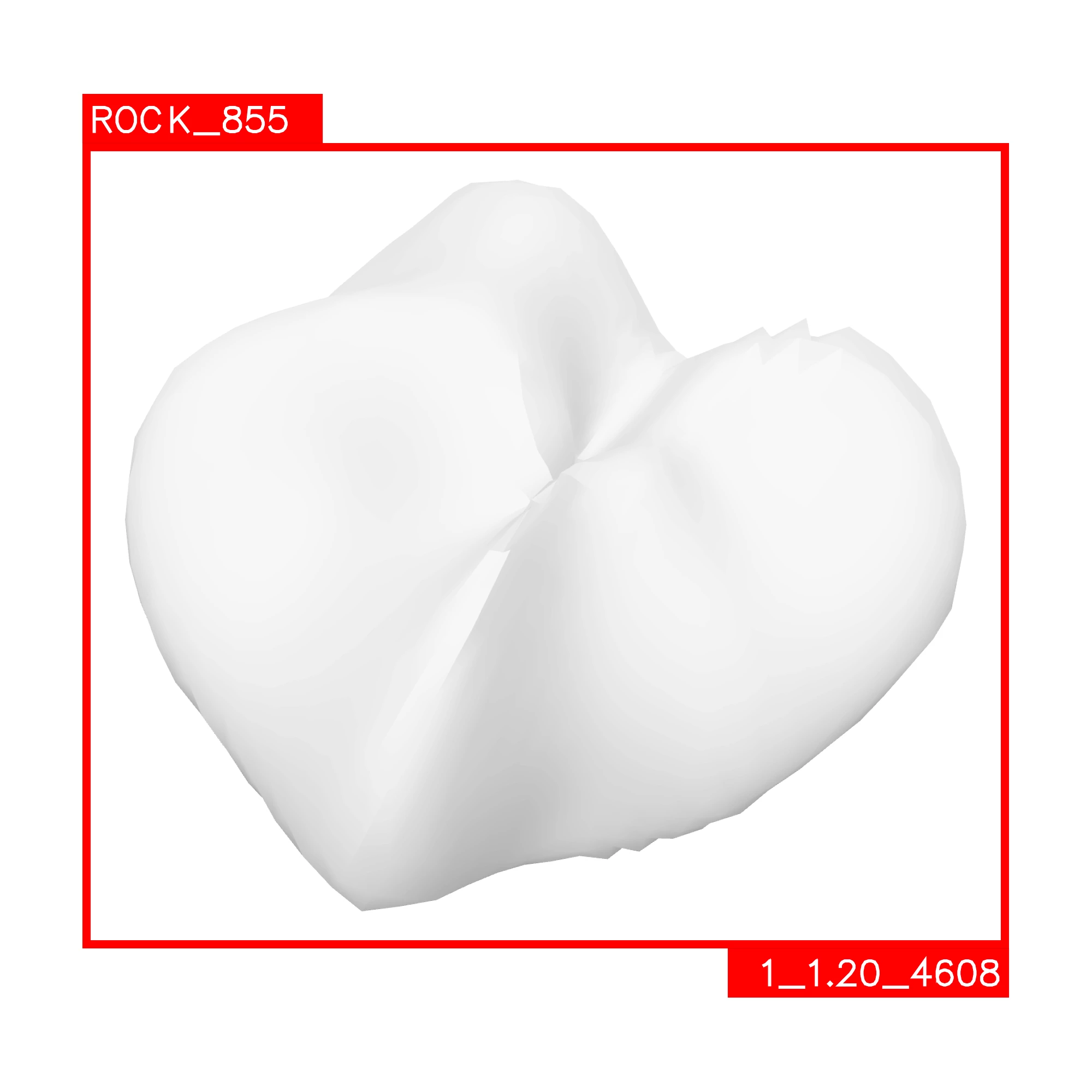
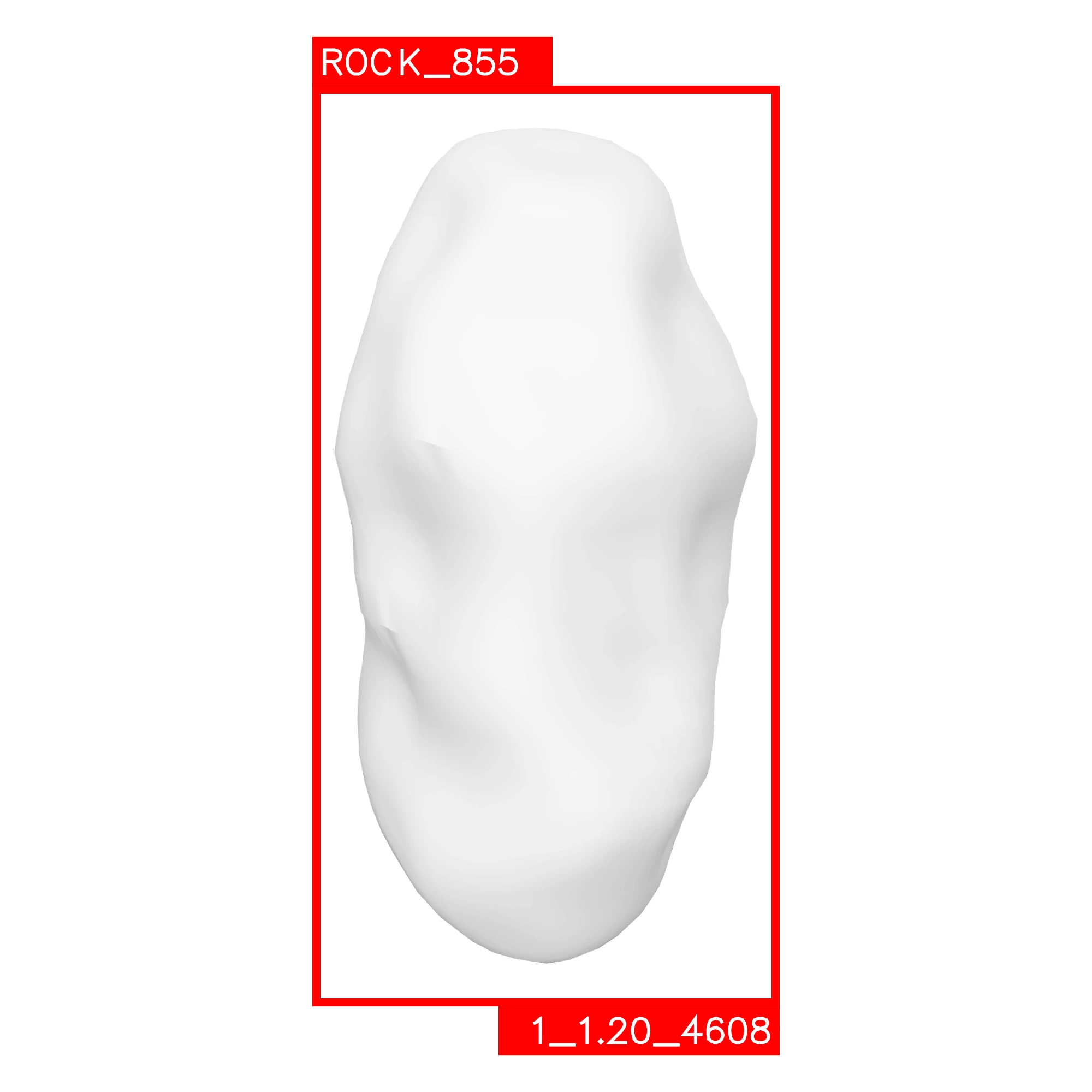
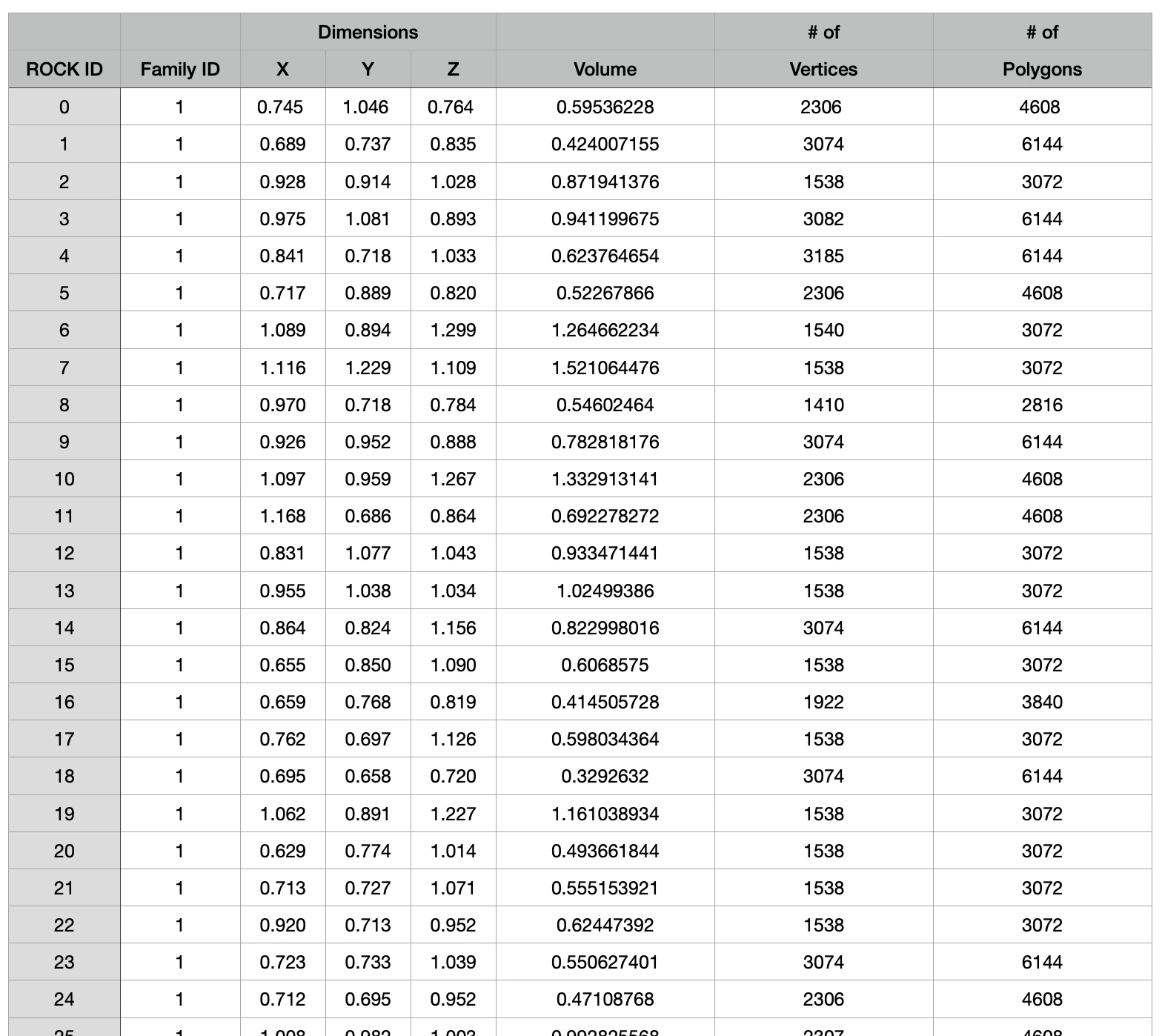
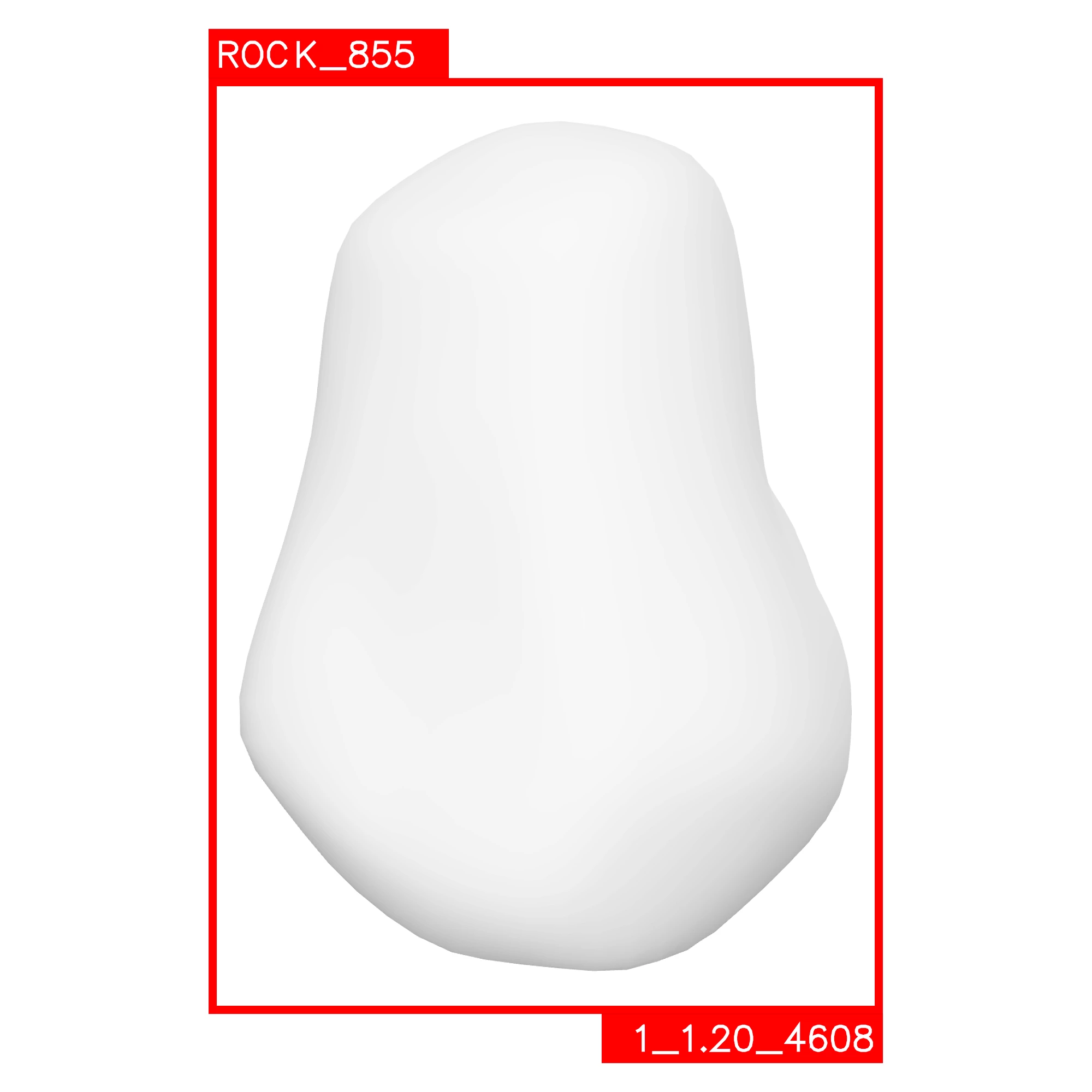
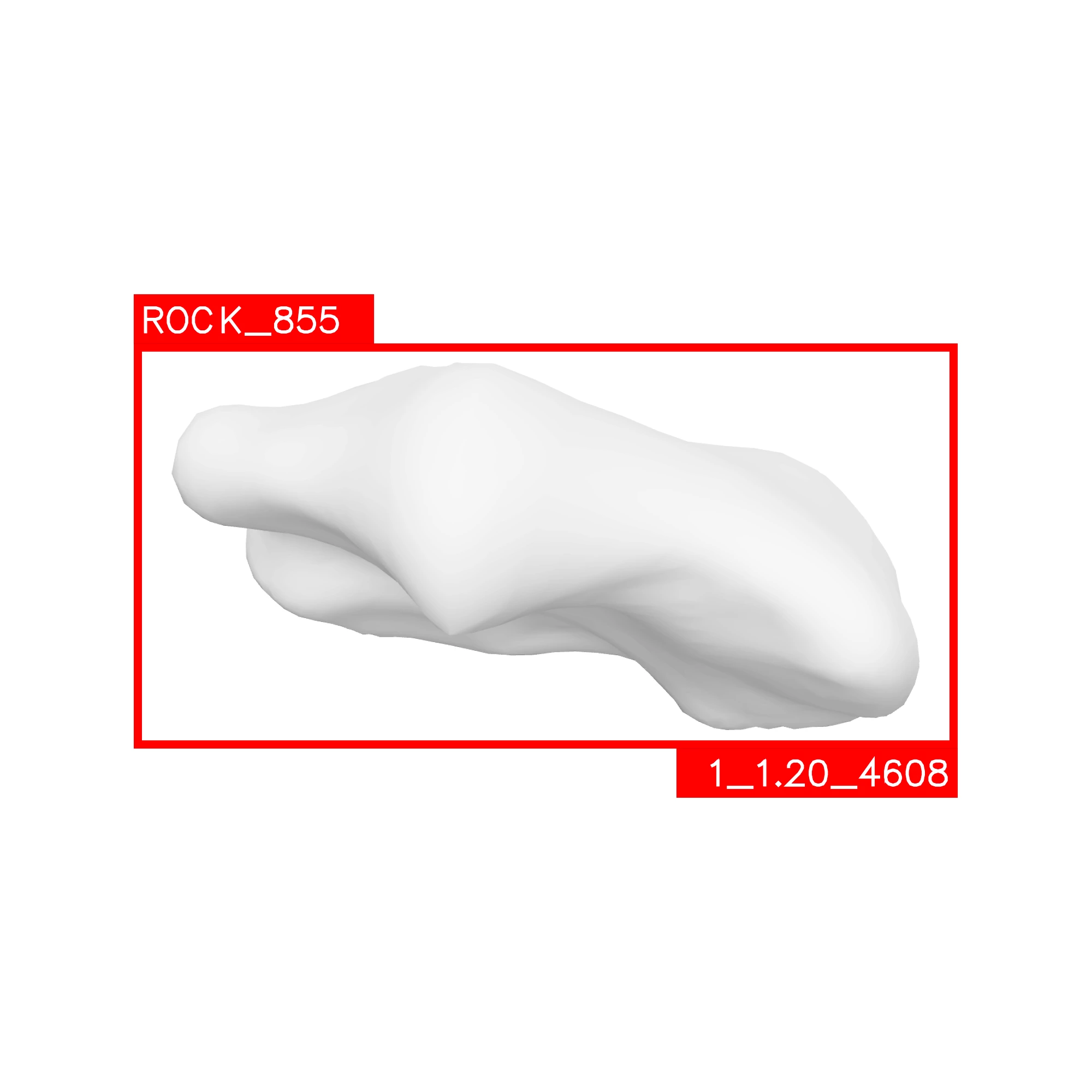
Hi, I have thousands of images similar to the ones shown here. They are all labelled 0.png to XXX.png. I automated the creation of a frame with two boxes to place text. I need to figure out how to add the right text to every unique image from a CSV file. The CSV file is quite simple. It contains the ID of the object in the image and some data. This obviously has to be automated/batch processed. I'm not sure if the image processor allows me to do this. 

I read about variables but found nothing that would allow me to match specific text fields in my CSV to all of my unique images. Every image is different. 

I use the latest version of Photoshop on a Mac. 

The first images are an example with placeholder text. The last image is a screenshot from my CSV/Numbers file. I want to add the following text to every image: ROCK_[ID] at the top and [Family ID]_[Volume]_[Polygons] at the bottom.
 

This topic is closed to new replies. Start a new post to keep the conversation going.

12 replies

Loucas B.
Loucas B.Author
Participating Frequently
Jul 13, 2023 11:51 PM UTC

I found a solution; it's a 2 steps process,

1. Place the text I need on each image using the usual variables method as if I was making business cards. Save the results as PSD. Placement doesn't matter here; anywhere/any format will do. 

2. Render these new PSD files containing the relevant text information through my previous framing automated actions + format the text to my needs. It's a bit of a mess with the layers selection, but it works. 

Translate
Stephen Marsh
Community Expert
Community Expert
Jul 14, 2023 3:13 AM UTC
quote

It's a bit of a mess with the layers selection, but it works.


By @Loucas B.


Not sure exactly what you mean, but one should use relative keyboard shortcuts to select the layer rather than clicking on it when recording the action, or use a common generic name if clicking on the layer.


Relative Layer Keyboard Shortcuts for Action Recording:


Select/target front (top) layer =
Option + .

Select/target next layer up = Option + ]
Select/target next layer down = Option + [
Select/target back (bottom) layer = Option + ,


Move current target layer to front (top) layer = Command + Shift + ]
Move current target layer up = Command + ]
Move current target layer down = Command + [
Move current target layer to back (bottom) layer = Command + Shift + [


Windows users would swap the Command key for Ctrl and the Option key for Alt

Translate
Participant
Jul 16, 2023 6:10 PM UTC

The keyboard shortcuts don't work on my French Canadian/Mac device. I've seen other people post about this problem. The first paragraph of shortcuts you posted doesn't work :(. I also cannot find them in the custom keyboard shortcut menu. Also, some shortcuts don't seem to work when a layer is hidden. I did some research to figure this out, and the best solution I found was a script that someone made to select the next layer even if it's hidden. https://gist.github.com/joonaspaakko/048c9b58ccbb6e6f44c894bf4ce30b68 


Translate
Kevin Stohlmeyer
Community Expert
Community Expert
Jul 13, 2023 7:08 PM UTC

@Loucas B. this would be a much easier job to produce in Adobe InDesign.

Translate
Loucas B.
Loucas B.Author
Participating Frequently
Jul 13, 2023 7:27 PM UTC

Good point. Any leads? I'm not familiar with InDesign. 

Translate
Kevin Stohlmeyer
Community Expert
Community Expert
Jul 13, 2023 7:56 PM UTC

In short you create a template page using Data merge where you point to the fields in the csv.

https://helpx.adobe.com/indesign/using/data-merge.html


Translate