
Inspiring
November 17, 2022
Answered

Batch Action Changes 8 bit Images to 16 bit

  • November 17, 2022
  • 4 replies
  • 5273 views

I created an action to prepare an image for printing. It includes a step to flatten the image. My Photoshop file starts as an 8 bit image. If I manually run the action the result is also 8 bit. 

However, if I batch run the action in Photoshop (File >Automate) all the images end up as 16 bit!!


What's happening?? And how do I get Photoshop to stop converting 8 bit to 16 bit? I've also noticed that when I open an 8 bit file, Photoshop converts it to 16 bit. 

One more question: is changing the bit depth lossless? I know the color differences between 8 bit and 16 bit images. But if Photoshop is going from the original 8 bit to 16 bit, and then I convert it back to 8 bit, will the image quality degrade from the original 8 bit image?


Thanks. 
This topic has been closed for replies.
Correct answer Bojan Živković11378569

Ah, yes, @Outtacontext your username is relevant to the thread: Do you see the camera Raw dialog when you reopen the tiff?

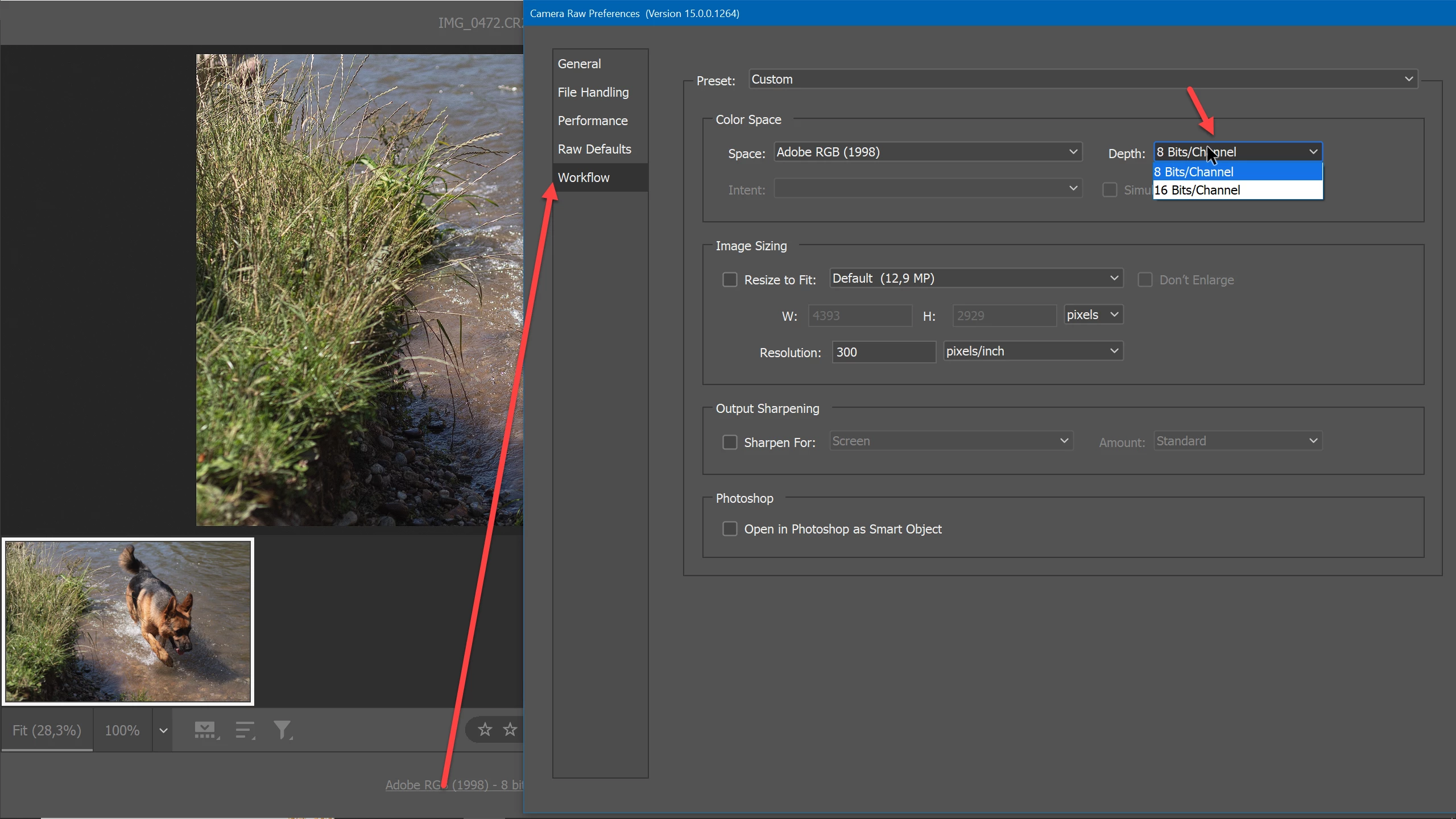
At the bottom, click the hyperlink to change to 8bits.


Here is visual what should be done because this step can not be skipped when opening .raw files.

4 replies

Inspiring
November 17, 2022

Okay, this problem has been solved. Apparently, opening my 8 bit tiff files automatically into Camera Raw when I open them in Photoshop was converting them to 16 bit. I had a great Adobe rep who showed me how to turn off the preference that makes a tiff open in Camera Raw. And it's all working fine now.

D Fosse
Community Expert
Community Expert
November 18, 2022
quote

I had a great Adobe rep who showed me how to turn off the preference that makes a tiff open in Camera Raw.


By @Outtacontext


You didn't need an Adobe rep for that, I showed you how in a screenshot above.

Inspiring
November 18, 2022

Yes, thanks. At the time, I was under a big deadline and I didn't understand the image you provided. So, I need help right away. As it turns out, the images were 8 bit. Only when I opened them to check did they become 16 bit.


Anyway, I do appreciate all the help all of you provided.

Inspiring
November 17, 2022

Even if I don't use an action and do the file manually, flattening the 8 bit PSD, enlarging the canvas to give it a white border and then saving it as a TIFF, after I do that, and without closing the file, it shows it's an 8 bit TIFF. But when I close and reopen it, it's suddenly a 16 bit TIFF! As I said, this has been happening for the last couple weeks. I changed my MacOS from Big Sur to Monterey, but that's the only change I've made. I noticed it with Photoshop 2022 and Photoshop 2023.


I think it's saving it as an 8 bit, but when I open the TIFF it's opening in Camera Raw and that is converting it to 16 bit.


IS THERE ANY WAY TO OPEN A TIFF DIRECTLY WITHOUT OPENING IT THROUGH CAMERA RAW?

D Fosse
Community Expert
Community Expert
November 17, 2022

PECourtejoie
Community Expert
Community Expert
November 17, 2022

Ah, yes, @Outtacontext your username is relevant to the thread: Do you see the camera Raw dialog when you reopen the tiff?

At the bottom, click the hyperlink to change to 8bits.

Inspiring
November 17, 2022

I just noticed that it's also changing an 8 bit PSD to a 16 bit TIFF if I just manually run the action!!

I've been having problems lately with 8 bit images opening as 16 bit and I don't know why.

PECourtejoie
Community Expert
Community Expert
November 17, 2022

Hi, can you check if you did forget configuring an 8>16 action in the Scripts Events Manager.. of the File>Automate menu?

The 16>8 bit jump usually adds a bit of dithering, in order to smooth gradients created in 16bits, to avoid stairstepping.

Inspiring
November 17, 2022

Can you post a screenshot of where that is?

Bojan Živković11378569
Community Expert
Community Expert
November 17, 2022