Known Participant
February 15, 2023
Answered

BatchMultiImageCollage.jsx is pasting images on top of each other, what am I doing wrong?

  • February 15, 2023
  • 2 replies
  • 3267 views

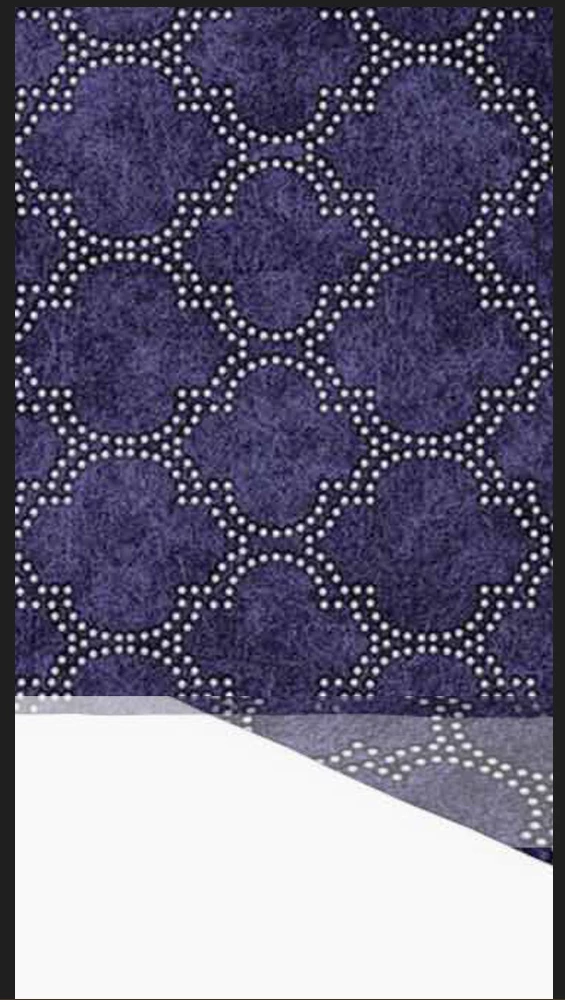
Hello, in the template I prepared for Batch Multi Image Collage.JSX in the Photo Collage Kit, even though I did everything right, it sticks the pictures on top of each other.


output .s : 


Batch Multi Image Collage . jsx https://fastupload.io/Y5VgMMuQ2v7lLR7/file


This topic has been closed for replies.
Correct answer Stephen Marsh

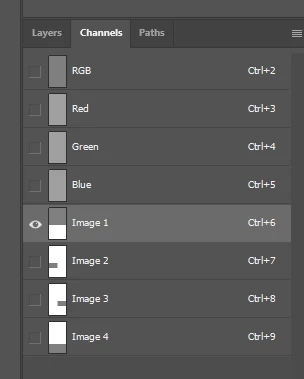
I would make the channels pure black/white - select each Image # channel and then use Image > Apply Image using Linear Burn blend mode. I haven't tested if this is an issue or not, however, this is the only way that I have made or would think of making alpha channels for such a task.


Then Invert the channel as the expectation is to have a black alpha with a white "window" designating the layer content area.


Revised template is attached.


JJMack's original instructions:


The package includes four simple rules to follow when making Photo Collage Template PSD files so they will be compatible with my Photoshop scripts:


  1. Size the photo collage templates for the print size you want - width, height and print DPI resolution.
  2. Photo collage templates must have a Photoshop background layer. The contents of this layer can be anything.
  3. Photo collage templates must have alpha channels named "Image 1", "Image 2", ... "Image n".
  4. Photo collage templates layers above the background layers must provide transparent areas to let the images that will be placed below them show through.


https://github.com/MarshySwamp/JJMack-Archive

2 replies

Stephen Marsh
Community Expert
Stephen MarshCommunity ExpertCorrect answer
Community Expert
February 15, 2023

I would make the channels pure black/white - select each Image # channel and then use Image > Apply Image using Linear Burn blend mode. I haven't tested if this is an issue or not, however, this is the only way that I have made or would think of making alpha channels for such a task.


Then Invert the channel as the expectation is to have a black alpha with a white "window" designating the layer content area.


Revised template is attached.


JJMack's original instructions:


The package includes four simple rules to follow when making Photo Collage Template PSD files so they will be compatible with my Photoshop scripts:


  1. Size the photo collage templates for the print size you want - width, height and print DPI resolution.
  2. Photo collage templates must have a Photoshop background layer. The contents of this layer can be anything.
  3. Photo collage templates must have alpha channels named "Image 1", "Image 2", ... "Image n".
  4. Photo collage templates layers above the background layers must provide transparent areas to let the images that will be placed below them show through.


https://github.com/MarshySwamp/JJMack-Archive
Known Participant
February 15, 2023

You are awesome, thank you very much.

Stephen Marsh
Community Expert
Community Expert
February 15, 2023

You're welcome. So, was my reply the correct answer? If so please mark it as such to conclude the topic.

Known Participant
February 15, 2023

Also, a sample draft file is included, I made it by looking at it. Everything works correctly in this sample draft file, and the file I prepared doesn't work properly either.

https://fastupload.io/OmhoWVnIFhKyko2/file