Known Participant
February 20, 2019
Answered

BITMAP IMAGE DOESN'T WORK

  • February 20, 2019
  • 5 replies
  • 21200 views

Hello everyone.

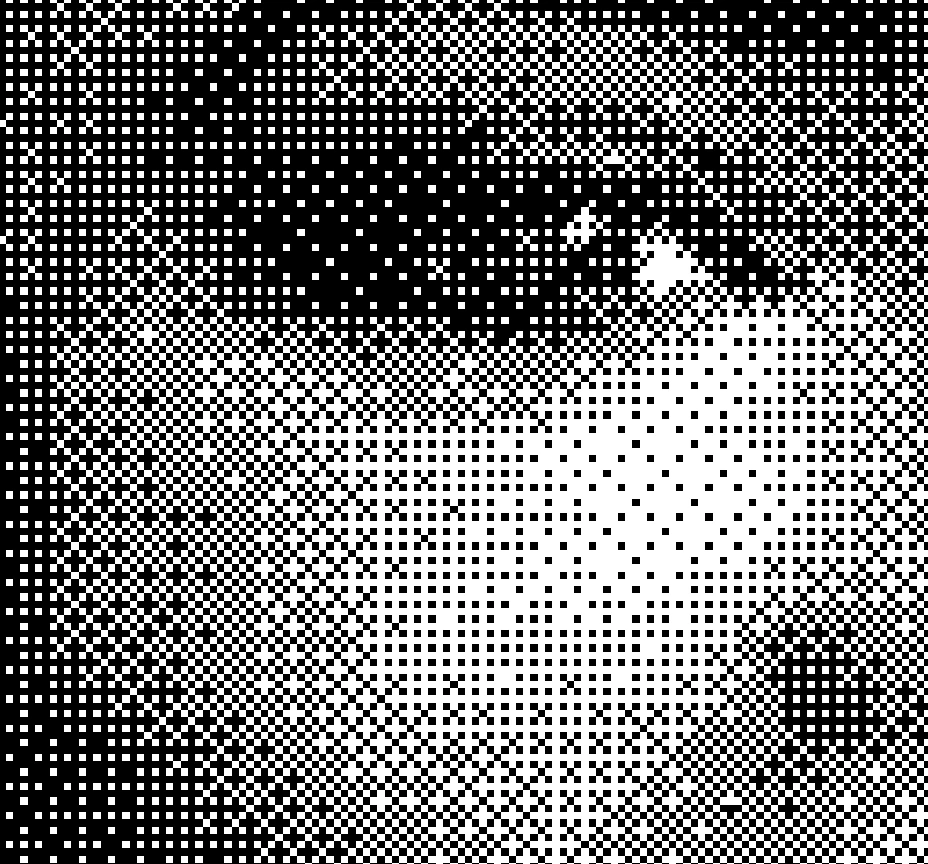
I don't know why when i try to create a bitmap image with LINES or DOTS  it works just with the texture below.

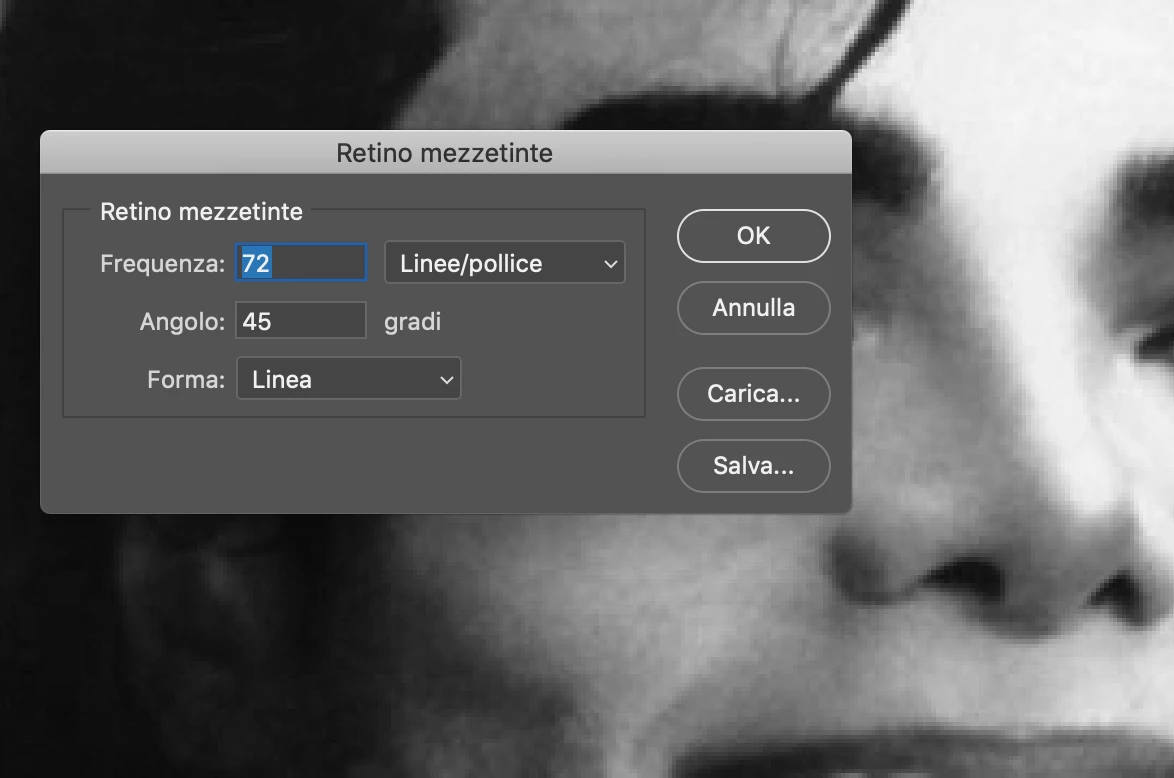
I use the method  HALFTONE SCREEN, but if i select the shape as ROUND or LINE, nothing change and the result is always the texture below.

Someone know why ?

Thanks in advance !
This topic has been closed for replies.
Correct answer c.pfaffenbichler

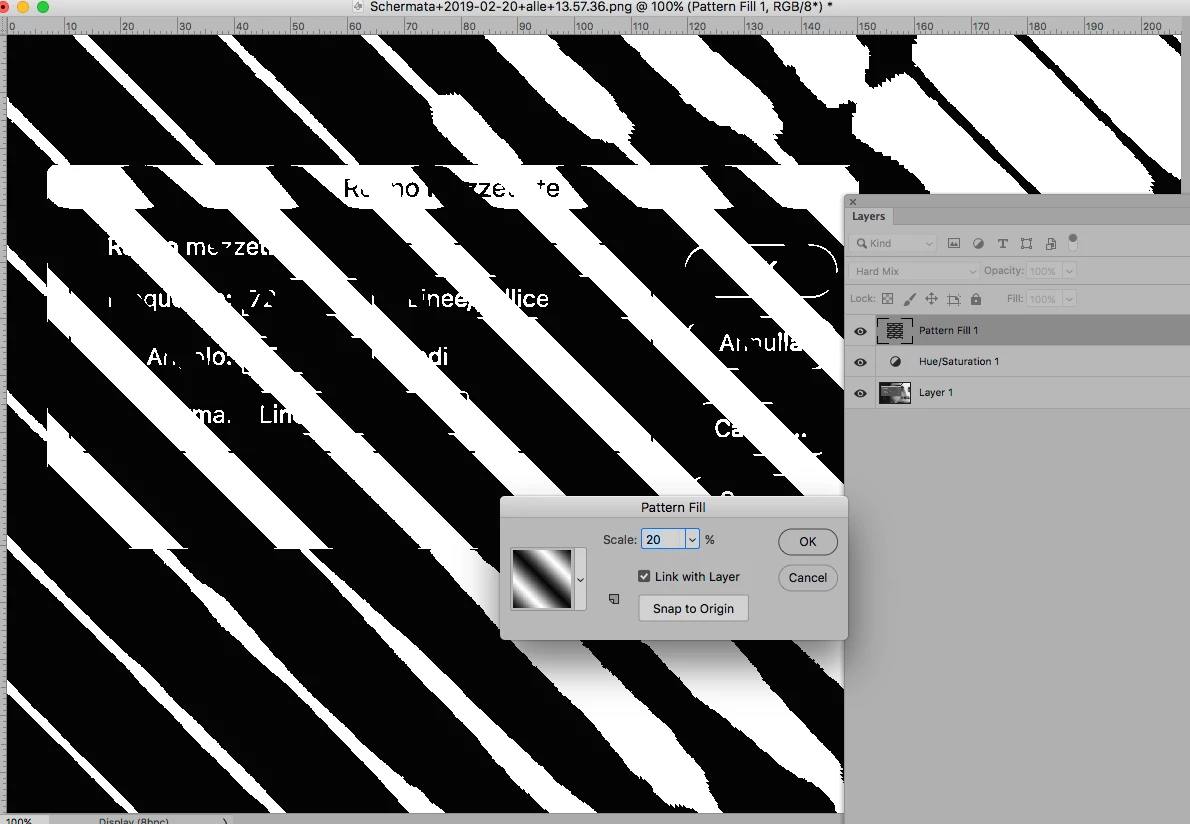
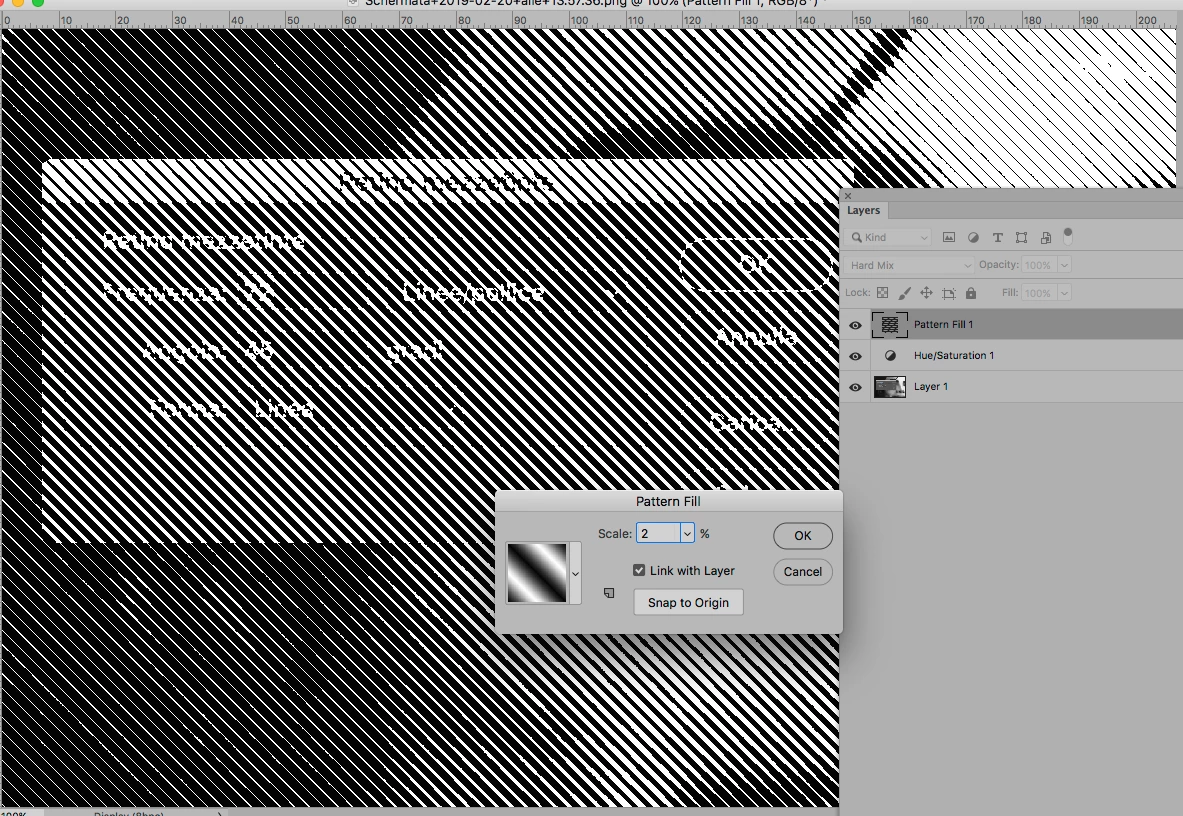
And if you colorise the artwork in Photoshop anyway you could also use a Pattern Layer set to Blend Mode »Hard Mix«, which might provide better edibility.

5 replies

Semaphoric
Community Expert
Community Expert
February 21, 2019

When you convert to bitmap, what is the Output Resolution you are choosing? It should be rather higher than the Input Resolution:


Then, choose a low value for the Line Frequency:


When you convert back to Grayscale, I would recommend using 1 for the Size Ratio, and then using Image Size to resize the result, as this offers more control.


Participant
December 27, 2019

Hi matibuc4eva


Did you find a solution to your problem?

No matter what "shape" option I use under bitmap > halftone > shape (round, diamond, elipse etc etc) they all come out in a pixelated style (see pics).


My picture is 300dpi and I turned it into CMYK and then tried to BITMAP.

Semaphoric
Community Expert
Community Expert
December 27, 2019

Your Output Resolution is less than four times your Screen Frequency, so you anly have like fourteen pixels for each dot. You need to either increase the Output Resolution, or lower the Screen Frequency.


Here is the res kept at 300, but the frequency dropped down to 16:

Increasing the Output Resolution will give cleaner looking dots. but will increase the pixel dimensions.


c.pfaffenbichler
Community Expert
c.pfaffenbichlerCommunity ExpertCorrect answer
Community Expert
February 20, 2019

And if you colorise the artwork in Photoshop anyway you could also use a Pattern Layer set to Blend Mode »Hard Mix«, which might provide better edibility.

Known Participant
February 20, 2019

Thanks a lot c.pfaffenbichler

please could io help me to understand how realize a seamless diagonal lines patter as the one you shown me in the example above.

Is possible also move the degree slope as you please ?

Thanks.

c.pfaffenbichler
Community Expert
Community Expert
February 21, 2019

You can start with a square white document and add black rectangles.

Then rotate them 45˚ (and extend them across the corners) and clip the image to 70,707% of the original size.

Then add Gaussian Blur. (see screenshots)

Unfortunately Pattern Layer can only be scaled by default so far, not rotated.

One work-around would be converting the Layer to a Smart Object and rotating that.

But in that case you could just as well start with a horizontal or vertical line Pattern, which would be easier to create anyway.

Community Expert
February 20, 2019

Can you try changing the frequency?

This is 5 lines / inch

c.pfaffenbichler
Community Expert
Community Expert
February 20, 2019

The effect also depends on the Output resolution set in the Bitmap dialog.

JJMack
Community Expert
Community Expert
February 20, 2019

JJMack
c.pfaffenbichler
Community Expert
Community Expert
February 20, 2019

What is the file’s resolution sad which settings do you choose in the Bitmap dialog?