
Known Participant
July 10, 2019
Question

Blend Hard Edge of a portion of a mask & smart filter to underlying layer?

  • July 10, 2019
  • 4 replies
  • 664 views

Hi all,

I have an image I took in Oahu, I was focusing on capturing the sun setting. In this image I want to smooth the water from the horizon line just before the waves start to break over the swimmers and the shore.

Before Image

I managed to achieve the effect I want, however I have a hard edge.
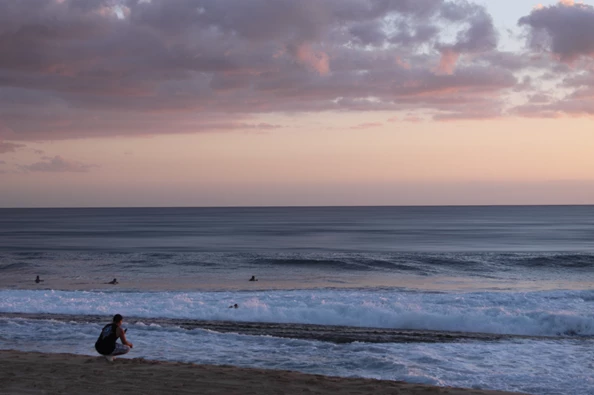
I created a smart object layer, made a selection & mask and used the motion blur filter

How do I get rid of the hard edge so that it looks more natural?

Thanks

This topic has been closed for replies.

4 replies

c.pfaffenbichler
Community Expert
Community Expert
July 10, 2019

The Filter Mask itself can be Feathered (or edited like any other Mask with painting Tools and Filters).

A different option that gives additional control over blurring is Filter > Blur Gallery > Field Blur.

Known Participant
July 10, 2019

Thanks. I was thinking the hard line to the horizon would be ok. Should I feather the top along the horizon too?

c.pfaffenbichler
Community Expert
Community Expert
July 11, 2019
Thanks. I was thinking the hard line to the horizon would be ok. Should I feather the top along the horizon too?

Probably not.

Grant H
Community Expert
Community Expert
July 10, 2019

or you can use a gradient mask... all depends on what you like the best:

Known Participant
July 10, 2019

Grant did you cut out the section of the photo and applied the filter only to that section and then applied a gradient mask?

Grant H
Community Expert
Community Expert
July 10, 2019

It looks like you used a motion blur, and as c.plaff mentioned (he wants to see how you have created the layers to determine best going forward) you can also use the blur tool and scrub along the hard line...

/G

Known Participant
July 10, 2019

Here are the layers

the wrong folder should be disabled, you can disregard it.

Here it is after I brushed into the layer

I also tried a gradient mask, but I could not get it to work over the area I wanted unmasked. Also, there was still too much chop in the water.

c.pfaffenbichler
Community Expert
Community Expert
July 10, 2019

Could you please post a screenshot taken at View > 100% with the pertinent Panels (Layers, Channels, Options Bar, …) visible?

Have you blurred or feathered the Layer Mask.

Known Participant
July 10, 2019

Hi C.pfaffenbichler

Here is a larger screen grab

Here it is zoomed 100%

I did brush into the layer after posting this question. Here is the result I got.

Here it is zoomed at 100%

I wasn't sure if that was the proper way to do it.

BTW, when I try to export the file for the web I get a message saying it is too large, so I just used SnagIt to grab a screen grab.