Inspiring
July 12, 2017
Answered

Blending modes not working

  • July 12, 2017
  • 2 replies
  • 14363 views

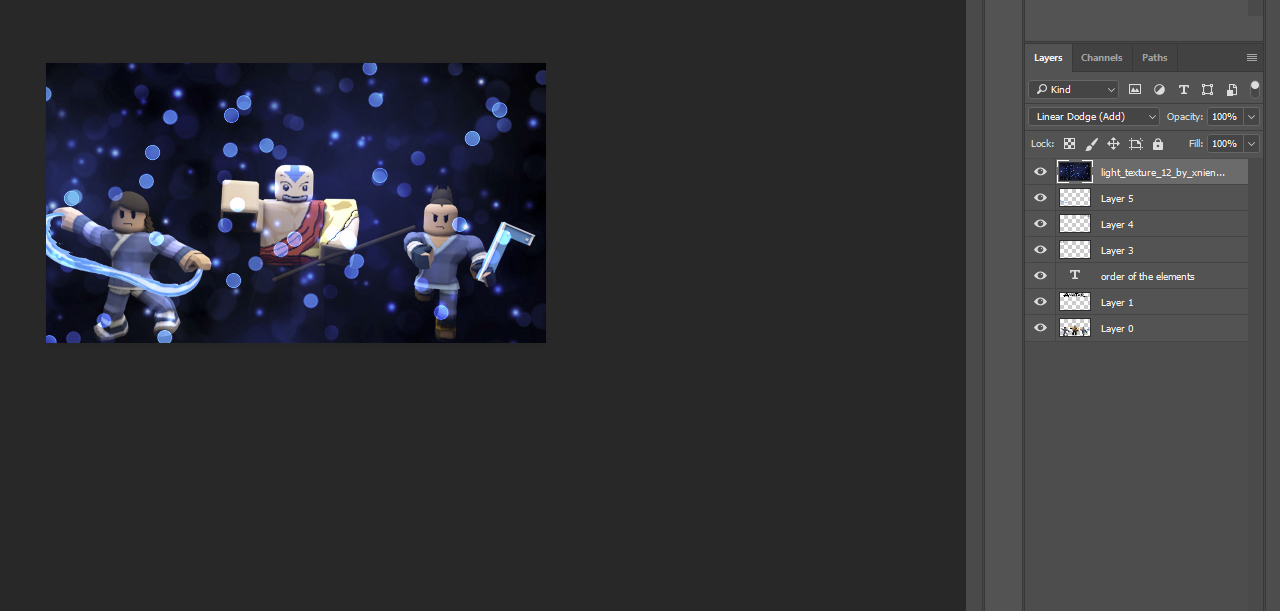
whenever i choose a blending mode the image doesn't change
    This topic has been closed for replies.
    Correct answer davescm

    screen


    Screen is working.

    If you screen over black then you get the lighter upper layer colour

    If you screen over transparency there is nothing to blend with so you get the upper layer color

    The effect of both the above is you see the upper layer and no lettering

    If I add a solid gradient at the bottom of your layer stack you can see the impact of the screen blend

    Dave

    2 replies

    Participant
    April 18, 2020

    I have the same problem. I see that you have said you wont be able to see the blending modes when scrolling over options on a transparent canvas. However, Im taking a photoshop course and the instructor is able to see the blending modes change with the same transparent background.  

    davescm
    Community Expert
    Community Expert
    July 12, 2017

    Hard to see from the very small layers panel icons, I can only really see what is on the top and bottom layers and have no idea what is on the others, what opacity and mode they are set to and and what colour the text is. From those two layers though it does look like I would expect it to with the Linear Dodge Add blending mode (which is what you have chosen).

    Can you post a link to the file and is it just this file you have the issue with or is it with others?

    Dave

    PhylenAuthor
    Inspiring
    July 12, 2017
    davescm
    Community Expert
    Community Expert
    July 12, 2017

    The blending mode is working as it should.

    The elements on those interim layers are black. Linear Dodge (Add) does nothing if the underlying layer is black

    Blending modes in Adobe Photoshop

    I used a clipped fill layer to change them to a mid blue and got this :

    Dave
