
Participant
November 8, 2017
Respondido

Bloated Jpg File Size

  • November 8, 2017
  • 2 respostas
  • 2528 Visualizações

I'm baffled.
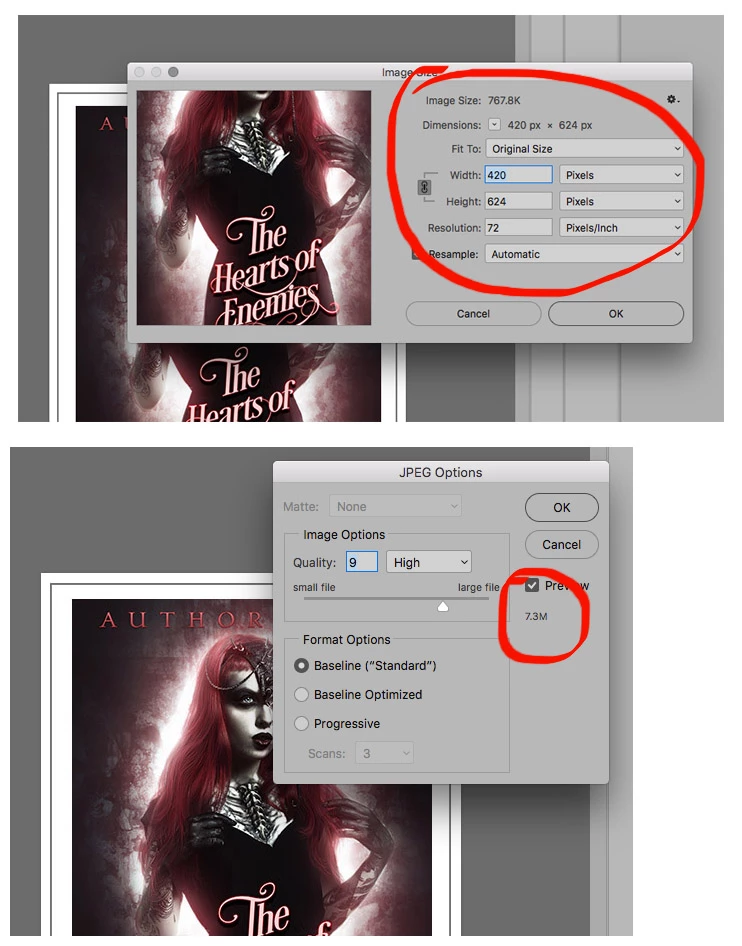
I'm creating jpgs for my web portfolio. I've been using this template for months. Normally the final jpg is around 300k. Since Oct 30th, they are 6-7MB! I've attached a screen shot of the image-size window which shows info for the correct size. When I save as a jpg immediately following the image size, it says it is 7.3MB. The file is a flatten (though that shouldn't matter when exporting to jpg). The same file size bloat happens with pngs.

The only thing that changed on my computer, was installing Extensis Suitcase which I have since uninstalled (supposedly... I have doubts that the Extensis uninstaller was thorough). Tonight, I upgraded to PSCC 2018 but it didn't change anything. I also ran a virus check that said I'm clean. Any ideas?
Este tópico foi fechado para respostas.
Melhor resposta por JJMack

You need to know what the number show are.  They may not be  file size.  Here in image size you see  several numbers. Lets start with dimensions 420px x 624px  How big is that?  It depends. You can see it is a color image most likely RGB it could be 8 Bit color or 16bit color or 32 bit color in Photoshop.  In 8 bit color for each pixels there are 8bit for Red and green and blue so 3 bytes per pixel in memory the are 420x624x3=786,240 bytes 8bit color 1,572,480.  If you look at the top of the Image size dialog you see an image size number 767.8K which is hex  1K hex 1024 bytes it  you divide  786,240 by 1024 the resulting hex number is 767.8K so the Image size numbers all make sense for a 8bit RGB image.  If the image is saved in Jpeg format the pixel data will be compressed and the amount of pixel data will be less the 767.8K much less if you save in low quality.

Next you show a Jpeg Option dialog and there is a number 7.3M the is no label on the number. If you save the Jpeg and the file size turns out to be 7.3MB file I would think you have over 7MB of ancestor Metadata you can strip.

Inflated JPG File Size  - Photoshop Document:Ancestors Metadata

2 Respostas

Known Participant
September 12, 2018

I have exactly this same problem.  Word for word.

JJMack

" I would think you have over 7MB of ancestor Metadata you can strip"

How can I do what you suggested please?

Thanks

Stephen Marsh
Community Expert
Community Expert
September 12, 2018

Alison, follow the link to my blogpost listed above or below, many options can be found:

Prepression: Metadata Bloat – photoshop:DocumentAncestors

Known Participant
September 12, 2018

Excellent, many thanks.  The script works perfectly and solved my problem.

JJMack
Community Expert
JJMackCommunity ExpertResposta
Community Expert
November 8, 2017

You need to know what the number show are.  They may not be  file size.  Here in image size you see  several numbers. Lets start with dimensions 420px x 624px  How big is that?  It depends. You can see it is a color image most likely RGB it could be 8 Bit color or 16bit color or 32 bit color in Photoshop.  In 8 bit color for each pixels there are 8bit for Red and green and blue so 3 bytes per pixel in memory the are 420x624x3=786,240 bytes 8bit color 1,572,480.  If you look at the top of the Image size dialog you see an image size number 767.8K which is hex  1K hex 1024 bytes it  you divide  786,240 by 1024 the resulting hex number is 767.8K so the Image size numbers all make sense for a 8bit RGB image.  If the image is saved in Jpeg format the pixel data will be compressed and the amount of pixel data will be less the 767.8K much less if you save in low quality.

Next you show a Jpeg Option dialog and there is a number 7.3M the is no label on the number. If you save the Jpeg and the file size turns out to be 7.3MB file I would think you have over 7MB of ancestor Metadata you can strip.

Inflated JPG File Size  - Photoshop Document:Ancestors Metadata

JJMack
Stephen Marsh
Community Expert
Community Expert
November 8, 2017

I've been using this template for months.

Templates can build up excessive amounts of photoshop:DocumentAncestors metadata if you save over them each time… So I agree with JJMack, it does indeed sound like:

Prepression: Metadata Bloat – photoshop:DocumentAncestors