
MahaB82A
March 22, 2026
Question

Bounding Box

  • March 22, 2026
  • 3 replies
  • 174 views

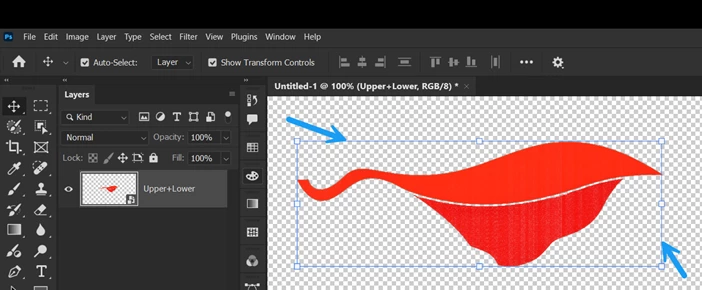
This is a PNG image. You can see there is bounding box [BB] around it. Is it possible to increase the size of the BB while retaining the size of the image? I ask this because I want to export this image to be used in Ae. If I can do this I can solve a issue in Ae.


    3 replies

    Stephen Marsh
    Community Expert
    Community Expert
    March 23, 2026

    [1] Here is the original test document, the layer pixel bounding area is smaller than the canvas. It is being placed as a smart object, before committing the placement, the transparent canvas area is indicated:


    [2] However, once the place is committed, Photoshop ignores the transparent pixels and only the layer pixel bounding area is indicated:


    [3] By editing the smart object and changing the original to include a white background, the original canvas size is then retained, it’s no longer cropped to transparency as there is none:


    [4] Using the Layer Blend If sliders, one can remove the pure white 255 level pixels:


    [5] The placed image now retains its original bounding area:


    Stephen Marsh
    Community Expert
    Community Expert
    March 23, 2026

    The document is untitled, unsaved, not a PNG… Unless you’re referring to the placed smart object layer as originally being a PNG?


    I’m not sure if I’m understanding the question correctly.


    You can transform/scale the placed layer bounding box directly… Or you can edit the smart object and resize the smart object document and then update the smart object layer.

    MahaB82A
    MahaB82AAuthor
    March 23, 2026

    Red color image is a PNG file in Windows explorer. I placed this image in Ps from Windows explorer. What I want is, increase the size of BB while keeping red color image intact.


    Inspiring
    March 23, 2026

    Unless I’m not understanding the problem, all you should need to do is open Upper+Lower.png in Photoshop, then adjust under Image > Canvas Size…

    ‘Bounding box’ is not really a term that applies within Photoshop. The frame around the object in your original screenshot is showing the area of the selected layer within the canvas.

    Semaphoric
    Community Expert
    Community Expert
    March 22, 2026

    By definition, the bounding box is the size of the non-transparent area. One thing you could try is to paint on the layer, away from the image, with a single pixel square using the Pencil tool at 1% opacity.

    MahaB82A
    MahaB82AAuthor
    March 23, 2026

    I am unable to understand your method.

    Semaphoric
    Community Expert
    Community Expert
    March 23, 2026

    What I meant was like this: Imagine the bounding box the size you want it to be. Dragging out four guides to this size can make it easier to visualize. Make a one pixel dot at a corner of this with 1% opacity, and another on the diagonally opposite corner. The dots won’t be visible at 1%, but the bounding box will be larger, to contain them.